Gaming
Before You Install That Game
Gus · July 13, 2026
That game may cost more than the download price. Before you tap install, check storage, battery, heat, notifications, controls, and family settings so your phone still works for real life afterward.
You know the moment.
A mobile game keeps showing up in your feed. Maybe your kid wants it. Maybe you want something to play on the train, during lunch, or after everybody finally goes to bed.
So you tap Install.
Then your phone starts acting different. Battery drops like it owes somebody money. The phone gets warm. Storage suddenly looks tight. Notifications keep jumping across the screen. And the "small" game asks for another giant download the first time you open it.
That is the part people do not talk about enough. Mobile games are not all tiny time wasters anymore. Some are full gaming experiences with large downloads, console-style graphics, high frame rates, online multiplayer, and update files that keep growing.
That does not mean you should stop playing them. It means you should give your phone a quick check before one game takes over the whole kitchen.
1. Check how much storage you really have
The download size in the App Store or Google Play Store is not always the final size. A game can add maps, textures, characters, voice packs, seasonal updates, and extra files after you open it.
Meanwhile, your phone is already carrying years of digital life: photos, videos, screenshots, downloaded shows, offline music, message attachments, social media cache, and apps you have not opened since last summer.
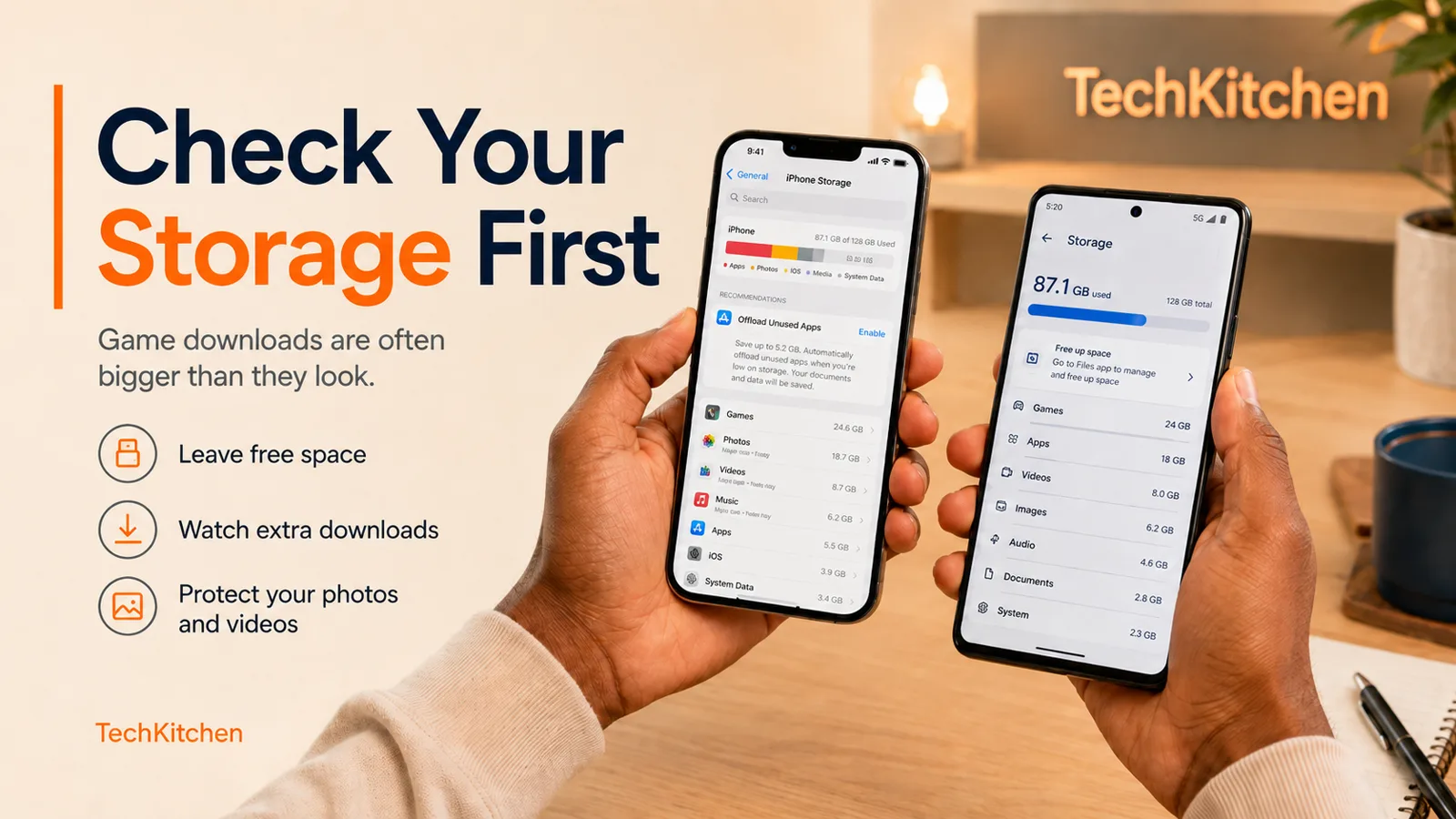
On iPhone
Open Settings > General > iPhone Storage. Let it calculate, then look for old games, downloaded shows, big message attachments, and apps holding too much cached data.
On Android
Open Settings > Storage. On many Samsung phones, check Settings > Device care > Storage. On Pixel, search Storage in Settings if you do not see it right away.
The question is simple: will I still have comfortable free space after this game finishes downloading everything?
2. Know what kind of game you are installing
A word game, puzzle game, or simple card game usually asks less from your phone. A big 3D game is different. Titles like Genshin Impact, Wuthering Waves, Call of Duty Mobile, and PUBG Mobile can hit storage, battery, heat, memory, and mobile data much harder.
Even Roblox can vary depending on the experience being played. The store icon may look small. The workload behind it is not.
Most people are not gaming in a perfect room beside a charger. They are on a bus, in a waiting room, in the car before pickup, or on the couch after a long day. You do not only need the game to run well. You need your phone to remain useful afterward for directions, calls, transit tickets, photos, school updates, and that two-factor code that always shows up at the worst time.
3. Check whether it needs internet
Some games work offline. Others need a connection for logins, ads, cloud saves, online matches, or content checks. A game that works perfectly at home may be useless on a road trip or somewhere with weak service.
Before leaving home, open the game on Wi-Fi, let it finish extra downloads, sign in if needed, and test the mode your family will actually use. Then briefly turn Wi-Fi and mobile data off and see what still works.
On iPhone, check Settings > Cellular to see how much data each app uses. On Android, search Data usage in Settings. If you are on a smaller data plan, this is not a tiny detail.
4. If your phone gets hot, pay attention
A little warmth during a demanding game is normal. A phone that becomes uncomfortable to hold is telling you something.
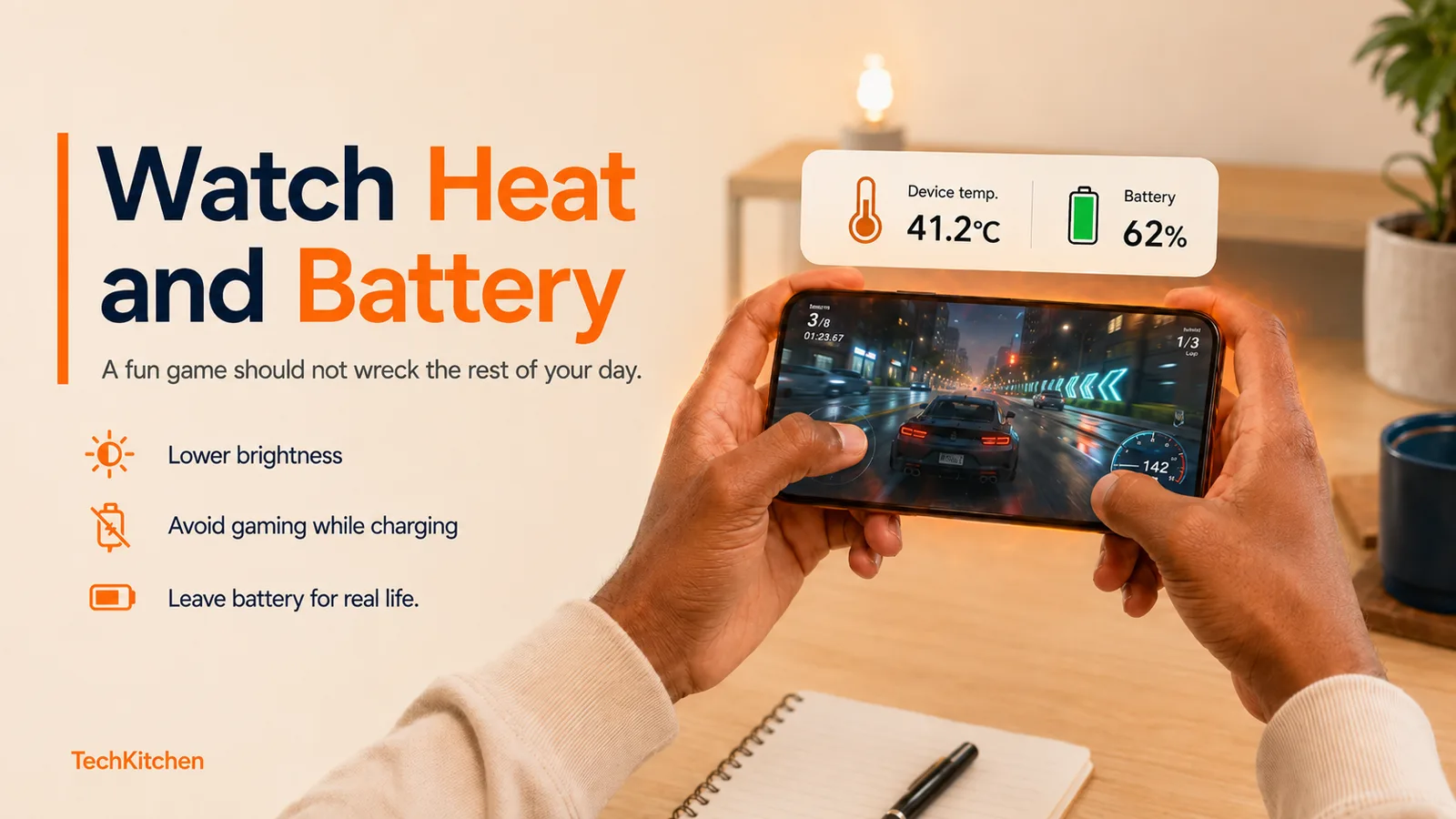
Heat gets worse when you game while charging, play outside in warm weather, max out brightness, use high frame rates, keep demanding apps open, record the screen, or leave the phone inside a thick case during a long session.
- Lower graphics quality.
- Reduce the frame rate.
- Turn brightness down a little.
- Close apps you are finished using.
- Avoid gaming while fast charging.
- Move out of direct sunlight.
- Take a short break and let the phone cool naturally.
Please do not put a hot phone in the fridge or freezer. Condensation is not a performance mode.
5. Battery drain is where regret usually starts
A game can be fun for 20 minutes. But if those 20 minutes take your phone from 72 percent to 39 percent, the rest of your day now has to deal with that decision.
The real question is not "how many frames did it hit?" It is: will I still have enough battery for the trip home?
Before gaming away from home, lower brightness slightly, download updates over Wi-Fi, close camera and navigation apps, choose balanced graphics instead of maximum settings, and keep a compact charger or power bank nearby on longer days.
The TechKitchen rule: never let a game use the battery you still need for real life.
6. Maximum graphics are not always the smartest choice
I get it. The phone was expensive. The screen looks great. You want to see what it can do.
But maximum settings can mean more heat, faster battery drain, less stable performance, and shorter sessions. For most people, the better setup is the one that balances good visuals, smooth gameplay, lower heat, and longer battery life.
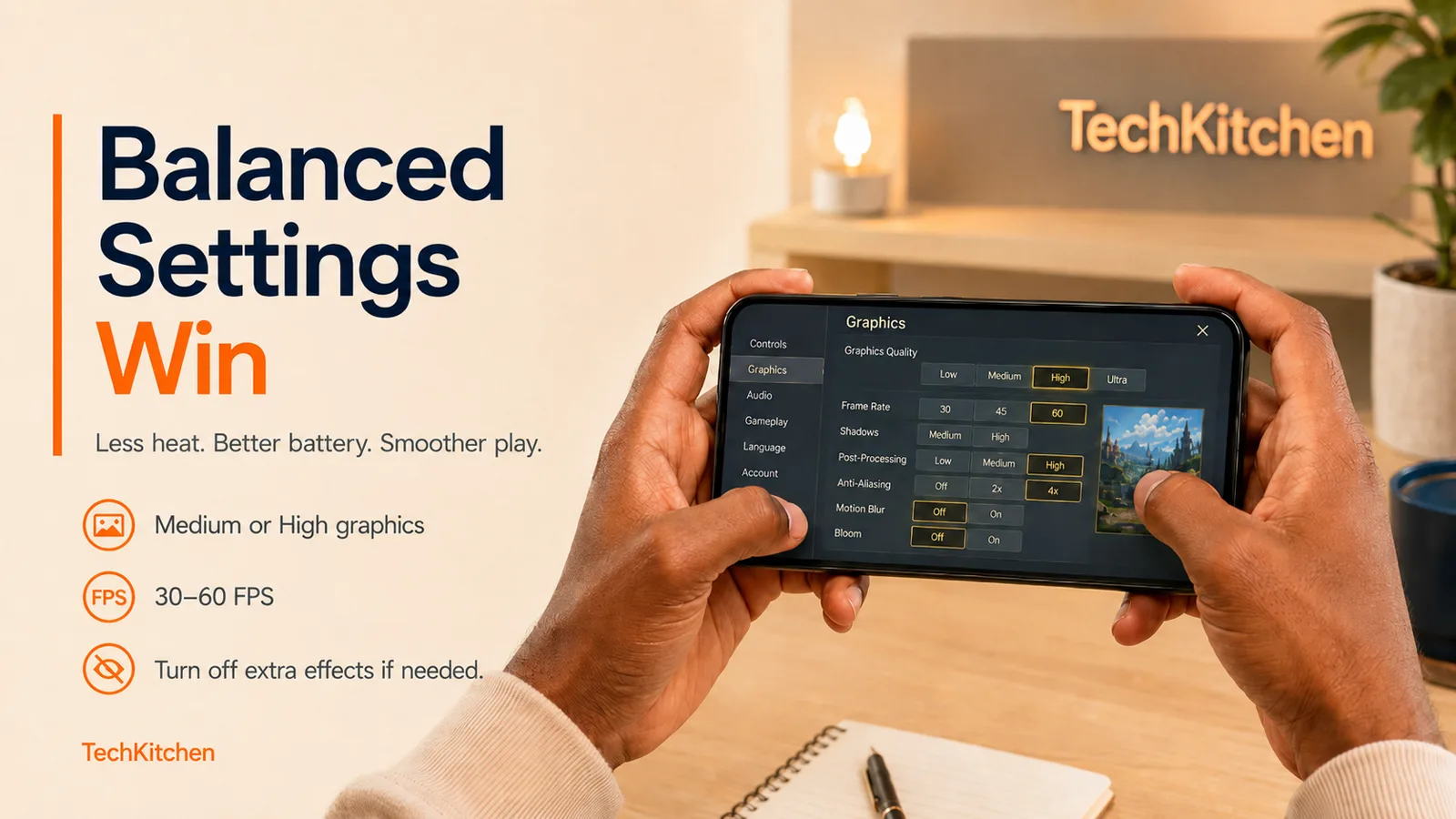
Try medium graphics before jumping to ultra. Compare 30 fps and 60 fps. Turn motion blur off and see if the image feels cleaner. Reduce shadows, reflections, and optional effects. Do not download every language pack if you only need one.
If medium or high still looks good and the phone stays cooler, that is the better setup. Not every game needs to turn your phone into a tiny space heater.
7. Stop notifications from taking over
Gaming feels worse when your phone is still acting like a work device, shopping assistant, family calendar, and group chat machine at the same time.
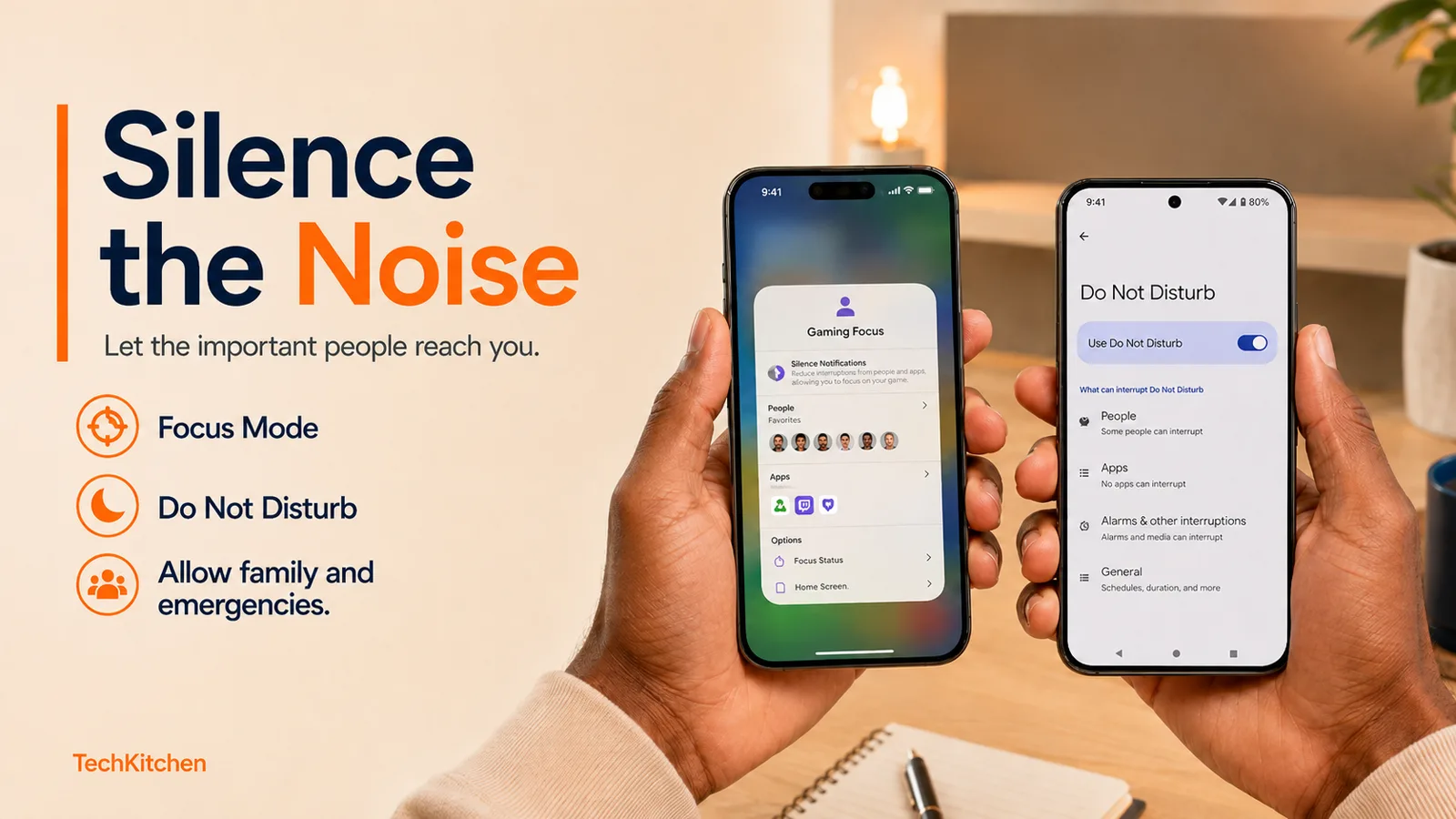
On iPhone, use Settings > Focus and create a Gaming Focus. Let important people through, like your partner, kids, school, daycare, parents, or emergency contacts. Then limit the apps that can interrupt you.
On Android, start with Settings > Notifications > Do Not Disturb. Samsung may also offer controls through Gaming Hub or Game Booster. Pixel and other Android phones may use names like Game Dashboard, Game Space, Game Mode, or Gaming Tools.
A good gaming setup should reduce noise without making you unreachable. Missing the daycare call because a shopping app trained you to silence everything is not the move.
8. A controller can completely change the experience
Touch controls are convenient because they are always there. They are not always comfortable. Your fingers can cover the screen, precise movement can feel awkward, and longer sessions can leave your hands cramped.
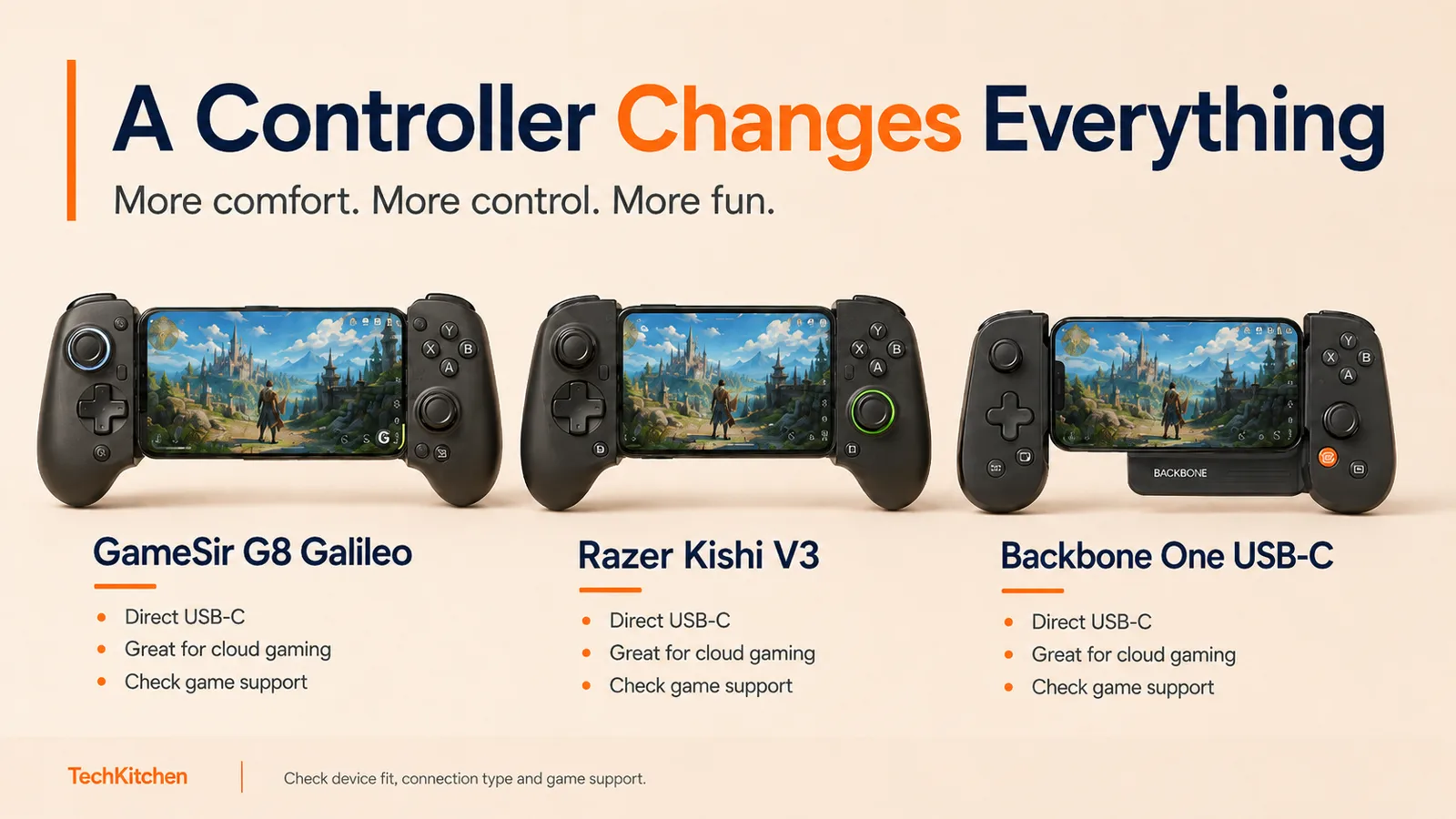
The GameSir G8 Galileo is the controller I personally use. I like the larger console-style grip, direct USB-C connection, and passthrough charging on supported devices. No regular Bluetooth pairing routine, no separate controller battery to remember.
The Razer Kishi V3 is another strong direct USB-C option if you want a familiar gaming brand and a polished controller layout. Just make sure you are looking at the phone model, not a larger tablet version.
The Backbone One USB-C is slimmer and very recognizable, especially for travel, cloud gaming, and remote play.
Before buying any controller, check four things: your phone connection, phone and case size, game support, and how you actually plan to play. A controller should solve a problem. It should not become another accessory sitting in a drawer beside the fitness tracker you promised you would charge.
9. Set the phone up before handing it to a child
Sometimes the game is not even for you. It is for your child on a road trip, in a waiting room, or during one of those moments when you just need five quiet minutes. Different job, different checklist.

On iPhone, review Settings > Screen Time > Content & Privacy Restrictions, use Ask to Buy for family accounts where appropriate, and consider Guided Access to keep the phone inside one app.
On Android, require purchase authentication in Google Play, search Settings for App pinning, and use Google Family Link for app approvals, screen time, bedtime, content restrictions, and purchase permissions.
Parent truth: a game should make the day easier. It should not create a surprise charge, a dead battery, and 40 new screenshots afterward.
10. Cloud gaming fixes storage, then creates new problems
Cloud gaming can reduce local storage because you are streaming the game instead of installing the whole thing. Nice. But now you have to care about mobile data, internet speed, connection stability, input delay, subscription cost, and battery drain from constant streaming.
Test the service on the connection you actually plan to use. Not just beside the router. Try it in the room where you play, on your regular commute, with the controller you plan to carry, and at the time of day when your household internet is busiest.
The quick game-ready routine
- Storage: Do I have enough room after the extra downloads?
- Battery: Will I still have enough power for the rest of the day?
- Heat: Is the phone already warm from charging, navigation, or camera use?
- Internet: Does the game work offline, or will it use mobile data?
- Notifications: Can important people still reach me while the junk stays quiet?
- Controls: Is touch fine, or would a controller actually improve the game?
- Family settings: Are purchase approvals and screen limits set before I hand over the phone?
Final thoughts
Mobile gaming is better than it has ever been. Some games are perfect for quick breaks. Some are great for kids and family travel. Some look so good that it is easy to forget they are running on the same device you use for groceries, photos, banking, work, and getting home safely.
That is why the best mobile gaming setup is not only about how good the game looks. It is about whether your phone still fits your life after you stop playing.
Before you install that next game, take a few minutes and check the phone first. Your storage will thank you. Your battery will thank you. And your future self standing in a parking lot at 4:30 with directions open and 19 percent remaining will definitely thank you.
If this helped, share it with somebody before they install their next game. Their battery, storage, and future parking-lot self will thank you.