Icon Recipes
Dock Wallpapers: The Easiest Recipe To Make Your Phone Feel Custom
TechKitchen Editor · May 8, 2026
A dock wallpaper is the cleanest, fastest way to make your home screen look like you actually thought about it. No tweaks, no widgets, no themes app. Just one image that frames your apps and changes the whole vibe. Here is the recipe so you can do it in two minutes.

Hey, it's Gus.
You ever pick up someone's phone and immediately go, "wait, how did you do that?" Nine times out of ten, it is not a custom theme, it is not a shortcut hack, and it is not some Reddit setup that took them three hours on a Sunday. It is a dock wallpaper. One image. That is the whole trick.
A dock wallpaper is just a regular wallpaper, but the bottom strip is designed to sit behind your dock apps so it looks like a built-in shelf, frame, or glow. Your home screen suddenly feels like it has a footer. Your apps feel intentional. Your phone goes from stock to styled in literally one tap.
I want to show you how to do it because this is the kind of customization people overcomplicate. It is not a hack, it is a recipe. Follow the steps, get the result, eat well.
Why A Dock Wallpaper Hits Different
Most wallpapers are just a backdrop. A dock wallpaper does a job. It defines the bottom of your screen, gives your apps a home, and adds a layer of polish that even a brand new phone does not ship with. On Samsung and Google phones the dock area is usually a flat translucent bar. On iPhone it is a slightly frosted shelf. Either way, those default looks are forgettable.
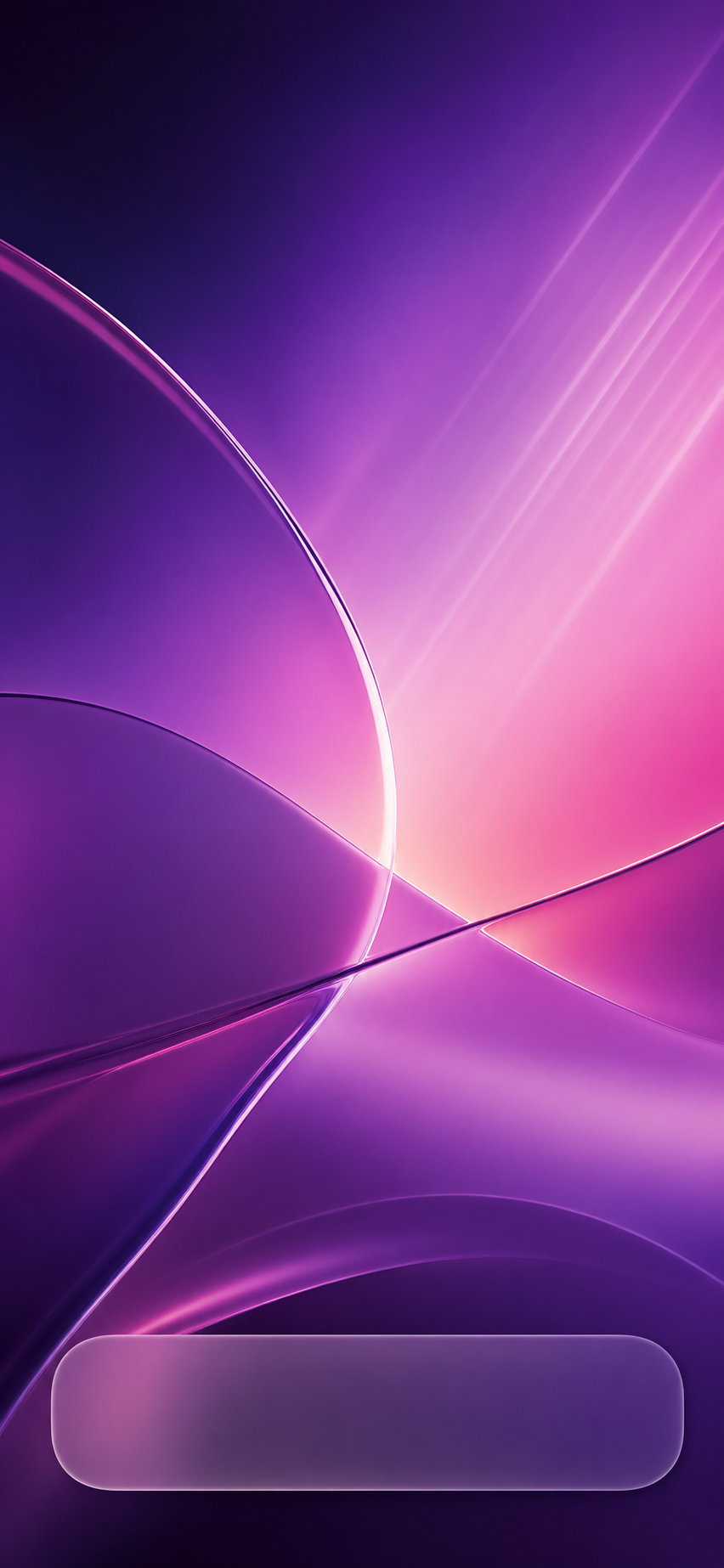
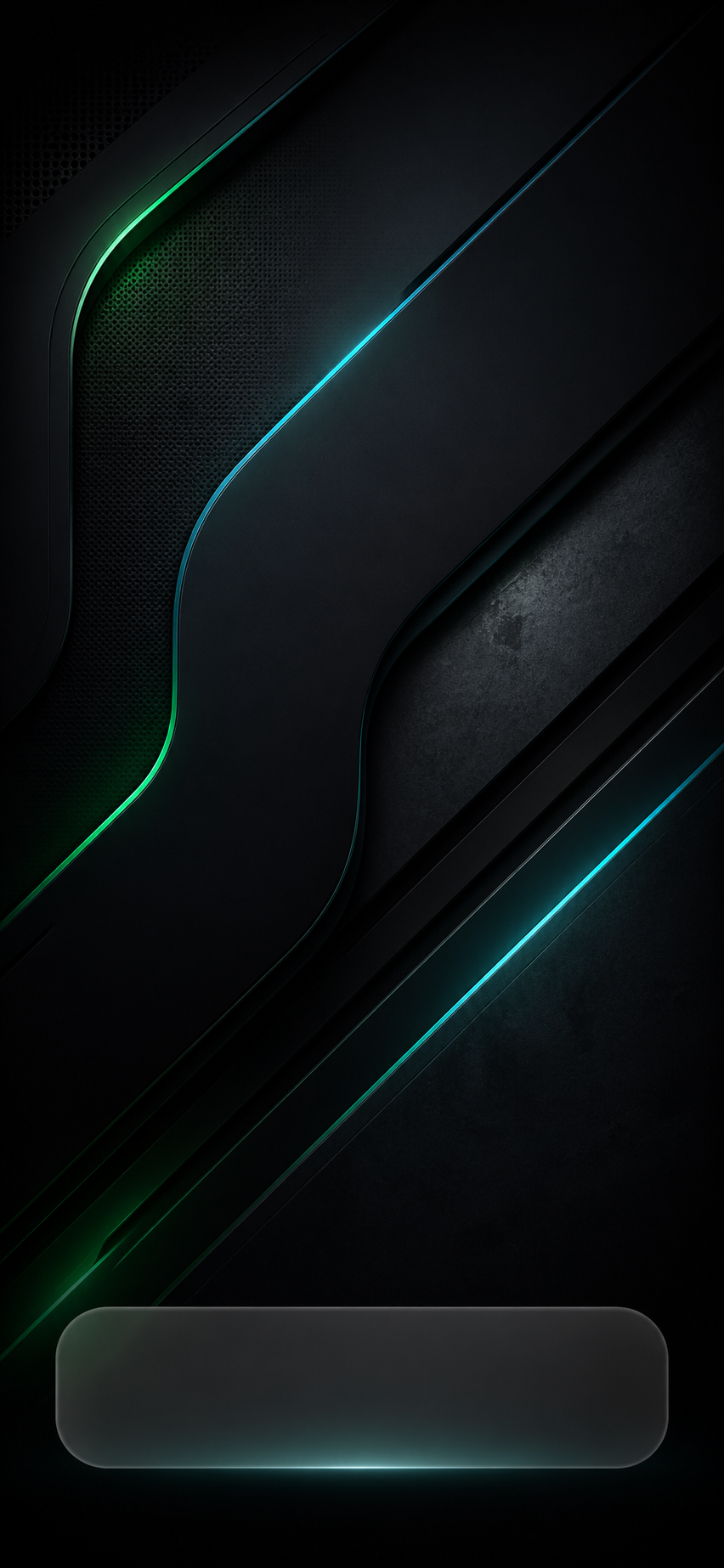
Drop a dock wallpaper in there and the whole bottom of your phone feels custom. Glassy ledges, neon shelves, wood grain trays, glowing strips. Your dock starts looking like a feature, not a default.
And the best part: it costs you nothing in performance. No widgets pulling battery, no launchers eating RAM, no setup files to manage. It is a static image. The phone does not even know you did anything fancy.
The Recipe: Two Minutes, Zero Apps
Ingredients you need
- Your phone (iPhone, Samsung, or Pixel, all work)
- One dock wallpaper from the gallery below
- About two minutes
Step 1: Pick the dock you want.
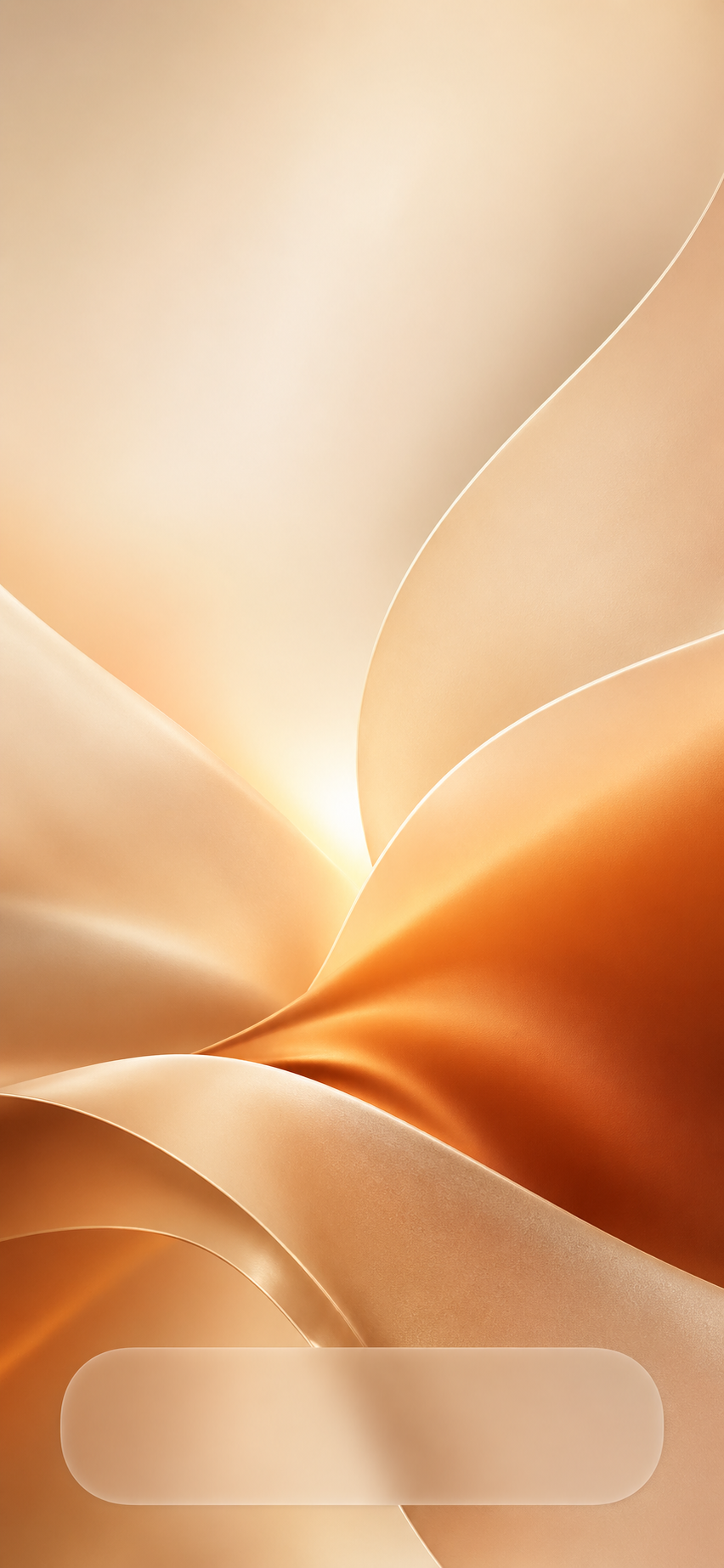
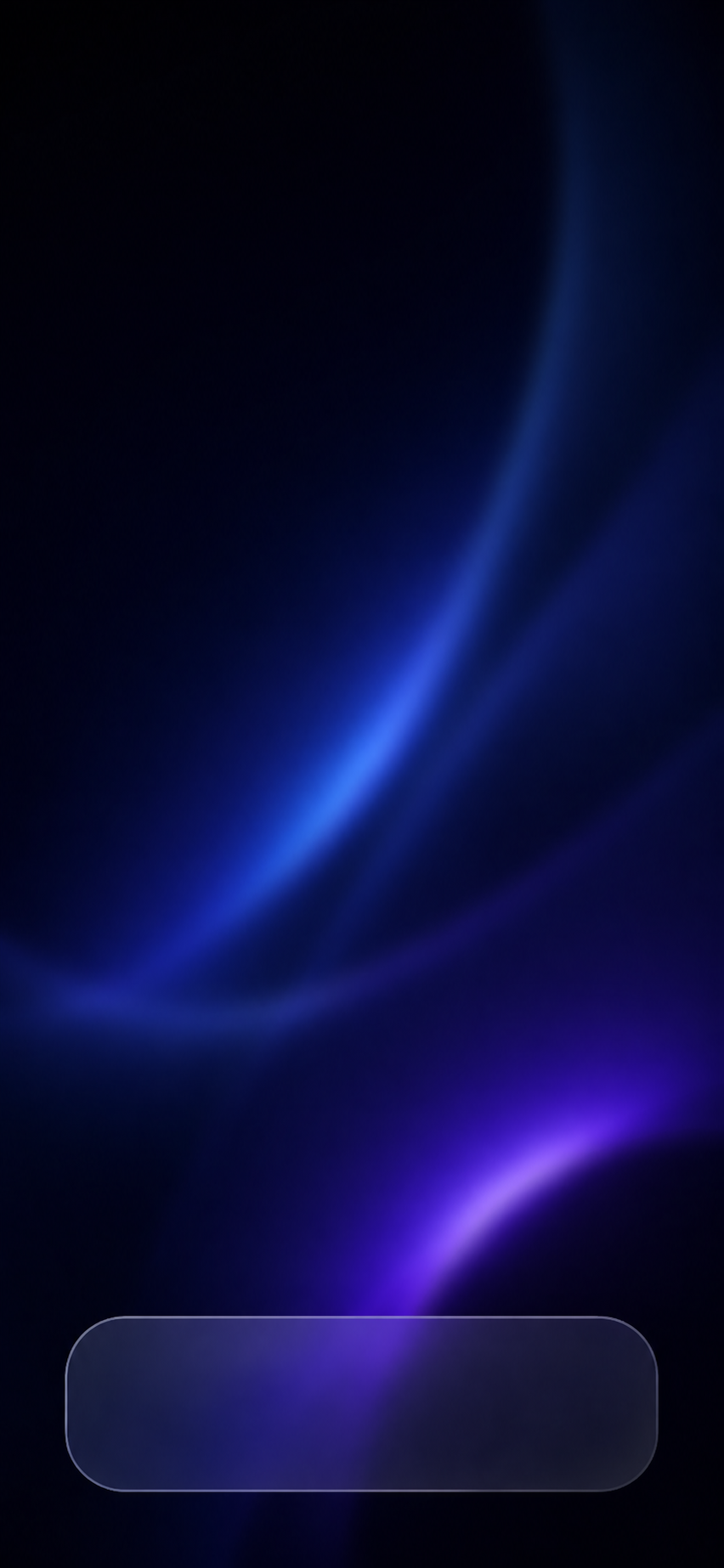
Scroll the gallery below and find one that matches the vibe you are going for. There are warm wood-tone shelves for the cozy crowd, glowing neon strips for the gamers, glass ledges for the minimalists, and a few wild ones for people who like to make a statement. Save the one you like to your photos.
Step 2: Open your wallpaper settings.
On iPhone: long press your lock screen, hit the plus button, choose Photos, find the dock wallpaper.
On Samsung: long press the home screen, tap Wallpaper and style, tap Change wallpapers, choose Gallery.
On Pixel: long press the home screen, tap Wallpaper and style, tap More wallpapers, choose My photos.

Step 3: Set it as your home screen wallpaper.
This is the only critical part of the recipe. Set it as the home screen wallpaper, not the lock screen. The dock magic happens on the home screen because that is where your dock lives. Lock screen does not need it.
Step 4: Do not zoom or crop.
The wallpaper is already sized for your phone. If you pinch zoom, you will move the dock area off the dock. Just hit Set, pick Home screen, and you are done.
Step 5: Look at your phone like you just bought it.
Seriously. Walk away, come back, pick it up. The dock looks built-in. Your apps feel curated. You did not download a single app to make this happen.
The Gallery: Pick Your Recipe
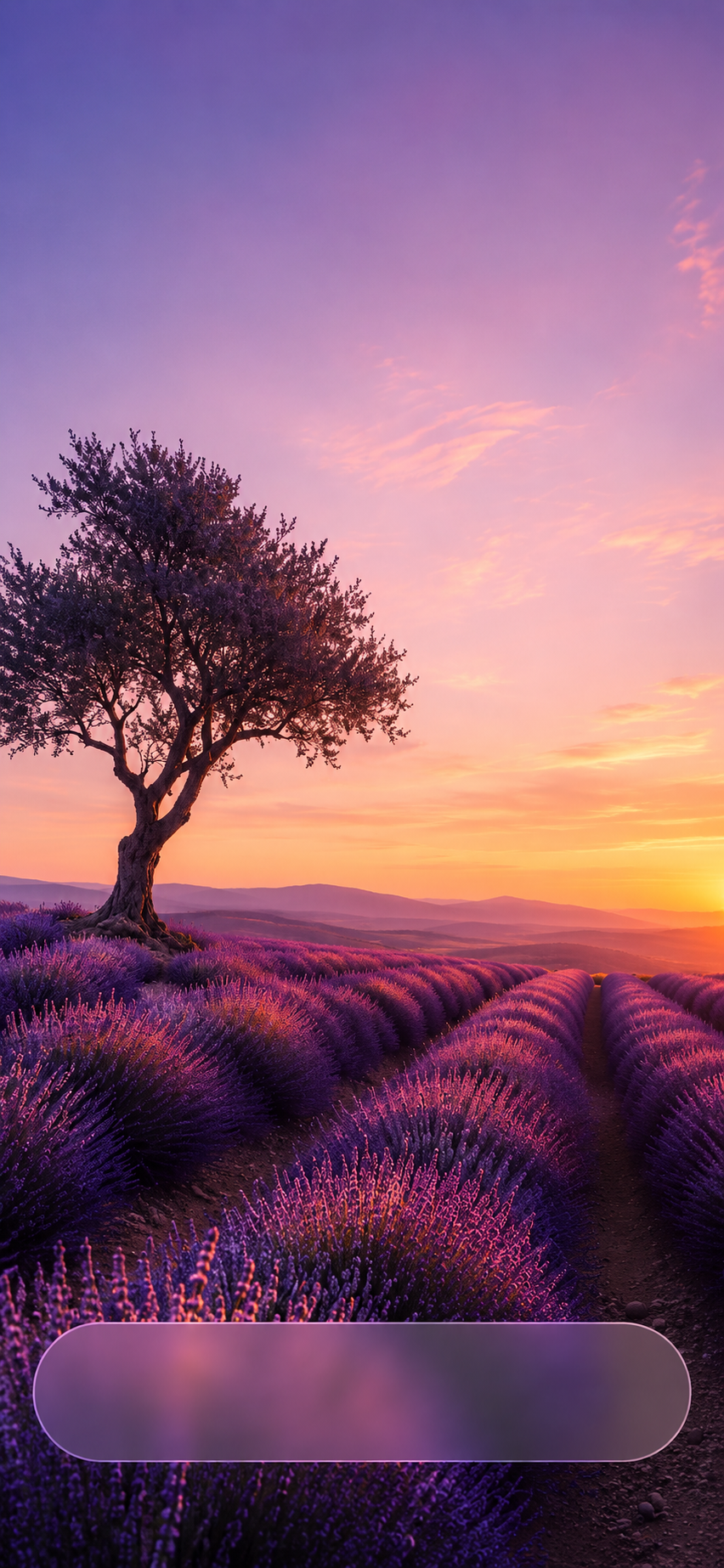
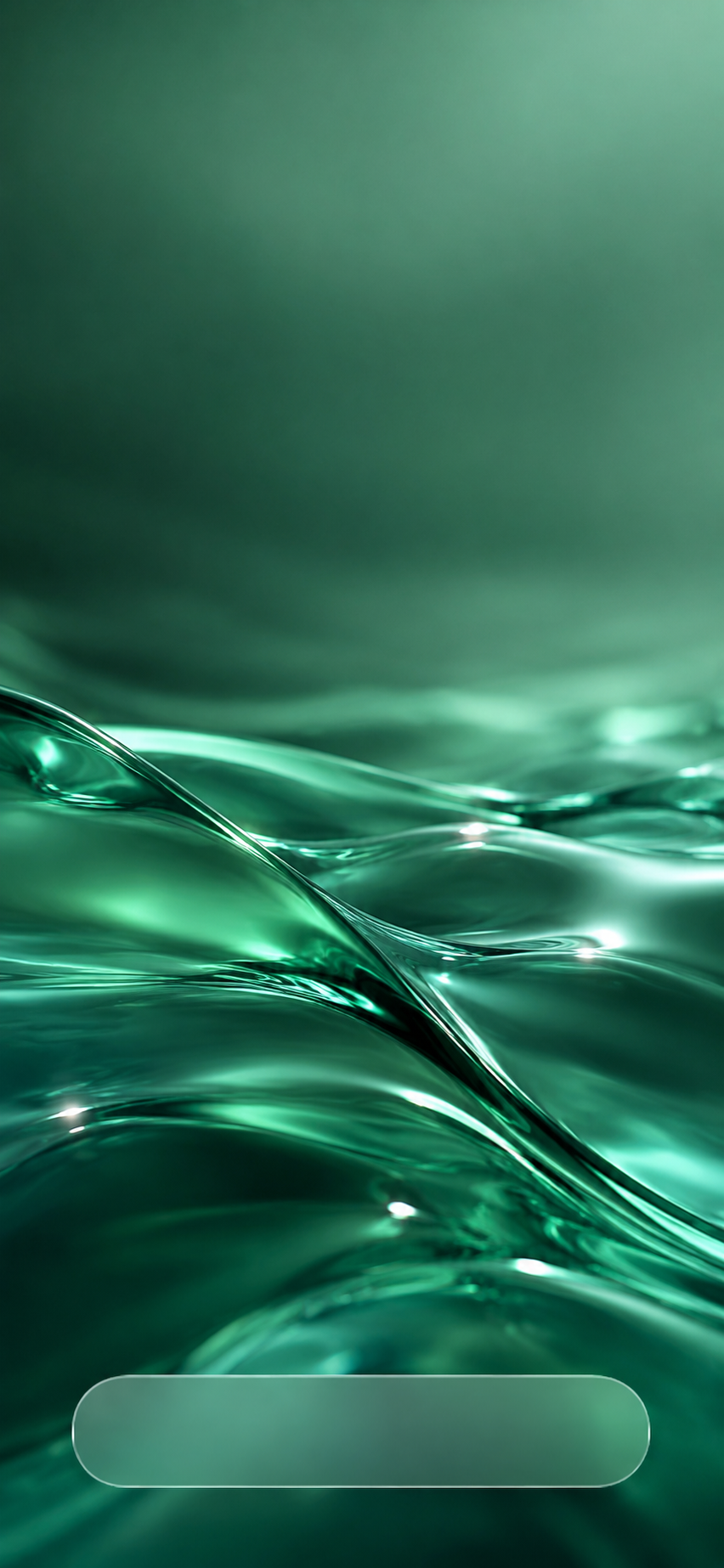
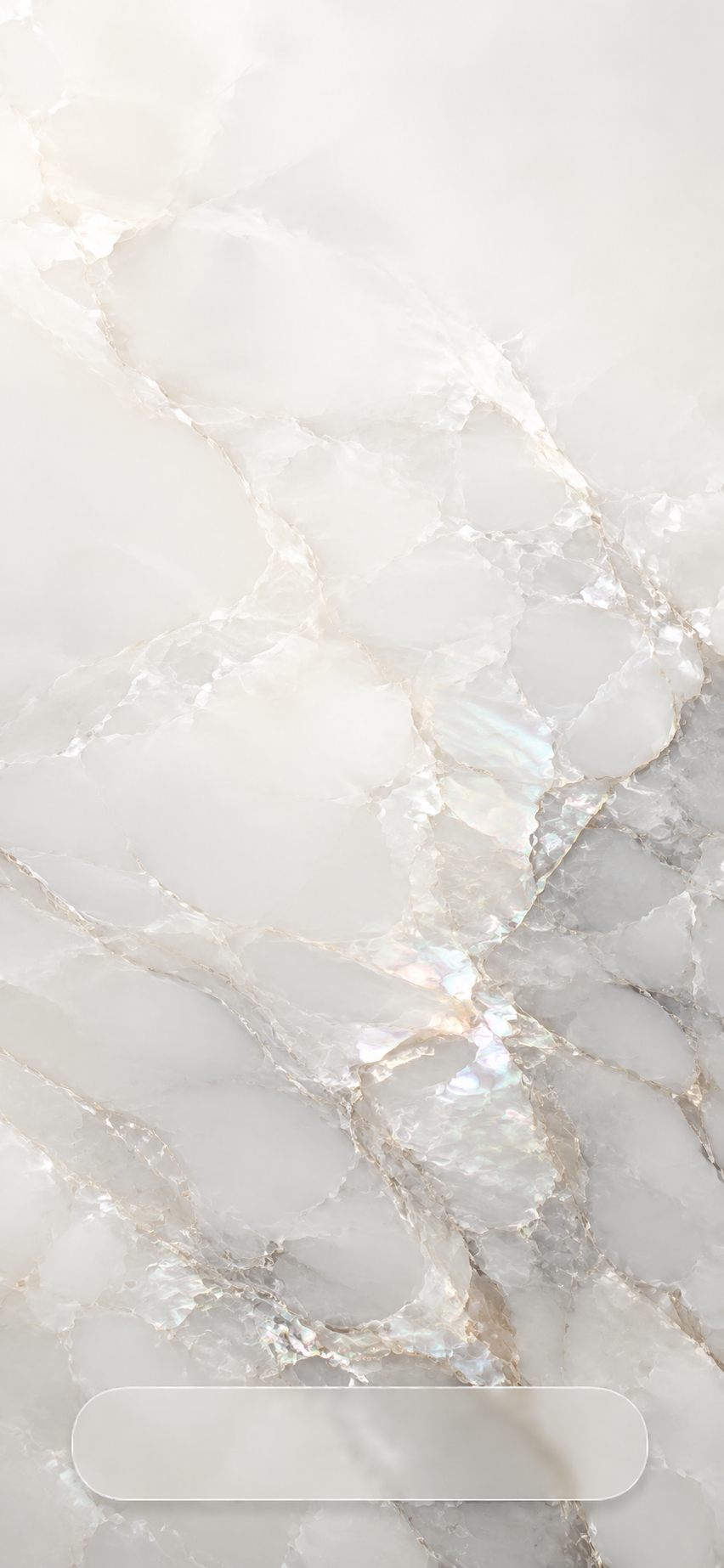
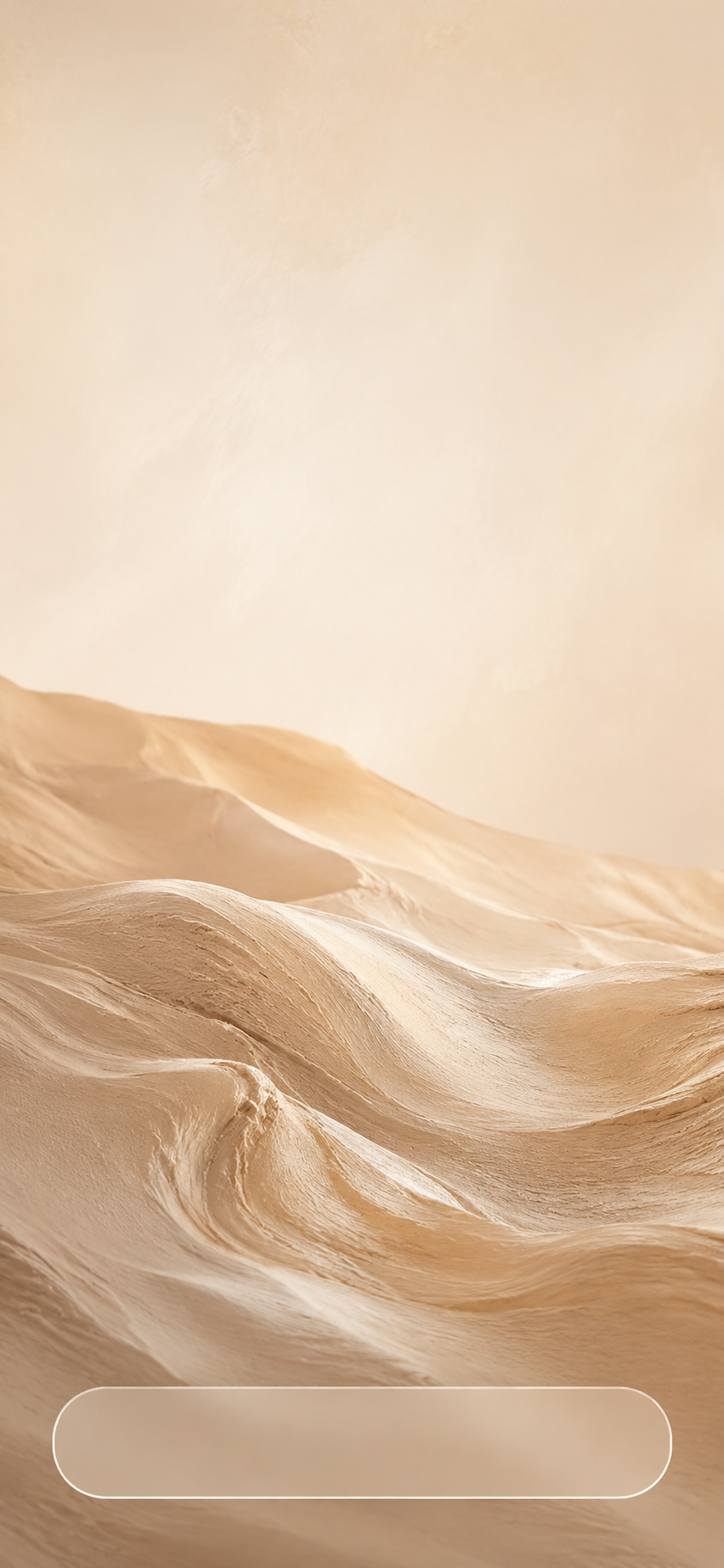
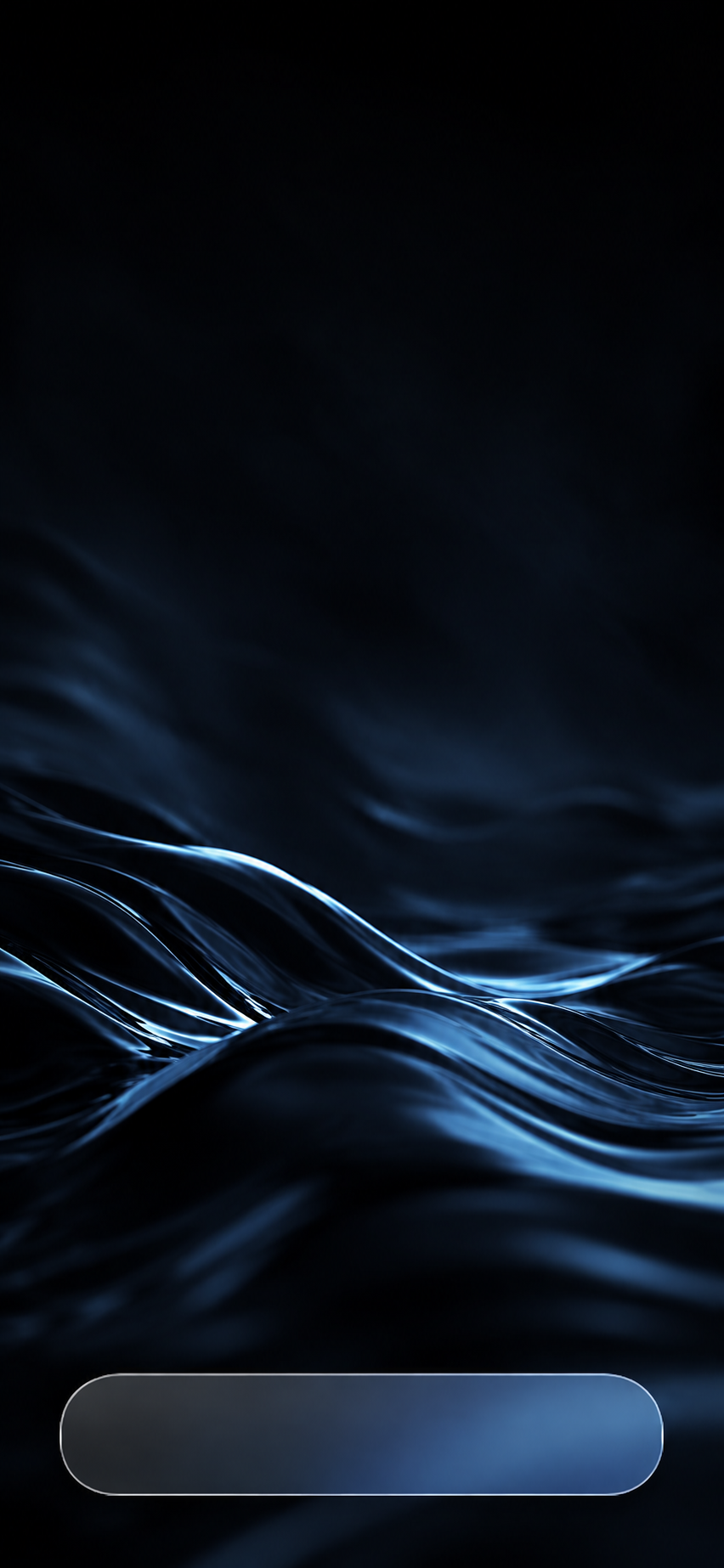
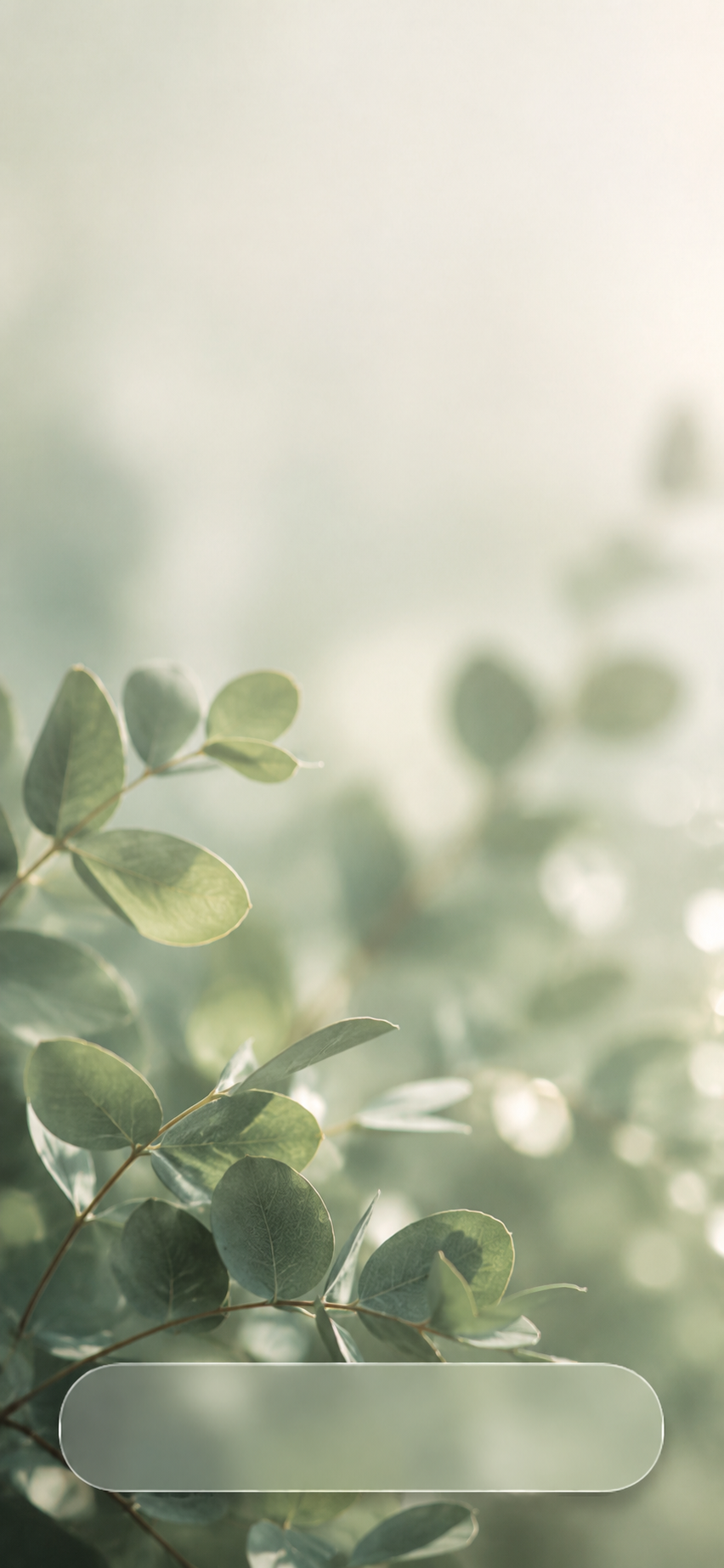
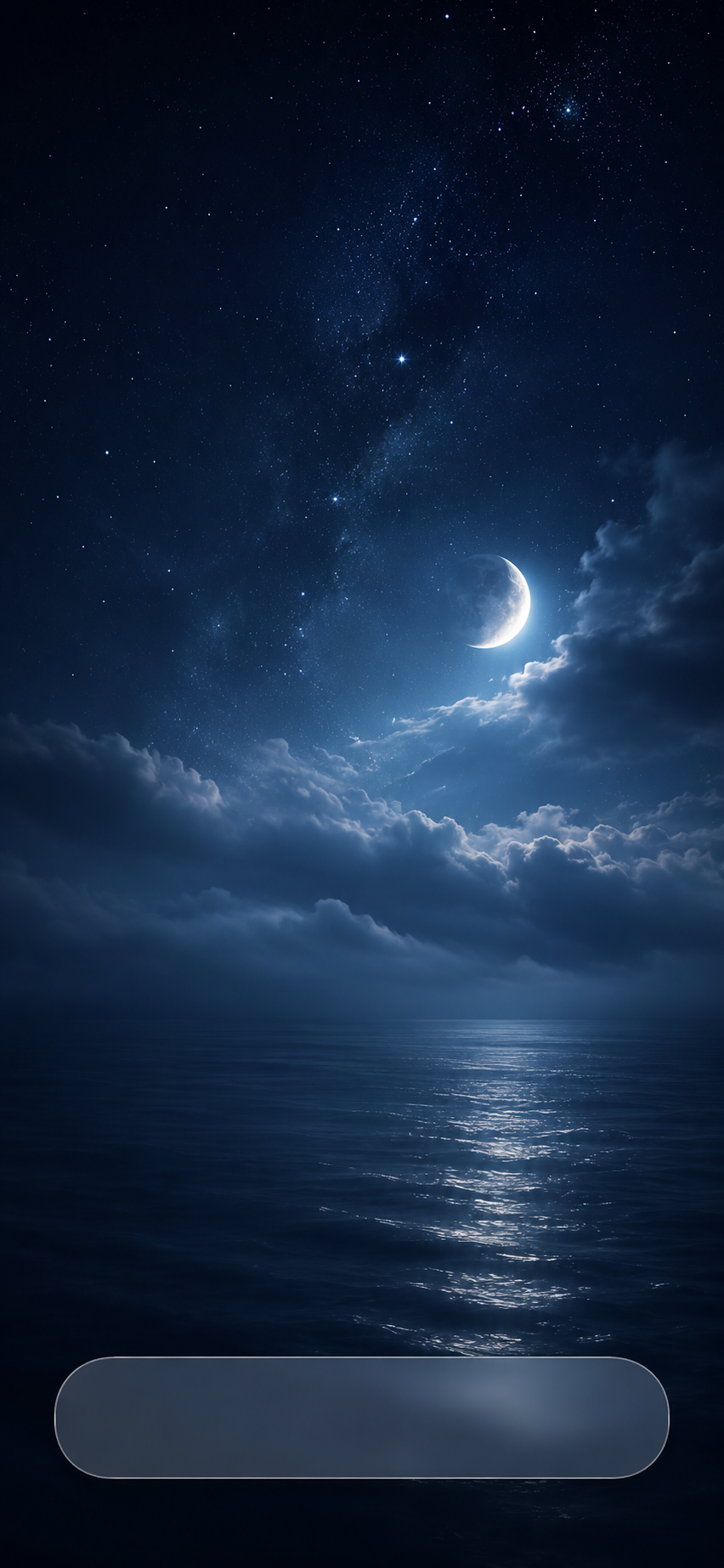
Below are 18 dock wallpapers from this drop. Different moods, different palettes, different shelf styles. Save whichever ones speak to you. They are designed to sit clean behind a 4 to 5 app dock and not eat up your home screen with noise.





Pro Tips From The Sales Floor
I have set up enough phones to know where people get tripped up. Here are the small things that make this recipe land every time.
Keep your dock to four apps if you can. The dock wallpaper is designed around a clean shelf and four apps frame it best. Five works on most phones. Six is when it starts to feel crowded and the wallpaper magic gets fighty.
Match your icon vibe to the dock. If you grabbed a warm wood shelf, lean into warm app icons in the dock. If you grabbed a neon glass strip, dark mode icons make it pop. You do not need to theme every app, just notice that your dock is a frame and your apps are inside it now.
Use a darker dock wallpaper at night. AMOLED screens save real battery on dark images, and a deep dock wallpaper is way easier on your eyes when you are scrolling at 11pm.
Change it monthly, not yearly. The whole point of customization is that it should not feel locked in. Swap dock wallpapers when the season changes, when you change phones, or when you just want a new vibe.
Why I Am Calling These Recipes
Because that is what they are. Customization should not feel like a tutorial you suffer through. It should feel like a recipe you grab on a Tuesday. Pull the ingredients, follow a few steps, end up with something that actually changes how the thing feels in your hand.
I am building this Customizations section for exactly that. Small drops, easy to follow, no jargon, real results. Dock wallpapers are recipe number one because they are the highest payoff for the lowest effort. We will keep going from here.
If you set one of these and you feel that little "oh nice" moment when you look at your home screen, that is the whole reward. Take a screenshot, send it to a friend, watch them ask how you did it.
Catch you on the next recipe.
Gus ✌️