Icon Recipes
The Onyx Pulse Recipe: Neon Green & Carbon Black
Gus · June 4, 2026
Ditch the cold, sterile dark setups. Pair your premium Onyx Pulse dock wallpaper with electric neon green squircles and carbon black shapes for a high-contrast, cyberpunk dopamine hit.
Gus here.
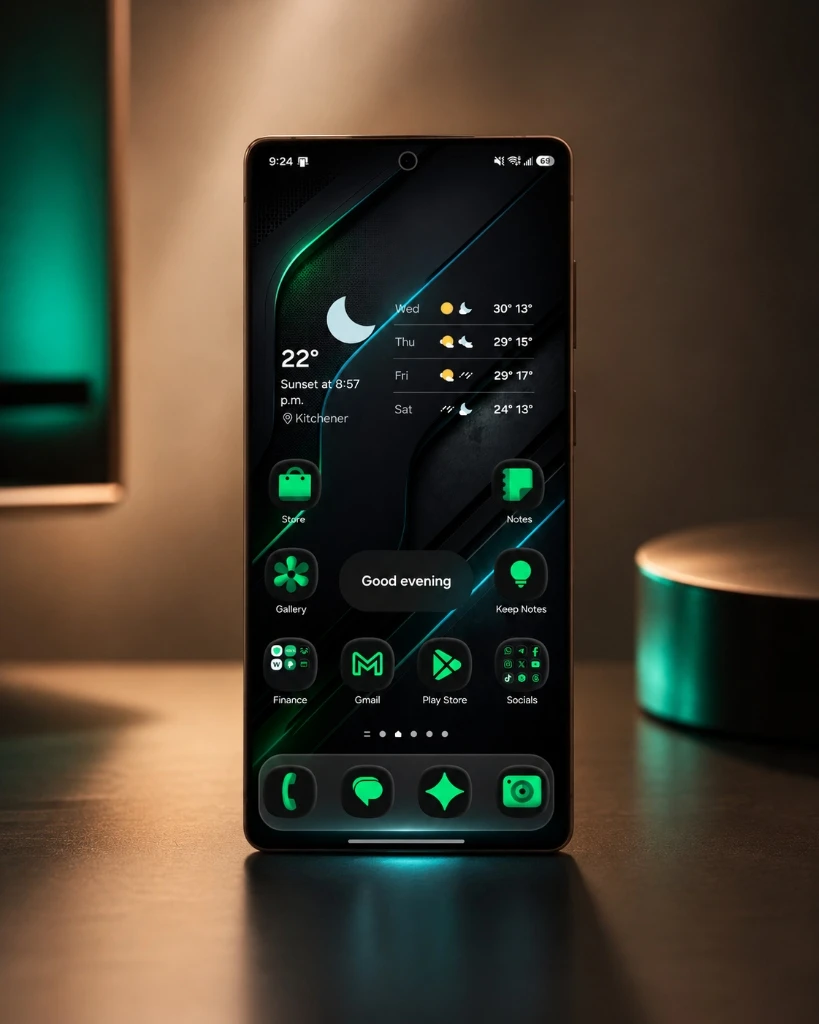
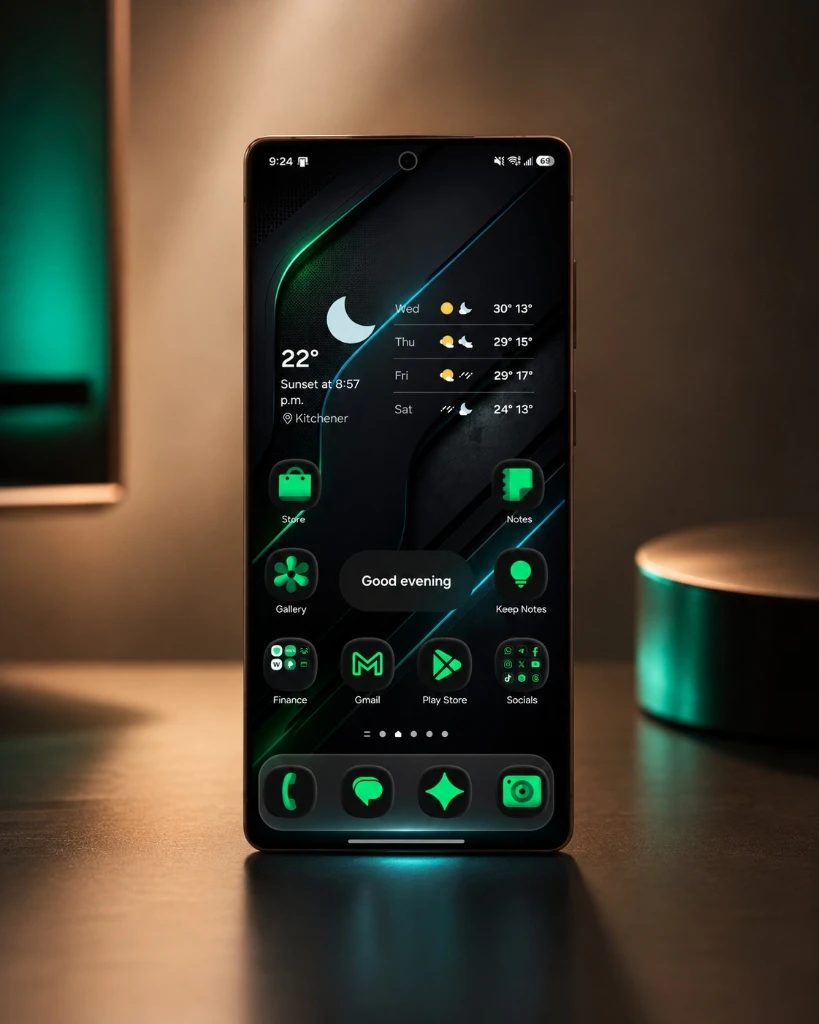
If you've been scrolling through my DMs or checked my setups thread recently, you've probably seen this one. It's the setup people keep asking about. Not because it has some crazy complex 3D icons, but because it feels... alive. Modern. It gives that direct cyberpunk dopamine hit every time you unlock your screen.
Most dark setups lean into cold grays and deep blues. They feel like a developer's terminal. Clean, but sterile. The Onyx Pulse Recipe is the opposite. It takes electric mint green highlights and lays them over a deep charcoal squircle. When you lay these icons over the premium Onyx Pulse dock wallpaper (which has that carbon fiber texture and glowing neon accents baked into the bottom), the whole screen glows. The green icons sit perfectly in harmony with the wallpaper's neon strokes.
It takes about ten minutes, uses official Samsung tools, and doesn't require a custom launcher. Below is the step-by-step cookbook to build this setup on your phone.
The Recipe: Neon Green & Charcoal Black
Getting this look right depends entirely on the contrast. Neon tones can feel overwhelming if you use too much of them. The secret is keeping the icon base dark and only using the neon green for details, symbols, and thin glowing borders.
The Cyber Recipe Swatches
Electric Neon Green (#00F00F) leads the monochrome symbols, and minty neon highlight (#00FF85) frames the embossed borders, while a deep charcoal black (#0D0E10) shapes the squircle body for maximum contrast.
What You Need (The Ingredients)
Ingredients
Good Lock plus Theme Park
Free Samsung customization app from the Galaxy Store.
1. Install Good Lock, then add the Theme Park module.
2. The premium Onyx Pulse dock wallpaper from our Premium Dock Collection.
3. The key hex codes: #00F00F, #00FF85, and #0D0E10
Part 1: Install Good Lock
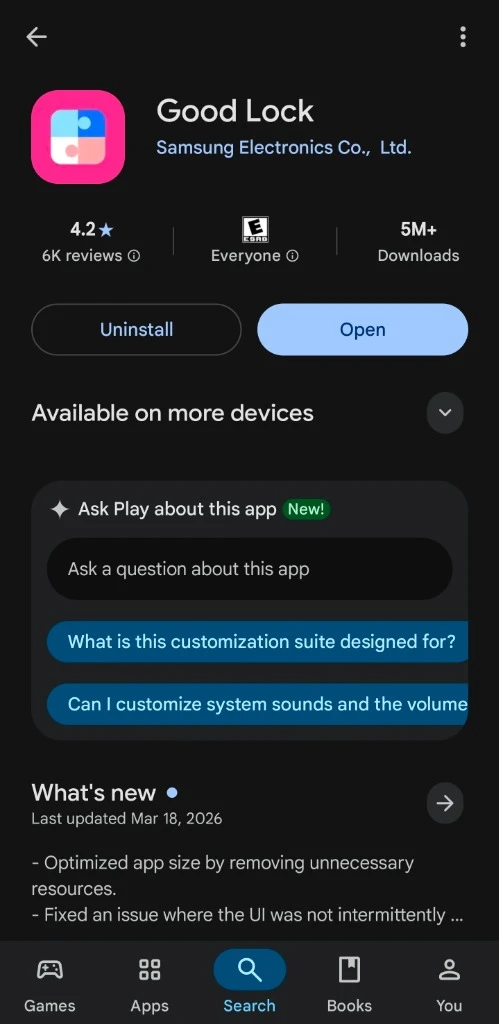
First, we need the customization tools. Samsung's official Good Lock system is the safest and cleanest way to theme a Galaxy device without replacing the stock One UI launcher.
Get Good Lock from the Galaxy Store
Open the Galaxy Store on your Samsung phone (make sure it's the official Galaxy Store, not the Google Play Store). Search for “Good Lock” and install it. If you're outside North America or Europe and Good Lock isn't available in your region, search for “NiceLock” or “FineLock” instead. They act as launch shortcuts for the same official Samsung customization modules.
Install the Theme Park Module
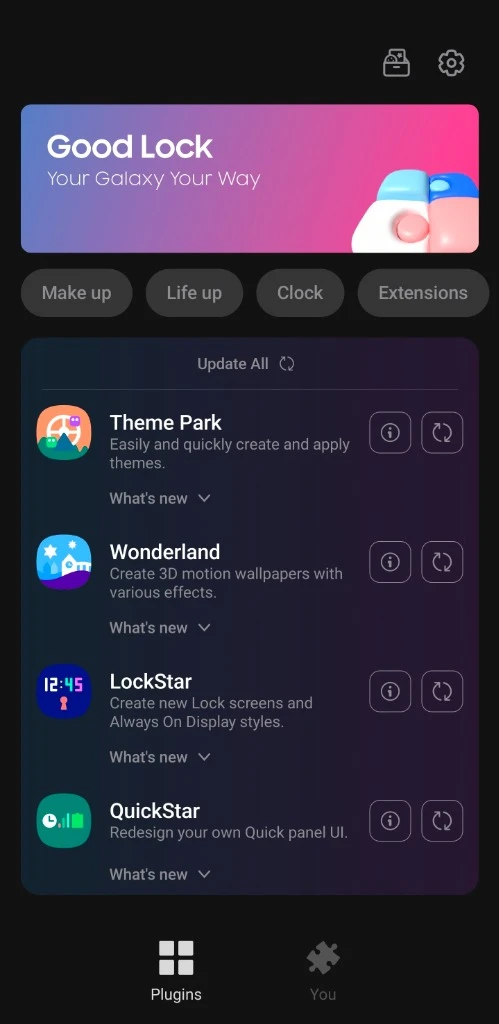
Launch Good Lock. You'll see a list of modules. Find Theme Park and tap the install button to download it from the Galaxy Store. This is the module that lets us build custom icon shapes, colors, and emboss effects from scratch.
Part 2: Set Your Wallpaper & Dock Alignment
Before editing our icons, let's get the canvas ready. The magic of this setup is how the icons rest on the custom dock.
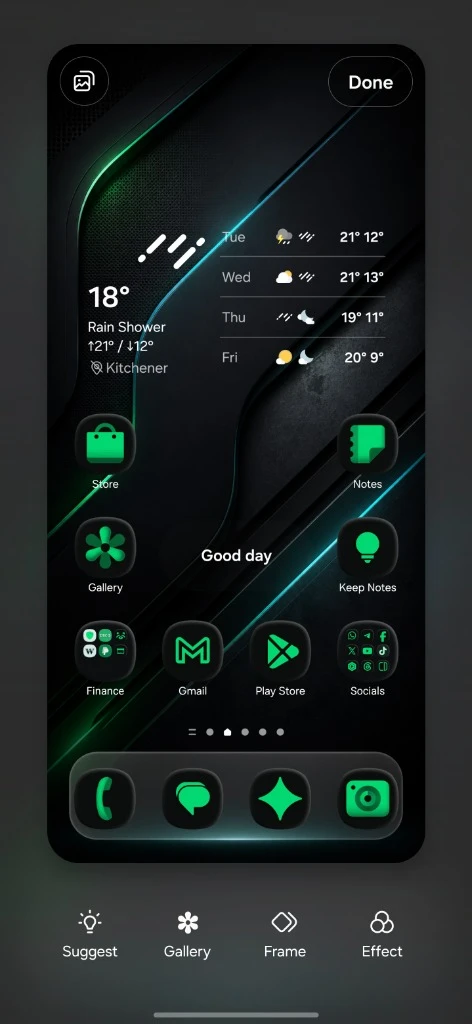
Every TechKitchen wallpaper in the dock collection has the dock design painted directly into the image. You set the wallpaper, your icons sit on top, and the “dock” is just the visual element behind your bottom row of apps. No extra modules. No launcher configuration. It just fits.
1. Download: Grab the premium Onyx Pulse dock wallpaper. The carbon fiber and neon green accents at the bottom align perfectly with our recipe's green colors.
2. Apply: Long press on your home screen, tap Wallpaper and style, choose Onyx Pulse from your gallery, and apply it to the home screen.
3. Align: Move your bottom row of apps so they sit cleanly inside the painted dock boundaries. This takes about thirty seconds and lines everything up perfectly.
Part 3: Build Your Icon Recipe in Theme Park
Now, let's construct the actual icons. Launch Theme Park, tap "Create new", and follow along with the exact settings below.
Open the Icon Tab & Select Monochrome Color
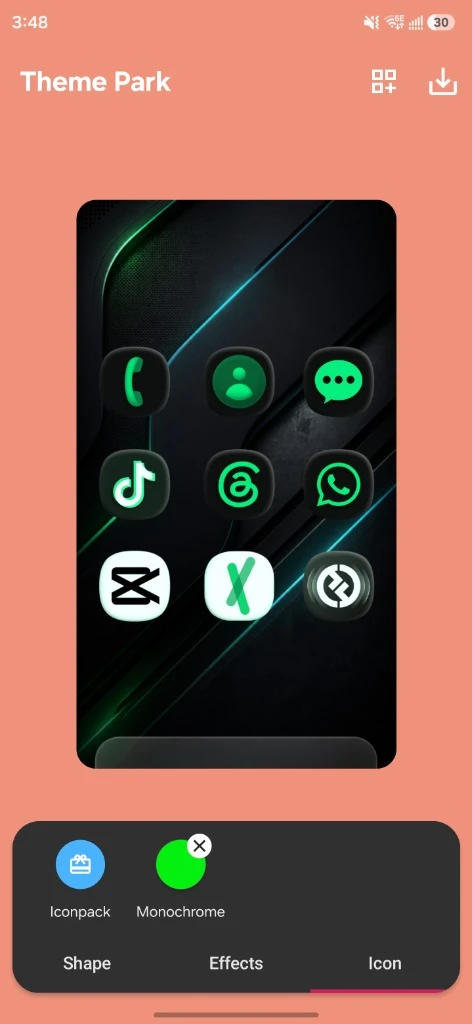
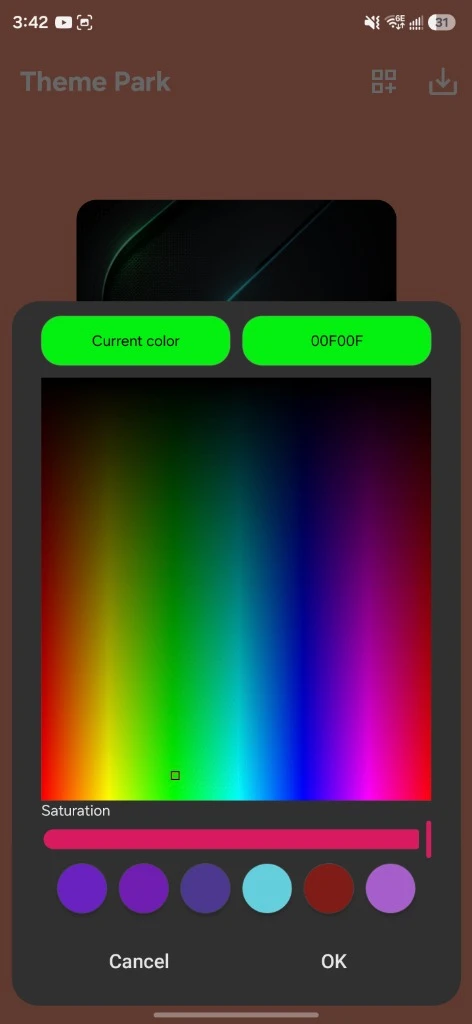
Inside the Theme Park editor, tap the Icon tab at the bottom. Tap the Monochrome button at the top. This instructs Theme Park to strip away the default app branding colors and apply a single uniform color palette to all icons. In the color picker that opens, tap the hex code box at the top right and enter 00F00F (the electric neon green). Tap OK. You will see all icon symbols update to the glowing neon green.
Select the Squircle Shape
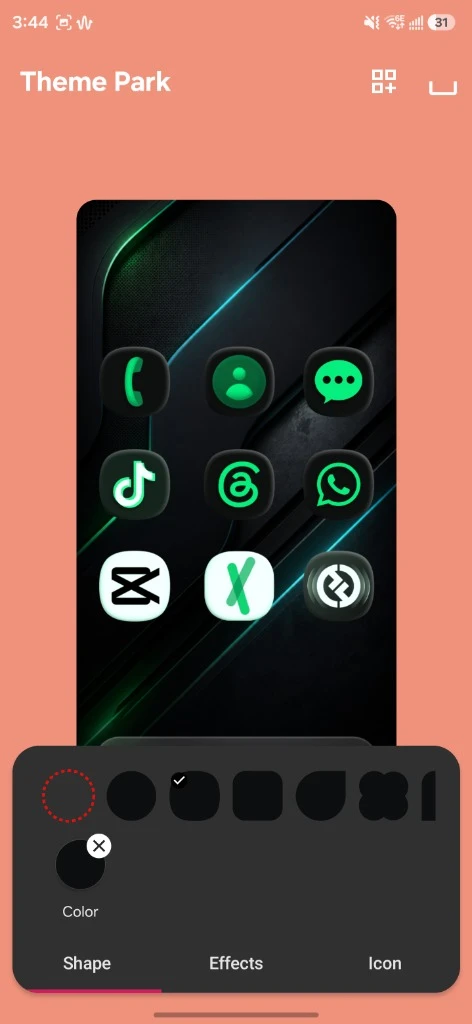
Switch to the Shape tab at the bottom. Select the third shape in the list (the classic squircle/rounded square). This gives the icons that premium, sleek aesthetic instead of basic circles or sharp squares.
Set the Shape Color to #0D0E10
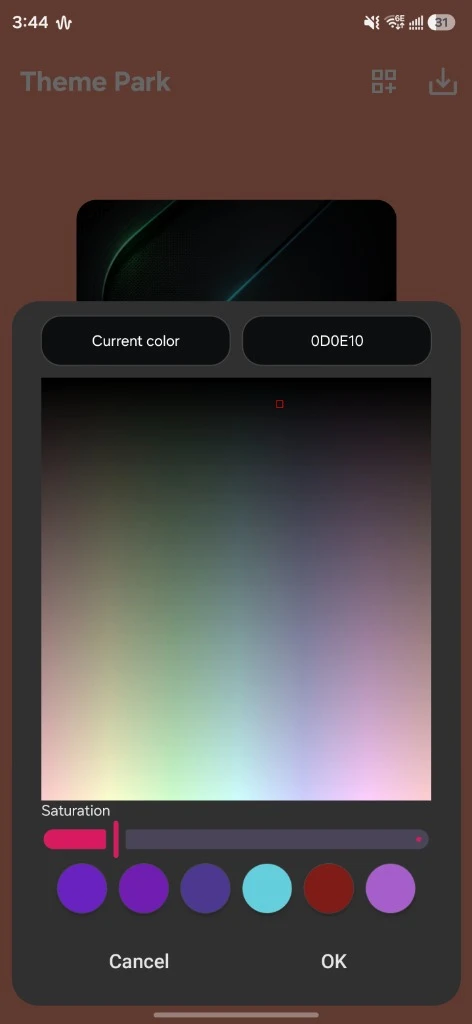
Tap the Color button at the bottom of the shape panel to set the background of the squircle. Enter 0D0E10 in the hex code field. This provides a deep, carbon charcoal black base that makes the neon green symbols pop with high contrast.
Switch to Effects and select Emboss
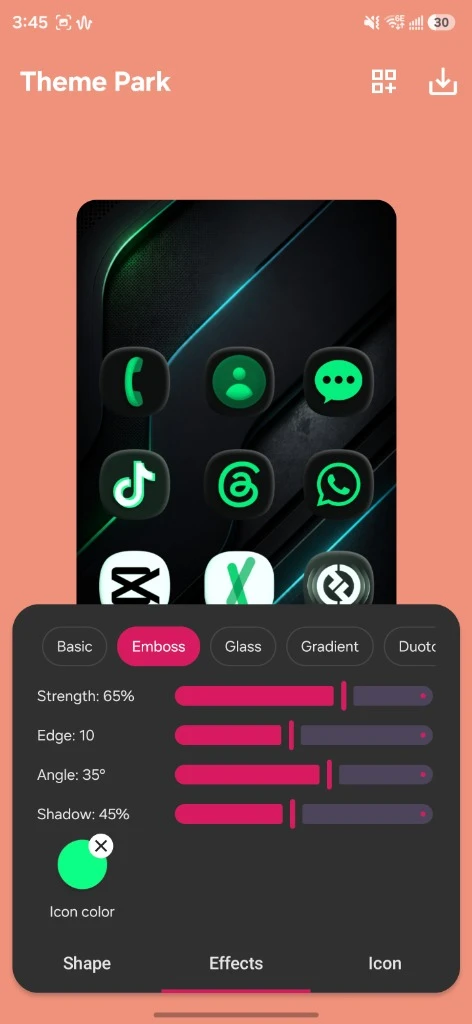
Tap the Effects tab at the bottom center. Select the Emboss effect. This adds a beautiful 3D outer ridge to the squircle, which we will use to create a glowing outer ring.
Configure Emboss Sliders & Color
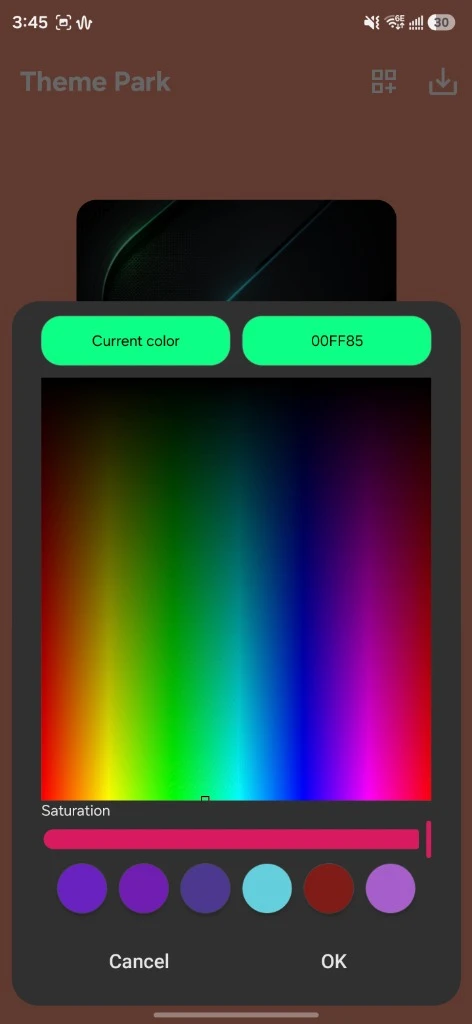
Tap the color circle inside the Emboss options and set it to 00FF85 so the 3D edge glows neon green. Then, adjust the sliders below to create a sharp neon ring: Strength: 65%, Edge: 10, Angle: 35°, and Shadow: 45%.
Save and Name Your Icon Pack
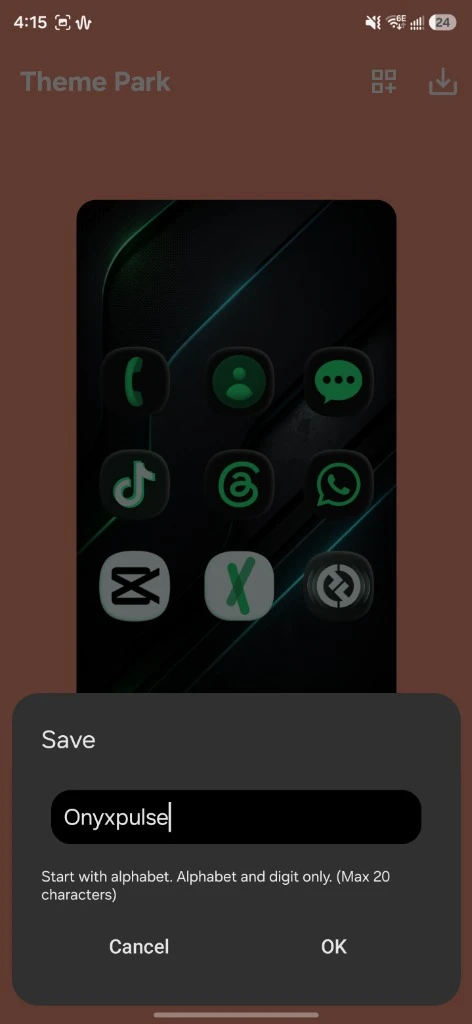
Tap the download/save icon at the top right of the editor. A prompt will appear. Name your icon setup “Onyxpulse” (Theme Park only allows letters and numbers, so no spaces) and click OK to compile it. This compilation process takes a few seconds.
Select and Apply the Recipe
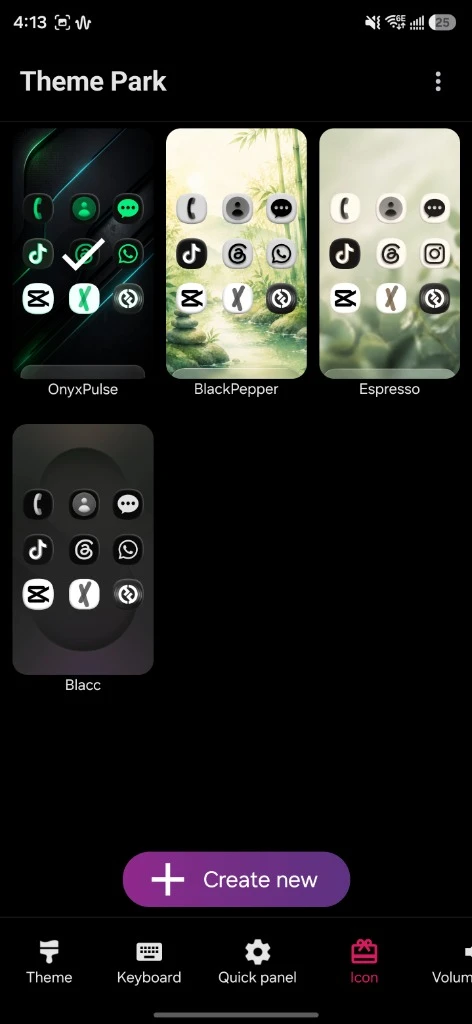
Your newly created "Onyx Pulse" recipe will now appear in your Theme Park gallery. Tap on it and select Apply at the bottom right. Your screen will flicker for a second, and your brand new cyberpunk icons will be applied device-wide!
The Finished Setup Preview
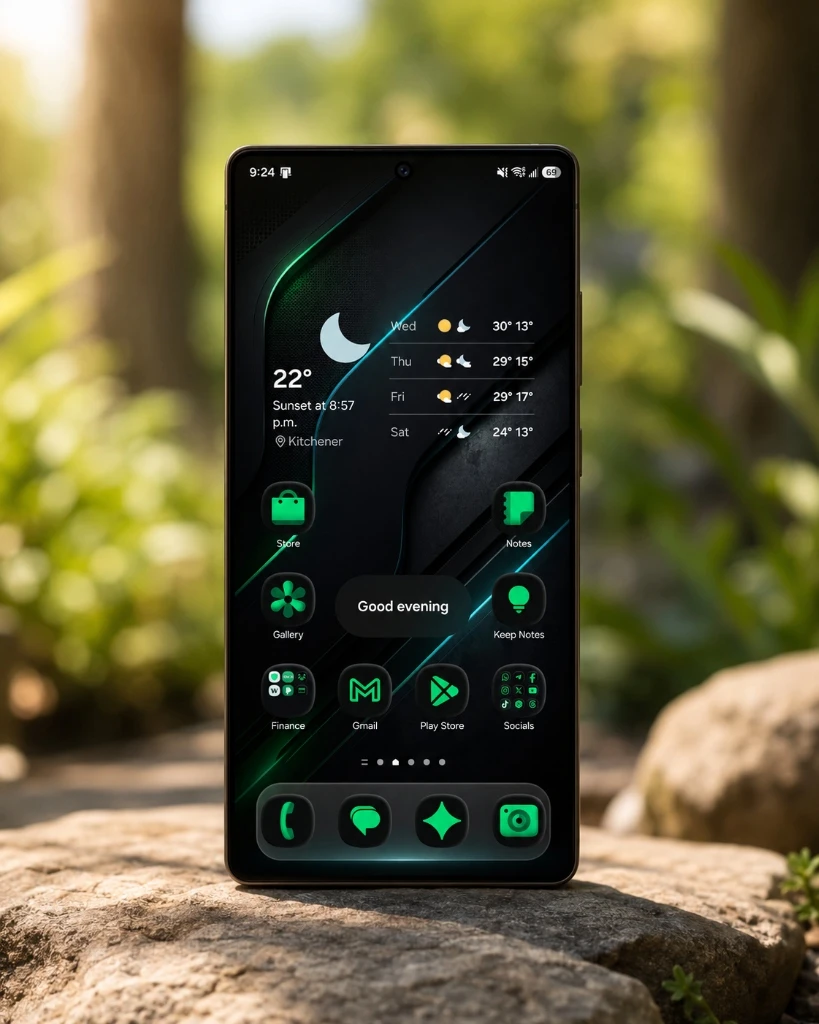
Once you apply the recipe, your home screen will look like a unified cyberpunk deck. The neon green glowing squircles sit perfectly on top of the Onyx Pulse carbon fiber wallpaper.
Here is what the finished setup looks like. It has a high-contrast, premium glow that gives a visual dopamine injection every single time you look at it.
The Verdict
Aesthetics aren't about throwing colors at a wall. They are about balance. Neon green tones can look aggressive on a bright white background. But when they are framed by carbon black squircles and laid over the carbon fiber texture of the Onyx Pulse wallpaper, they sing. It is a massive cyberpunk dopamine hit every time you unlock your screen. Give it a shot.
Need the wallpaper?
Grab the premium Onyx Pulse dock wallpaper. I built it specifically to support these neon colors. Cyber texture, neon accents, and a pre-painted glass dock baked right into the bottom. Drop it on your screen and watch it come together.