Icon Recipes
The Black Pepper Icon Recipe: Soft Clay Icons on Zen Bamboo
TechKitchen Editor · June 15, 2026
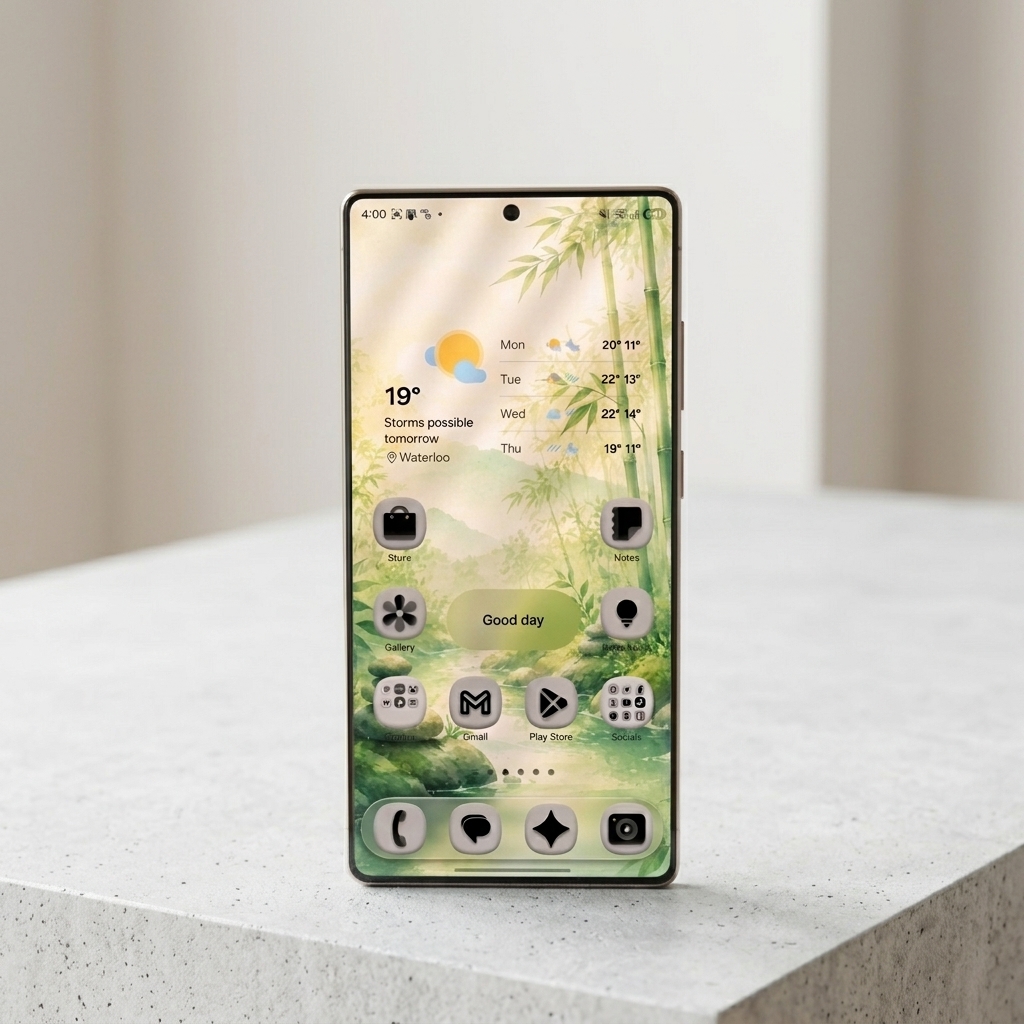
Give your screen a calm, organic aesthetic. Pair your Zen Bamboo wallpaper with soft squircles (left blank for natural gradients) and pure black symbols for a textured, pressed-clay 3D feel.
Gus here.
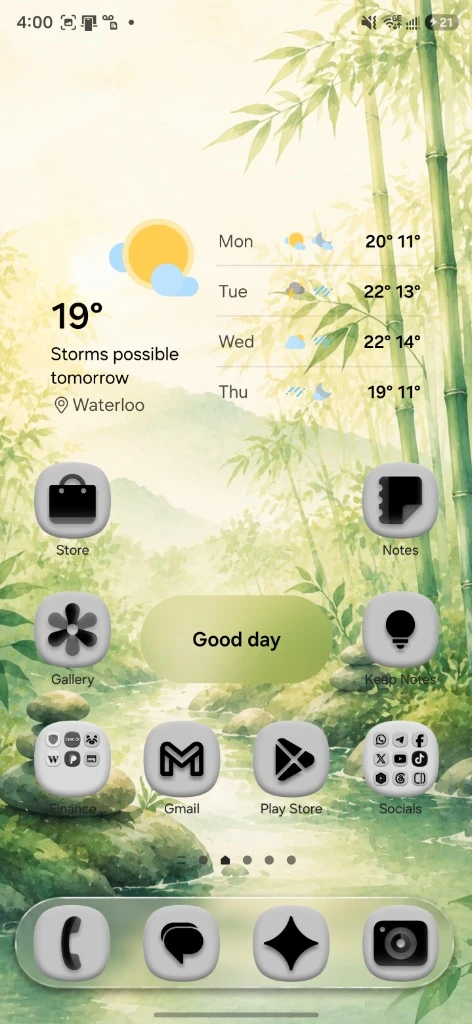
Most of my Recipes lean loud. Neon greens, high contrast, that look-at-me energy. This one is the opposite. Black Pepper is the calm one. Soft grey clay icons that look like you could press your thumb into them, with clean black symbols sitting on top. Think of the grey shape as the dish and the black symbol as the seasoning. A little black pepper, cracked right over the top. That is the whole flavor.
And it is built to live on one wallpaper in particular. I made the Zen Bamboo dock wallpaper for exactly this. Watercolor bamboo, a soft stream, stacked zen stones, all in those pale washed greens. The soft icons melt into it instead of fighting it. The result is a home screen that actually feels calm to look at, which is rarer than it sounds.
Same drill as always. About ten minutes, official Samsung tools, no custom launcher, no root. Let's cook.
The Recipe: One Black Symbol, One Soft Shape, One Effect
The trick to this look is not the colors. It is the Emboss effect. Emboss is what gives the icons that puffy, pressed-clay 3D body, the part that makes the whole set feel designed instead of default. The colors underneath are dead simple on purpose. Black symbol, soft grey shape. The Emboss does the heavy lifting.
The Black Pepper Colors
Pure black icon color (#000000) and black emboss highlights (#000000) over a shape that we leave blank in Theme Park to preserve the default background values. The Emboss effect turns that flat base into the pressed-clay body you see in the preview.
The Emboss Settings
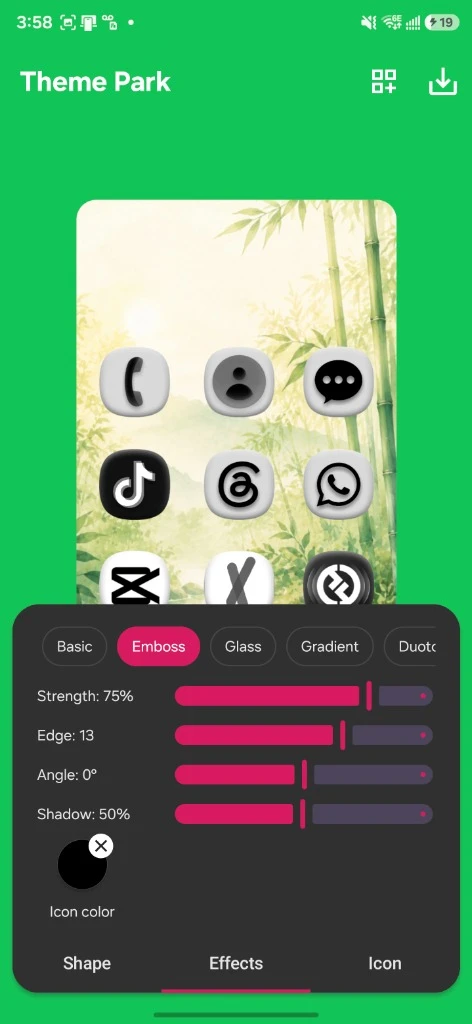
Strength: 75%
Edge: 13
Angle: 0°
Shadow: 50%
What You Need (The Ingredients List)
Ingredients
Good Lock plus Theme Park
Free Samsung customization app from the Galaxy Store. Outside North America or Europe, search NiceLock instead.
1. Good Lock and the Theme Park module installed.
2. The Zen Bamboo wallpaper. It is a paid wallpaper, built to pair with this exact Recipe.
3. One color and four slider values from the cards above.
Notice what is not on the list: a downloaded icon pack. You do not need one. Theme Park reshapes the icons you already have. We are cooking with what is already in the kitchen.
Part 1: Install Good Lock and Theme Park
If you have already cooked one of my Recipes, your Good Lock and Theme Park are set up. Skip straight to Part 2. New here? This part takes two minutes.
Get Good Lock from the Galaxy Store
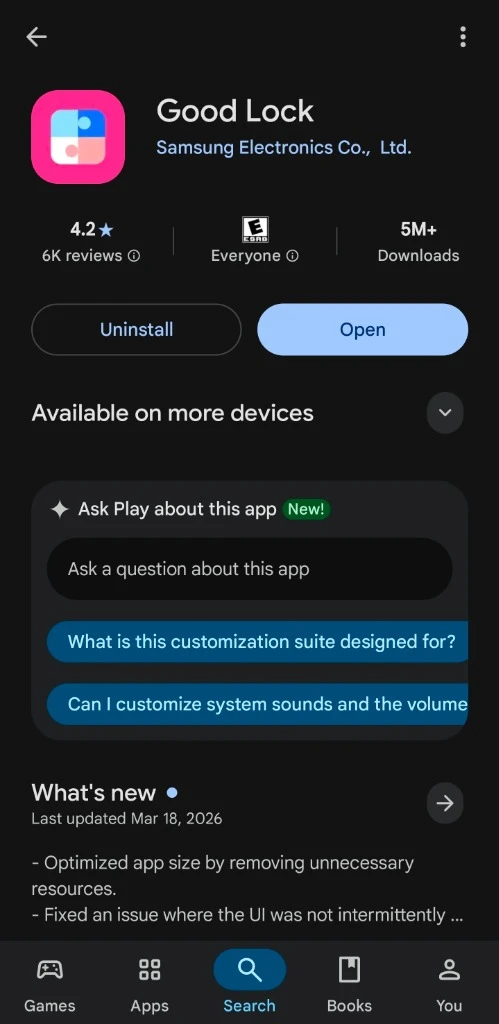
Open the Galaxy Store on your Samsung phone (the Galaxy Store, not the Play Store). Search for Good Lock and install it. If you are outside North America or Europe and Good Lock is not available in your region, search for NiceLock instead. Same official Samsung modules, different launcher name.
Install the Theme Park module
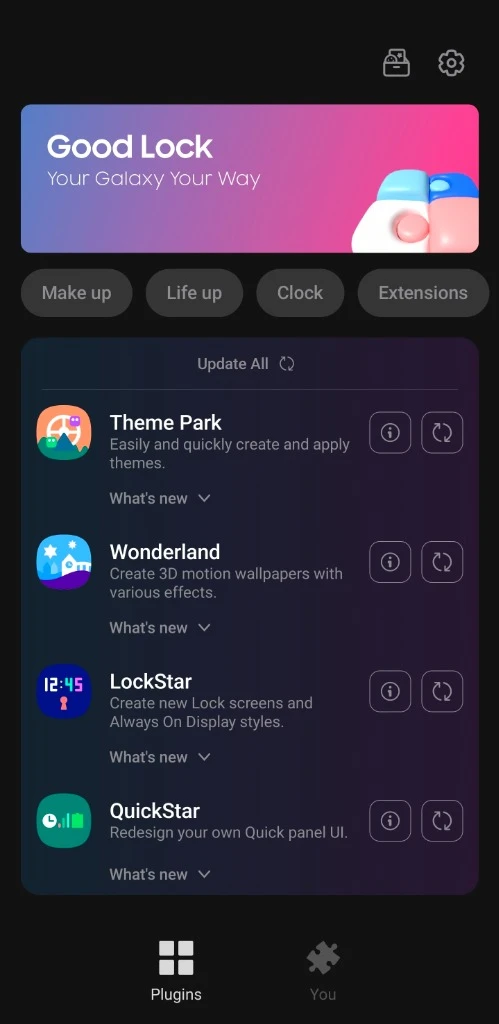
Open Good Lock. You will see a list of modules. Find Theme Park and install it. That is the only module we need for this Recipe.
Part 2: Set the Zen Bamboo Wallpaper
Let's get the canvas down before we touch the icons. The whole reason these soft icons read so well is the wallpaper underneath them.
Every TechKitchen dock wallpaper has the dock painted right into the image. You set the wallpaper, your bottom row of apps sits on top, and the dock is just the shape behind them. No modules, no launcher tweaks. It lines up on its own.
1. Download: Grab the Zen Bamboo wallpaper. It comes in two formats so it fits whatever you are running:
Samsung dock version - the dock shape is baked into the bottom, ready for your app row.
No-dock version - a clean full-bleed bamboo scene with no dock painted in. This is the one for iPhone users, since iOS already has its own built-in dock. Same calm bamboo look, no Samsung-shaped dock in the way.
2. Apply: Long press your home screen, tap Wallpaper and style, pick Zen Bamboo from your gallery, and set it as your home screen wallpaper.
3. Align: Nudge your bottom row of apps so they sit cleanly inside the painted dock. Thirty seconds and everything snaps into place.
On iPhone and want this calm look too? You can get close with the no-dock version plus iOS tinted icons. That is a full Recipe of its own, and it is coming. For now, this Recipe is built for Samsung, where we have every setting we need.
Part 3: Build the Recipe in Theme Park
Open Theme Park from inside Good Lock or your app drawer. Any Recipes you have saved show up at the top, and the Create new button is at the bottom. Tap it. We are building Black Pepper from scratch so nothing fights.
Open the Icon Tab & Select Monochrome Color
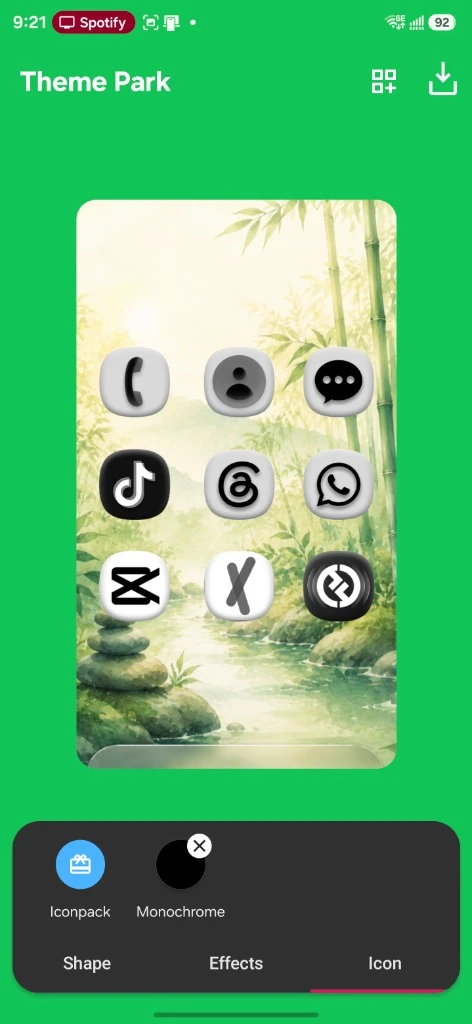
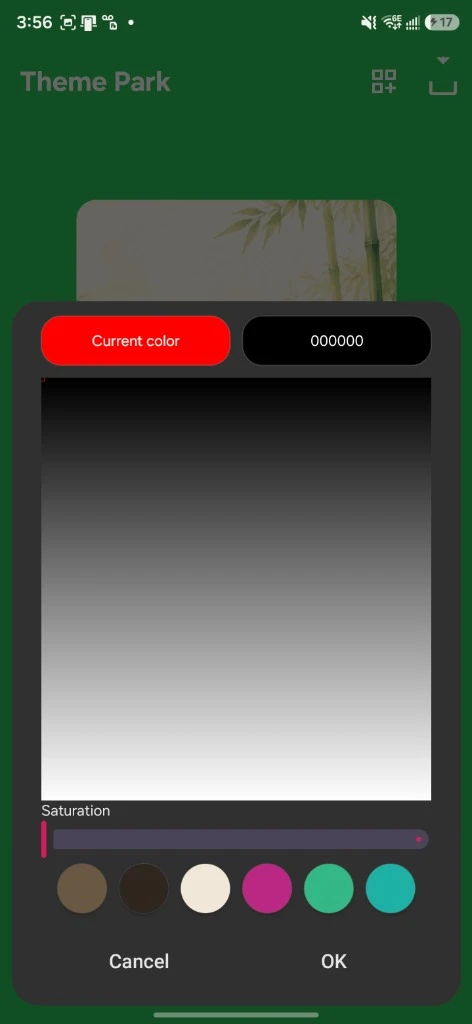
Inside the Theme Park editor, tap the Icon tab at the bottom. Tap the Monochrome button at the top. In the color picker that opens, tap the hex code box at the top right and enter #000000 (pure black). Tap OK. You will see all icon symbols update to black.
Pick the squircle in the Shape tab
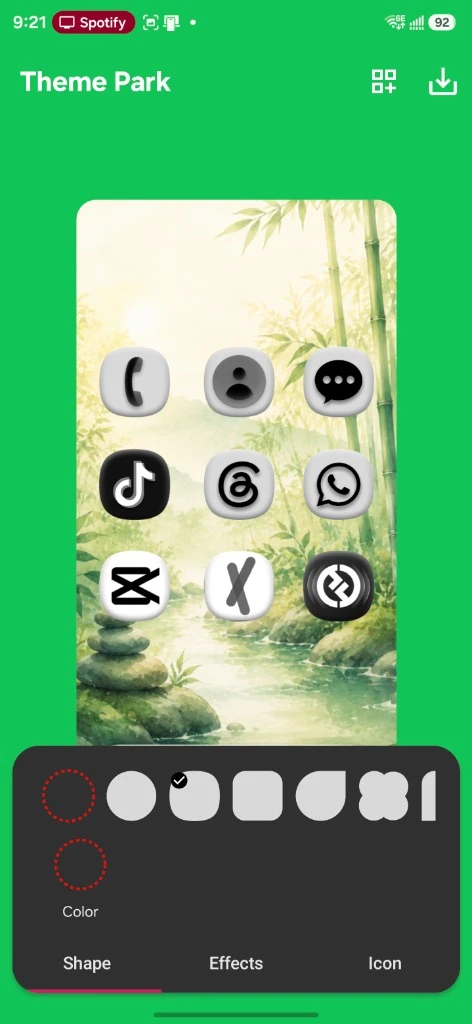
Tap the Shape tab. Select the first shape in the row, the soft squircle. It is the rounded square that gives icons that friendly, modern feel. The check mark shows your pick.
Leave the shape color blank
Still in the Shape tab, tap Color. Instead of selecting a color, make sure you leave it blank/default. This is critical: leaving it blank ensures the underlying gradients map naturally to form the raw base of your squircle. The Emboss in the next step is what turns this flat base into the pressed 3D clay body, allowing shadows to render properly without a solid flat color blocking the effect.
Switch to Effects and dial in Emboss
Tap the Effects tab, then tap Emboss. This is the star of the Recipe. Set the four sliders exactly: Strength 75%, Edge 13, Angle 0°, Shadow 50%. Then tap the Icon color circle at the bottom and set it to #000000 so the symbol stays crisp black through the effect. Watch the preview puff up into soft clay.
Save your Recipe
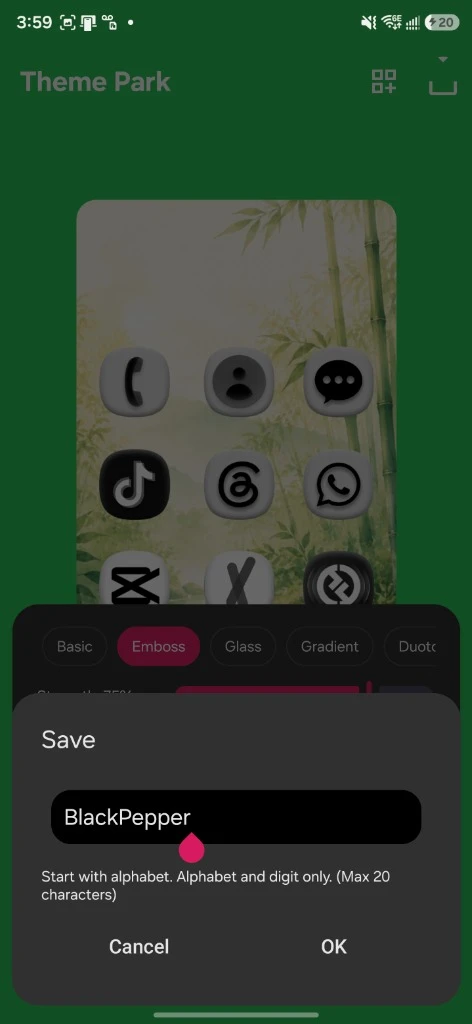
Tap the save icon at the top right. A name box pops up. I called mine BlackPepper (the box only takes letters and numbers, so no space). Tap OK and let it compile for a few seconds.
Apply it
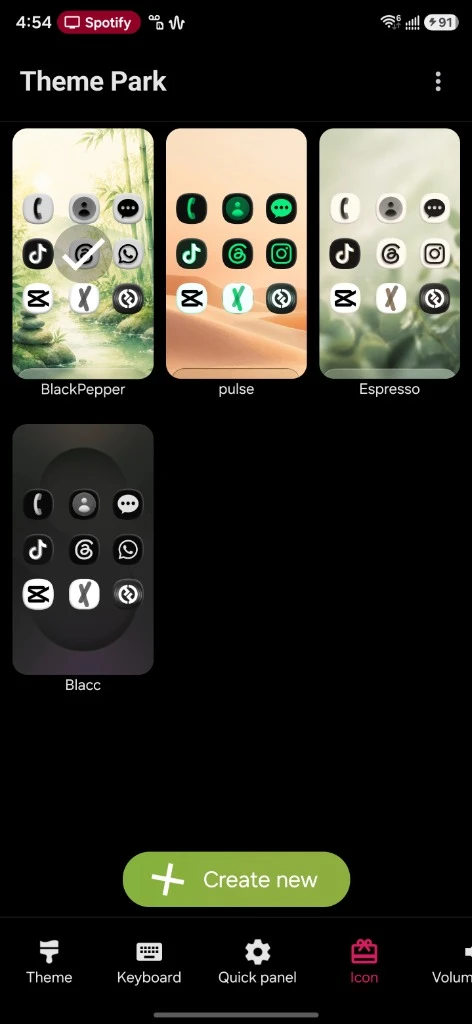
Your BlackPepper Recipe now shows up in the Theme Park gallery. Tap it, then tap Apply. Your home screen and app drawer switch to the soft clay set instantly. No reboot, no launcher swap. Done.
The Finished Setup
Drop it onto the Zen Bamboo wallpaper and the whole thing comes together. Soft clay icons, black pepper symbols, floating over washed-out bamboo greens. It does not shout. It just looks calm and finished, like you actually thought about it.
Black Pepper proves you do not need bright colors to make a home screen feel custom. A simple layout and one good effect, that is the entire Recipe. The Emboss is doing all the work, so do not skip the slider values, those four numbers are the difference between flat and unreal. Pair it with the Zen Bamboo wallpaper and let it breathe. Sometimes the calm setup is the one you keep.
Get the Zen Bamboo wallpaper
I built the Zen Bamboo dock wallpaper to pair with this exact Recipe. Watercolor bamboo, a soft stream, zen stones, and a dock baked right into the bottom. It also comes in a no-dock version so iPhone users can run the same calm look. Drop it on your screen and let the soft icons settle in.