Icon Recipes
The Samsung Icon Recipe: Color Combo and Dock, Step by Step
Gus · May 8, 2026
A reader on Threads asked how I picked the colors for my icons and how I added the dock. So I'm pulling out the recipe and walking through the whole thing. Three colors, one dock wallpaper, ten minutes with Good Lock and Theme Park.
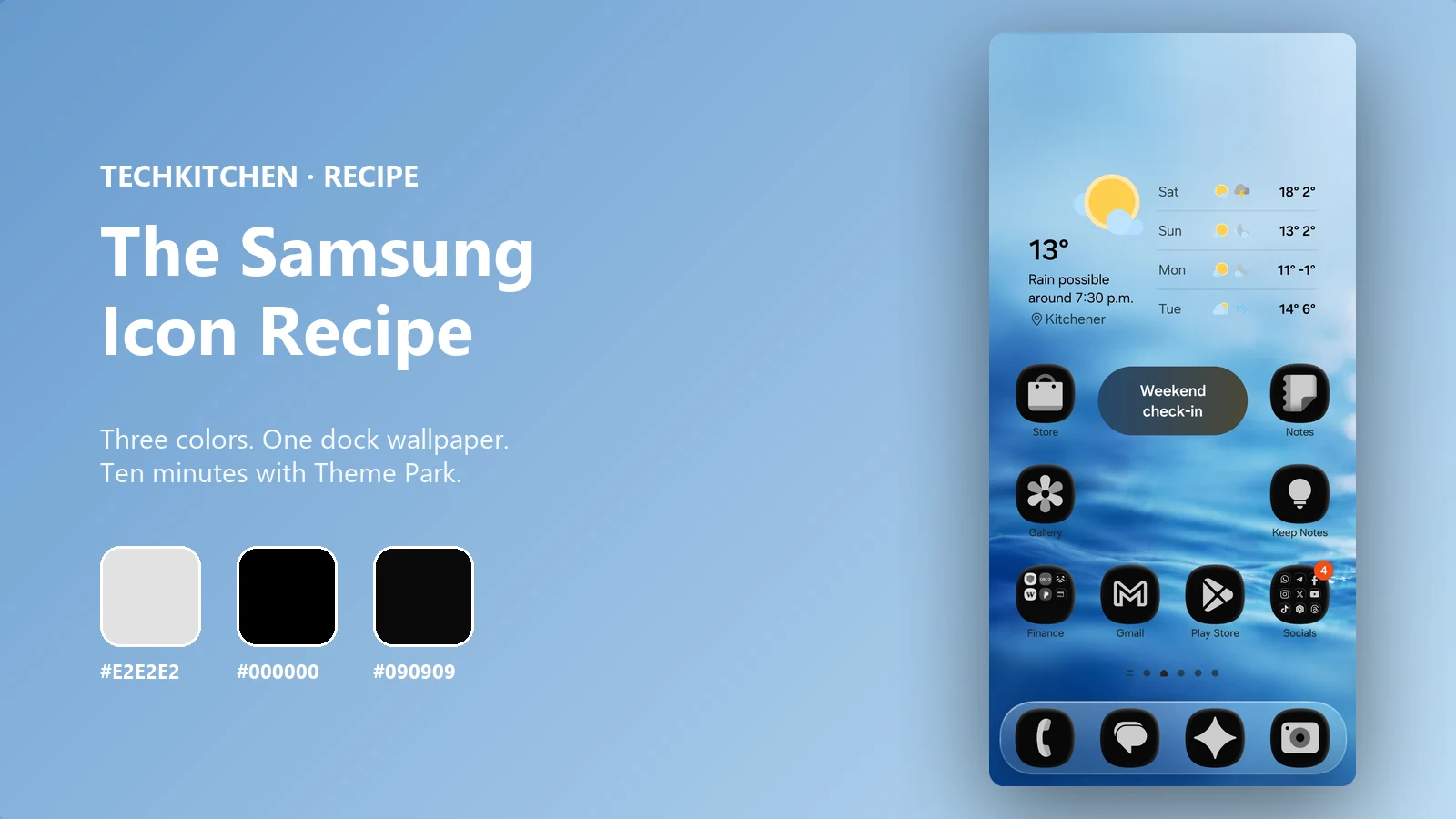
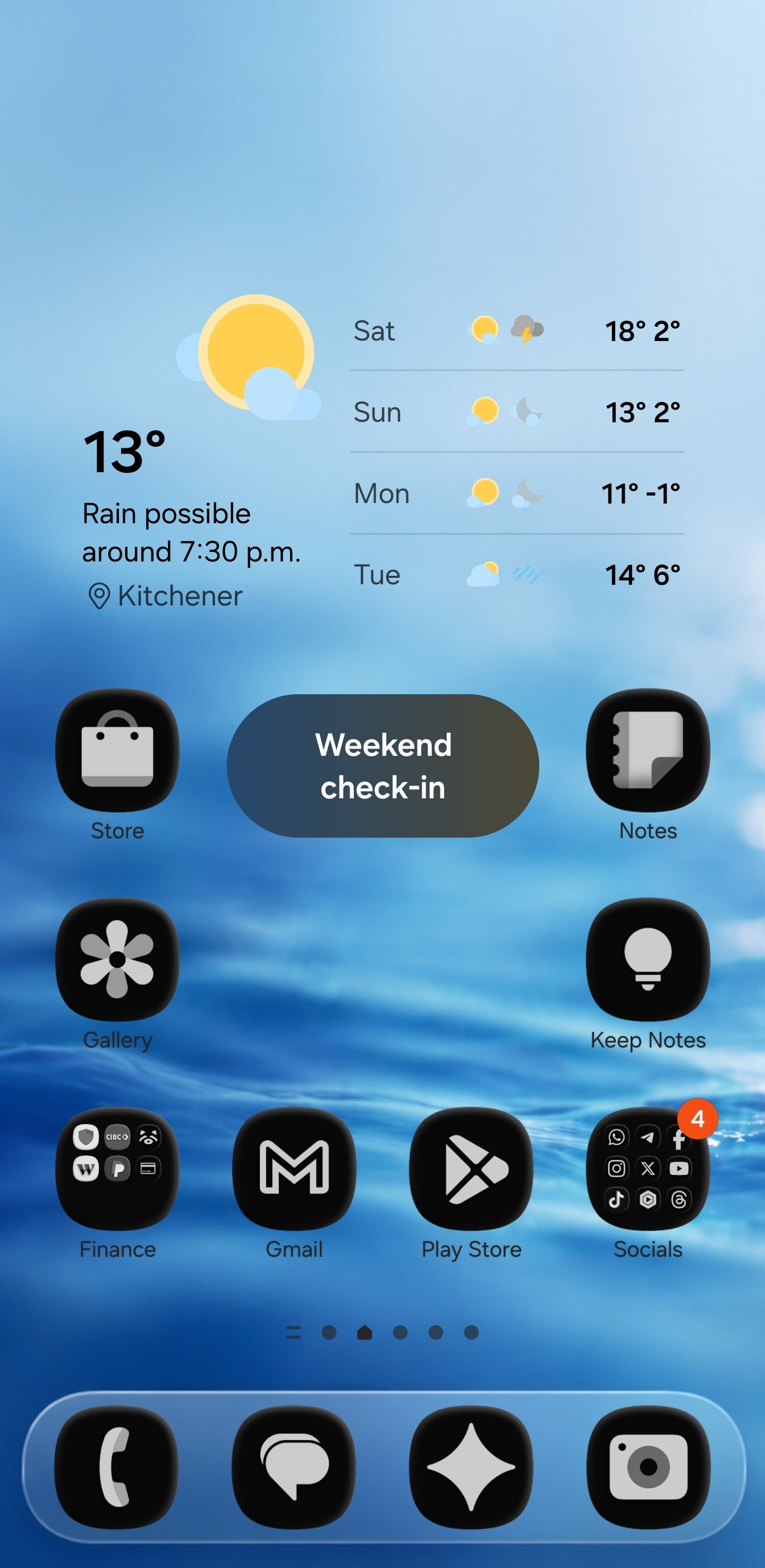
If you've been on my Threads recently, this is the home screen people asked about. The colors lined up, the icons matched, the dock blended into the wallpaper. A few people asked how I built it, so this is the full Recipe. No skipping ingredients.
Quick heads up: Samsung's One UI doesn't natively support custom icon theming. You need a free Samsung tool called Good Lock and its Theme Park module. Both are free, both are official Samsung apps, and once you have them set up you can theme your phone in about ten minutes.
Let's cook.
The Recipe: Three Colors and a Dock Wallpaper
This is the part most people skip and then wonder why their home screen looks chaotic. Color is the foundation. If you don't pick a palette first, you'll spend an hour swapping shapes and colors trying to make it “feel right.”
The rule I follow: three colors, max. One main color, one supporting color, one accent. That's it. Anything more and your home screen starts looking like a game arcade.
The Three Colors I Used
Three colors, three tabs in Theme Park. Pair this trio with any TechKitchen dock wallpaper and the icons read clean against it.
What You Need (The Ingredients List)
Ingredients
Good Lock plus Theme Park
Free Samsung customization app from the Galaxy Store.
1. Install Good Lock, then add the Theme Park module.
2. A TechKitchen dock wallpaper (free or paid, browse the collection here)
3. The three hex codes above: #E2E2E2, #000000, #090909
Notice what's not on this list: a separate icon pack. You don't need one. Theme Park has all the customization tools to turn your existing icons into something custom looking. We're cooking with what's already in the kitchen.
Part 1: Install Good Lock
Get Good Lock from the Galaxy Store
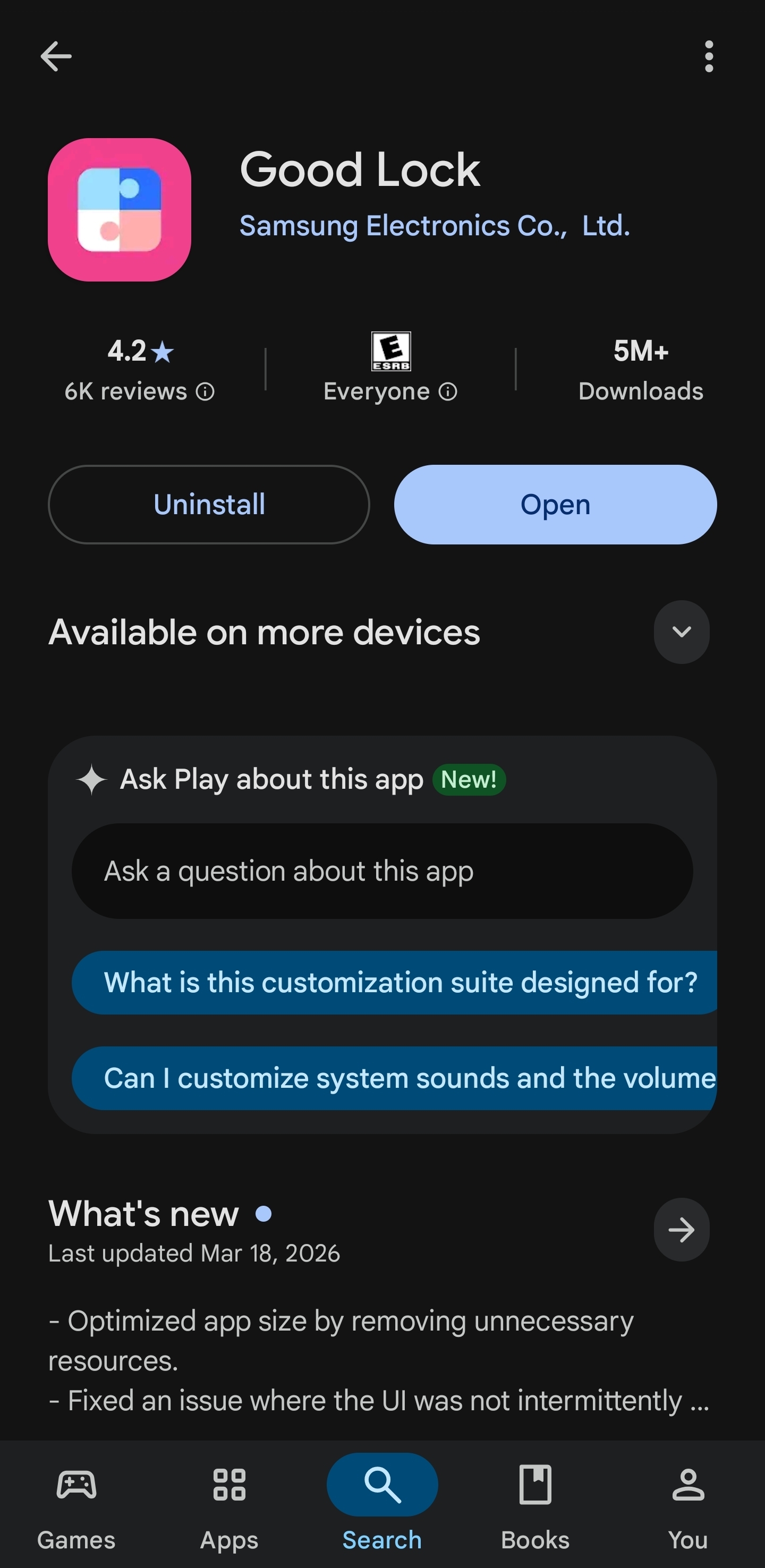
Open the Galaxy Store on your Samsung phone (the Galaxy Store, not the Play Store). Search “Good Lock” and install. If you're outside North America or Europe and Good Lock isn't available, search for “NiceLock” instead. Same app, different name.
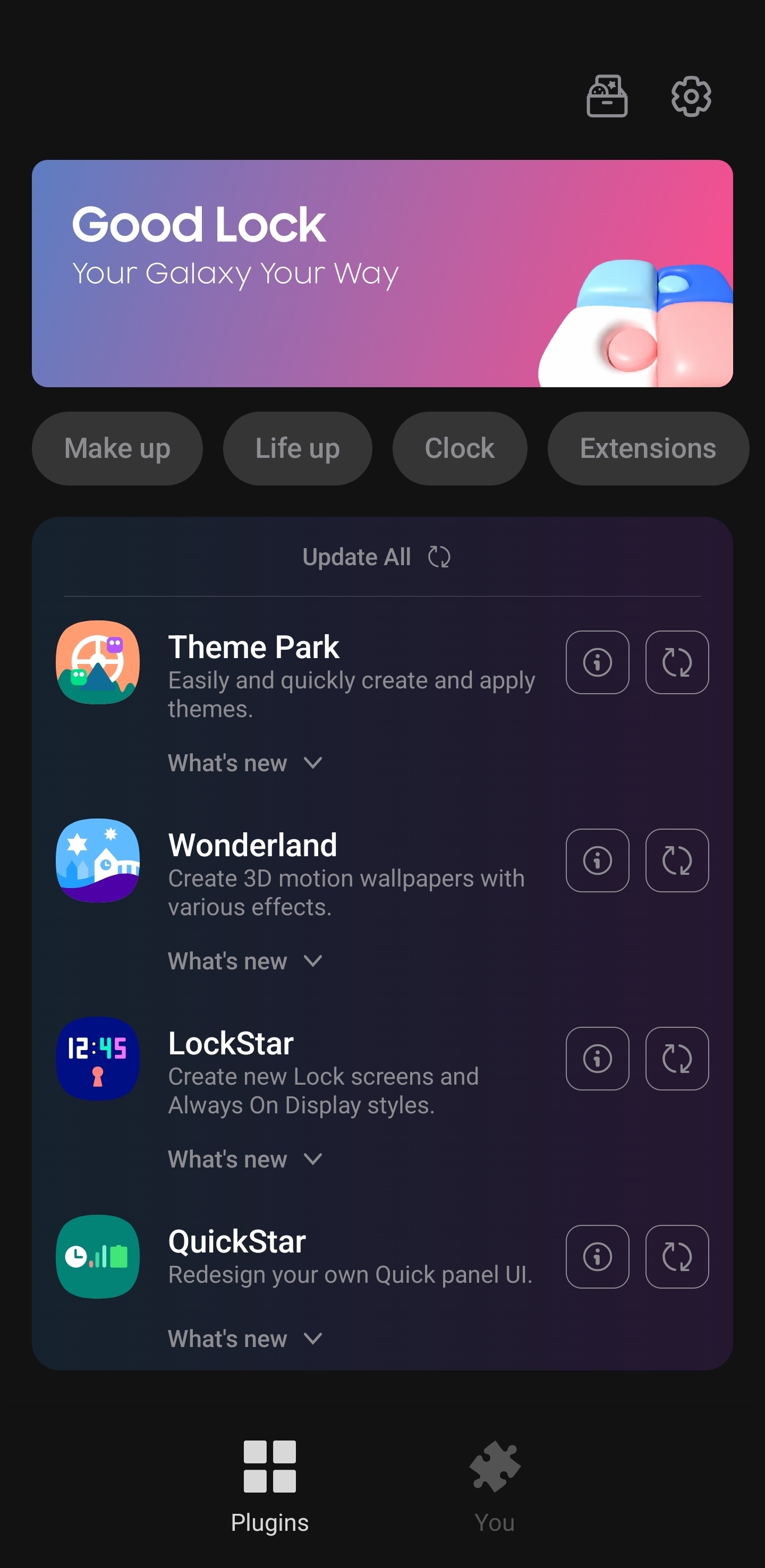
Open Good Lock and install Theme Park
Launch Good Lock. You'll see a list of plugins (Theme Park, Wonderland, LockStar, QuickStar, and more). Tap Theme Park and install it. That's the only plugin we need today.
Part 2: Set Your Dock Wallpaper
Here's the trick most people get wrong about docks. They try to customize the actual dock through launchers and modules. I do the opposite. I bake the dock right into the wallpaper.
Every TechKitchen wallpaper in the dock collection has the dock design painted into the image. You set the wallpaper, your icons sit on top, and the “dock” is just the visual element behind your bottom row of apps. No extra modules. No fiddling with transparent backgrounds. It just works.
Download a TechKitchen dock wallpaper
Browse the dock wallpaper collection and pick one that matches your three colors. Some are free, some are paid. Save it to your phone.
Set it as your home screen wallpaper
Long press on your home screen, tap Wallpaper and style, choose the dock wallpaper from your gallery, and apply it to the home screen.
Arrange your icons around the dock
The wallpaper has a dock area built in at the bottom. Arrange your bottom row of apps so they sit cleanly inside that area. Move icons around until they line up with the painted dock. This takes about thirty seconds.
Part 3: Build Your Icon Recipe in Theme Park
Now the fun part. Open Theme Park from inside Good Lock or from your app drawer.
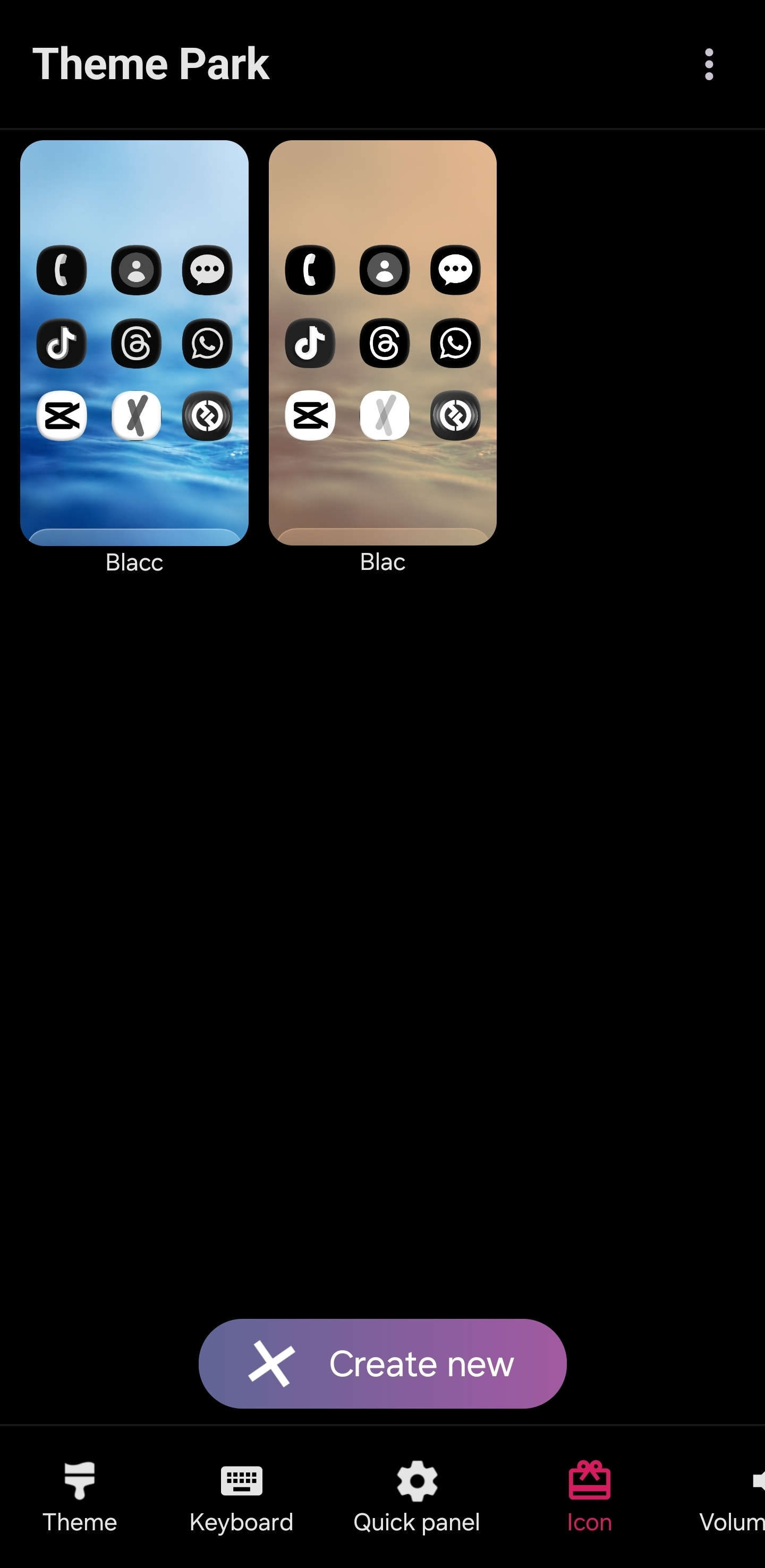
Tap “Create new”
This starts a fresh Recipe project. You'll see any saved Recipes at the top and the Create new button at the bottom.
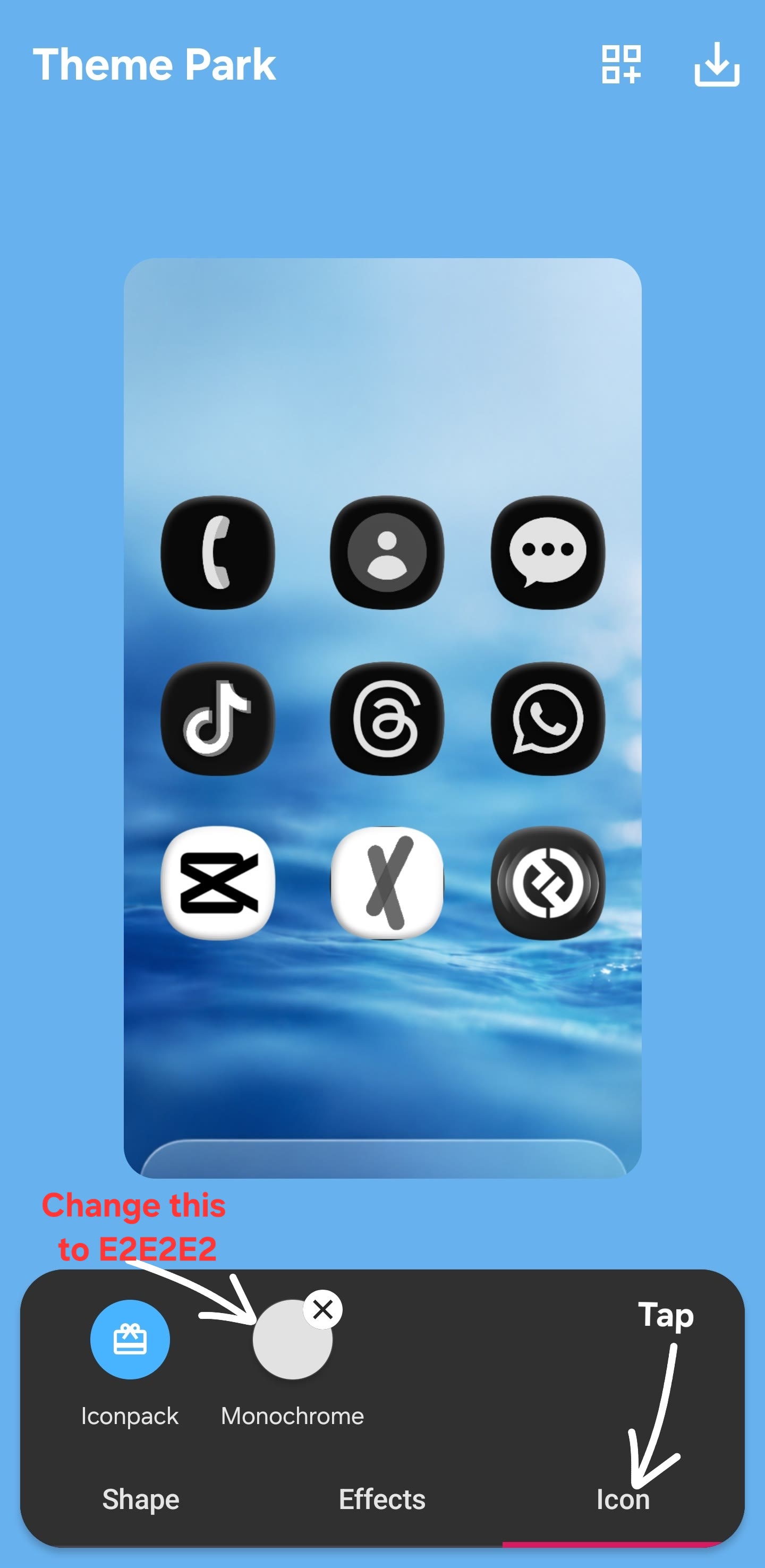
Open the Icon tab and pick Monochrome
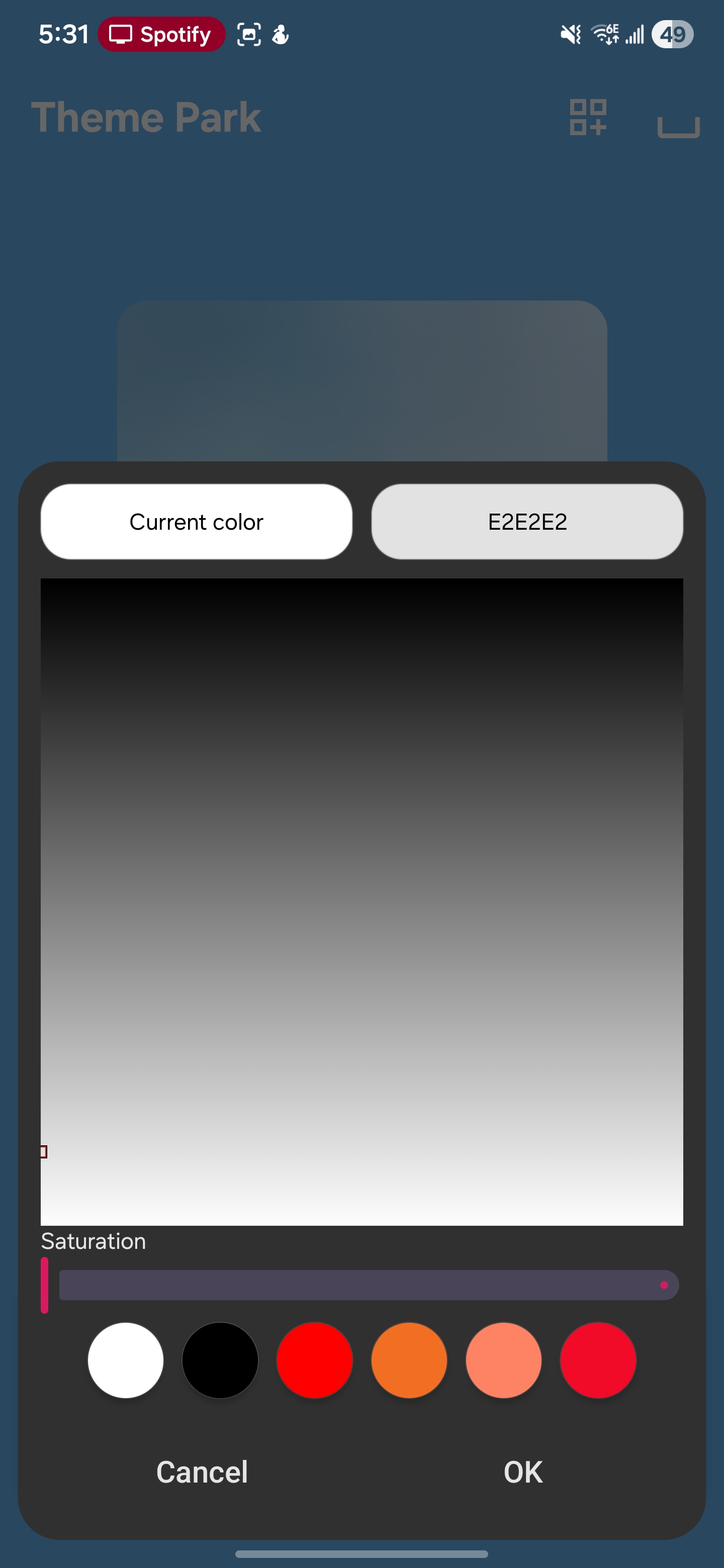
Theme Park gives you two options after you open the Icon tab: Iconpack (uses your installed app icons as a base) or Monochrome (turns everything one color). Tap Icon at the bottom, then tap Monochrome. The color picker opens. Type E2E2E2 into the hex field and hit OK.
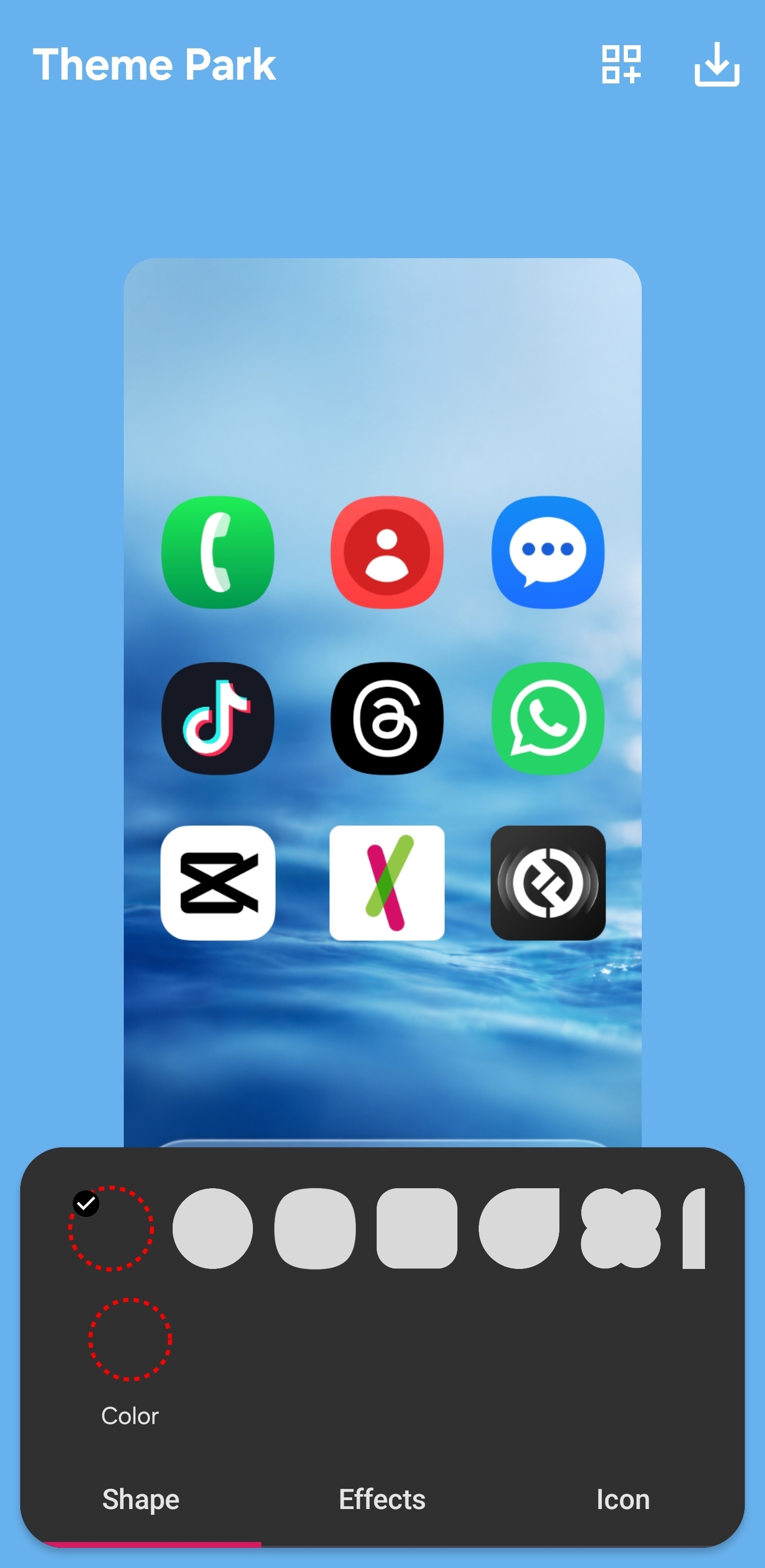
Switch to the Shape tab and pick a shape
The Shape tab is at the bottom left. Tap it and you'll see eleven shape options, plus you can upload your own custom shape if none of them feel right. Pick the one that fits your wallpaper energy. Soft wallpapers like rounded shapes. Sharp wallpapers like squared shapes. Don't overthink it.
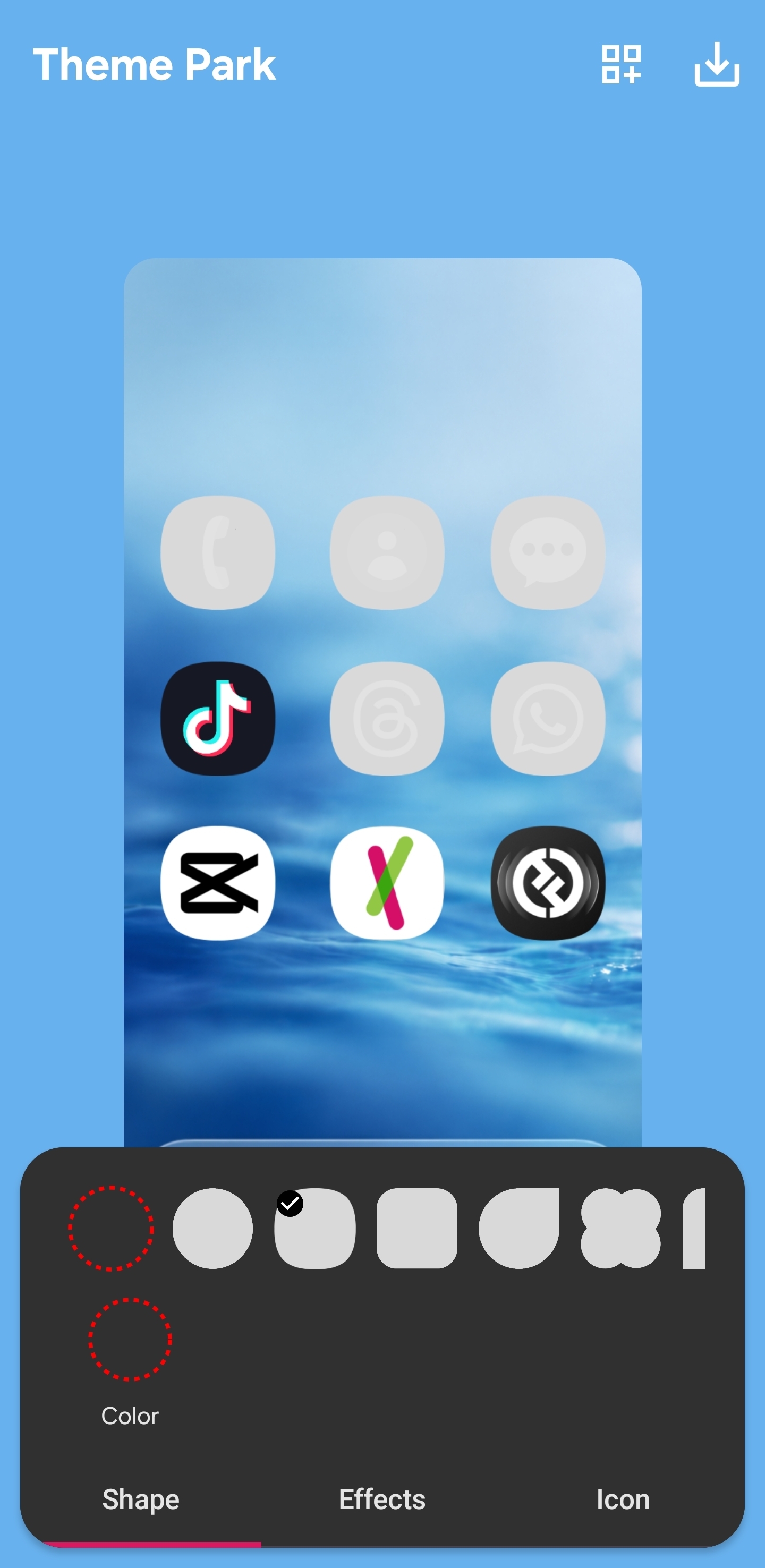
Enter the Recipe colors in each tab
Each tab has its own color. Tap Color inside the tab and type the hex code into the field at the top. Skip the saturation slider. The hex field is faster and exact.
The three hex codes by tab
Icon tab (Monochrome): #E2E2E2
Effects tab (Emboss): #000000
Shape tab: #090909
Type each code into the hex box, then hit OK before moving to the next tab.
Switch to the Effects tab and apply Emboss
Tap the Effects tab at the bottom center, then select Emboss. This gives the icons a subtle 3D feel that makes them sit on the wallpaper like little buttons. If you want flat icons, skip this and use Basic instead.
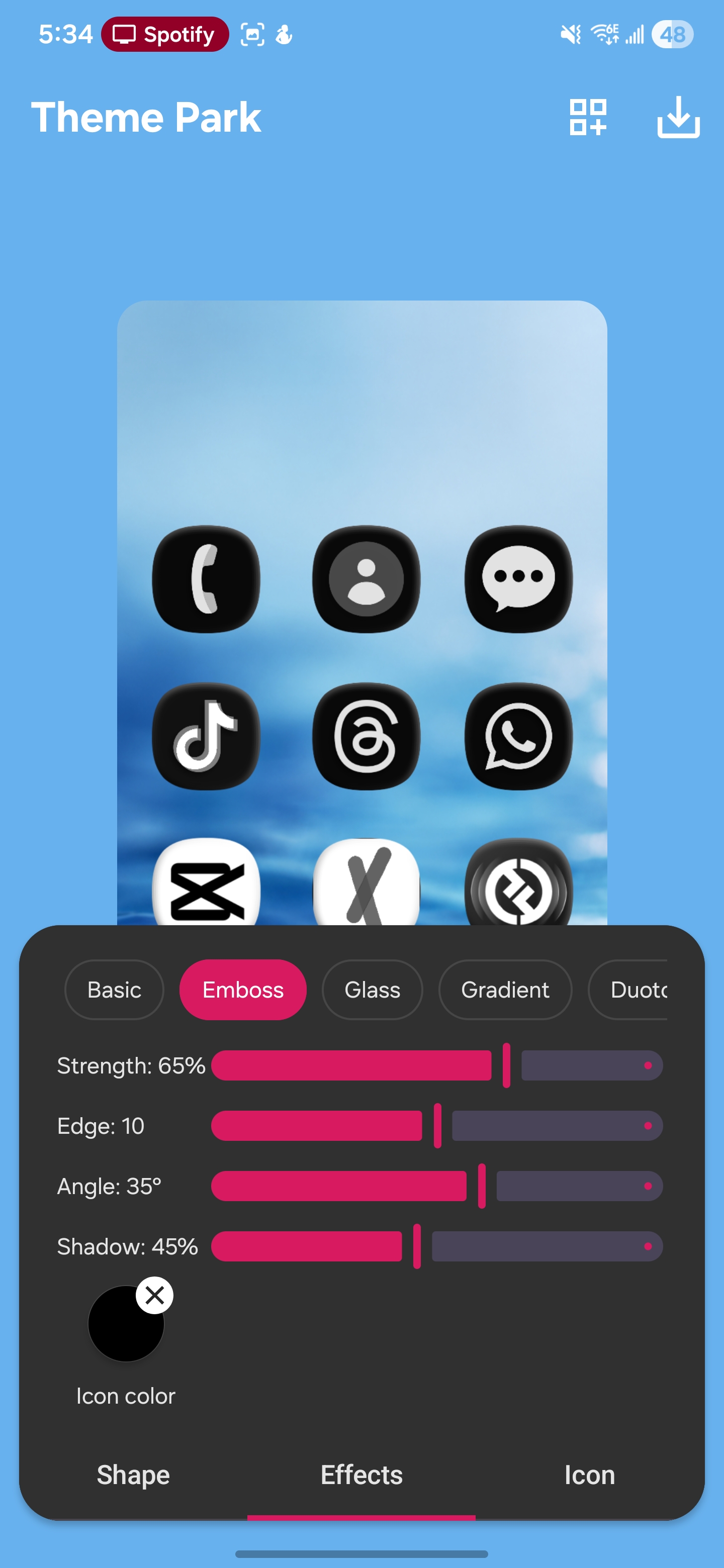
Emboss Settings I Use
Strength: 65%
Edge: 10
Angle: 35°
Shadow: 45%
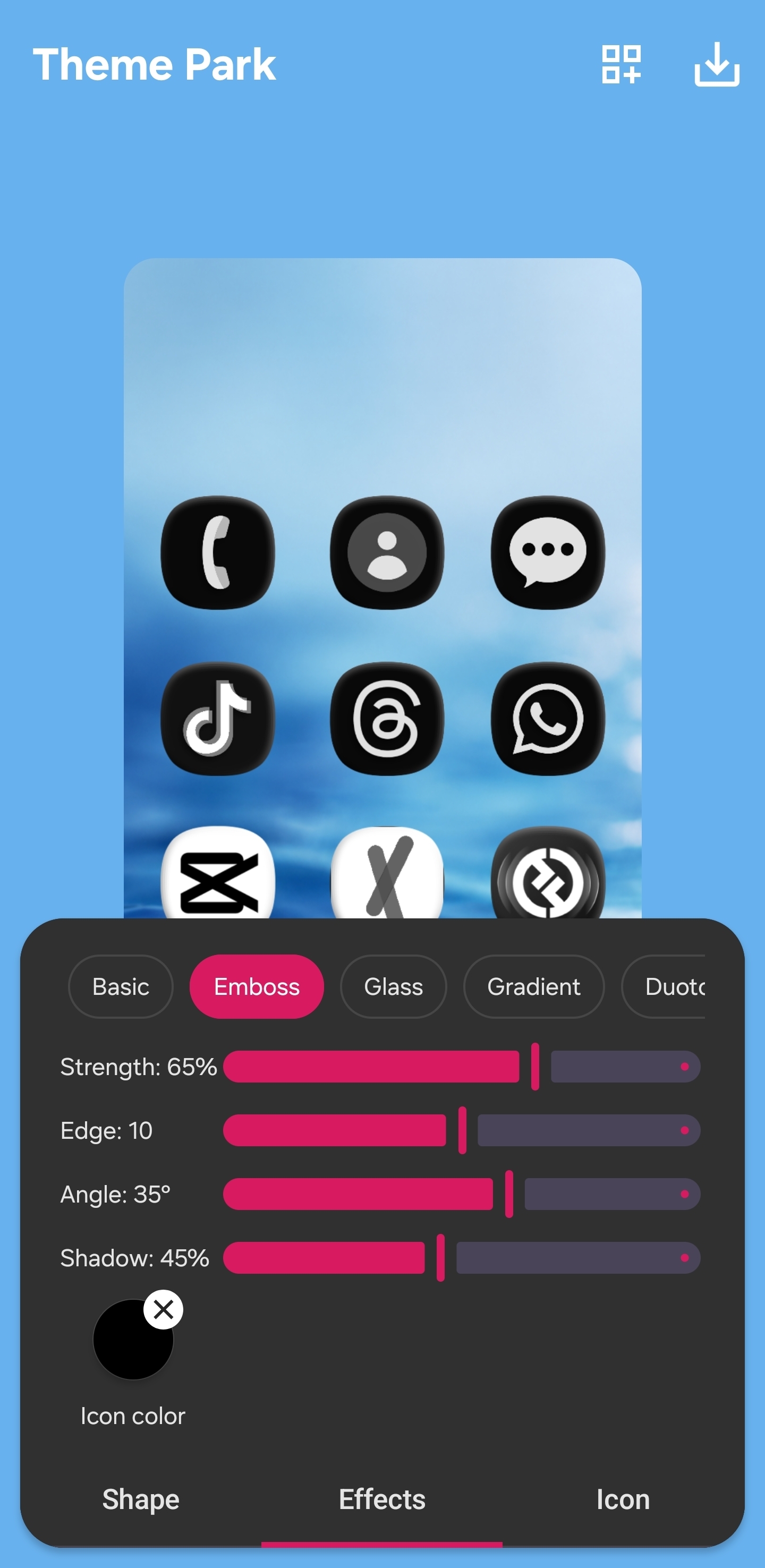
Keep the effect subtle
The live preview updates as you adjust.
Don't crank Strength past 70% or icons start looking plastic.
Save the Recipe and apply it
Hit the save icon at the top right of Theme Park, give your Recipe a name, and apply. Your home screen and app drawer now use the Recipe across every app, including the ones that don't usually support theming.
Part 4: The Finishing Touches
You're 90% there. These last tweaks are what take a setup from “nice” to “wait, what phone is that?”
Use one widget, max. A clock, a weather widget, or a calendar. One. Anything more and you're cluttering the canvas you just built.
Hide the search bar. Long press the home screen, hit Settings, and turn off the Google search bar. Most people don't need it and it eats real estate.
Match your icons to the wallpaper, not the other way around. If the dock wallpaper has warm tones, lean white. If it has cool tones, lean black. Recipe stays the same, the proportions shift.
The Recipe in One Scroll
What You Need
Good Lock plus Theme Park module (free, Galaxy Store)
A TechKitchen dock wallpaper (free or paid, browse the collection)
The Three Colors
#E2E2E2 in the Icon tab (Monochrome)
#000000 in the Effects tab (Emboss)
#090909 in the Shape tab
The Steps
1. Install Good Lock and Theme Park.
2. Set a TechKitchen dock wallpaper. Arrange icons around the painted dock.
3. Theme Park, Create new.
4. Icon tab → Monochrome → type #E2E2E2.
5. Shape tab, pick a shape (eleven options or upload your own), then Color → #090909.
6. Effects tab → Emboss → Color → #000000 (Strength 65, Edge 10, Angle 35°, Shadow 45%).
7. Save and apply.
The biggest lesson I've learned cooking up these setups: restraint beats variety. Three colors, one widget, one wallpaper that does the work. Every Recipe that ever went viral on my page followed those three rules. Try it before you start adding stuff.
Want the wallpaper?
If you want a TechKitchen dock wallpaper to pair with the Recipe in this guide, browse the dock wallpaper collection. Free options to get you started, paid options for the more polished sets. New drops every month.