Icon Recipes
The Glass Icon Recipe: Clean, See-Through Icons in Ten Minutes
TechKitchen Editor · May 15, 2026
A new Recipe for anyone chasing the clean glass look. Transparent icons, one glow color, one shape. Pairs beautifully with darker wallpapers and the setup is genuinely simple.
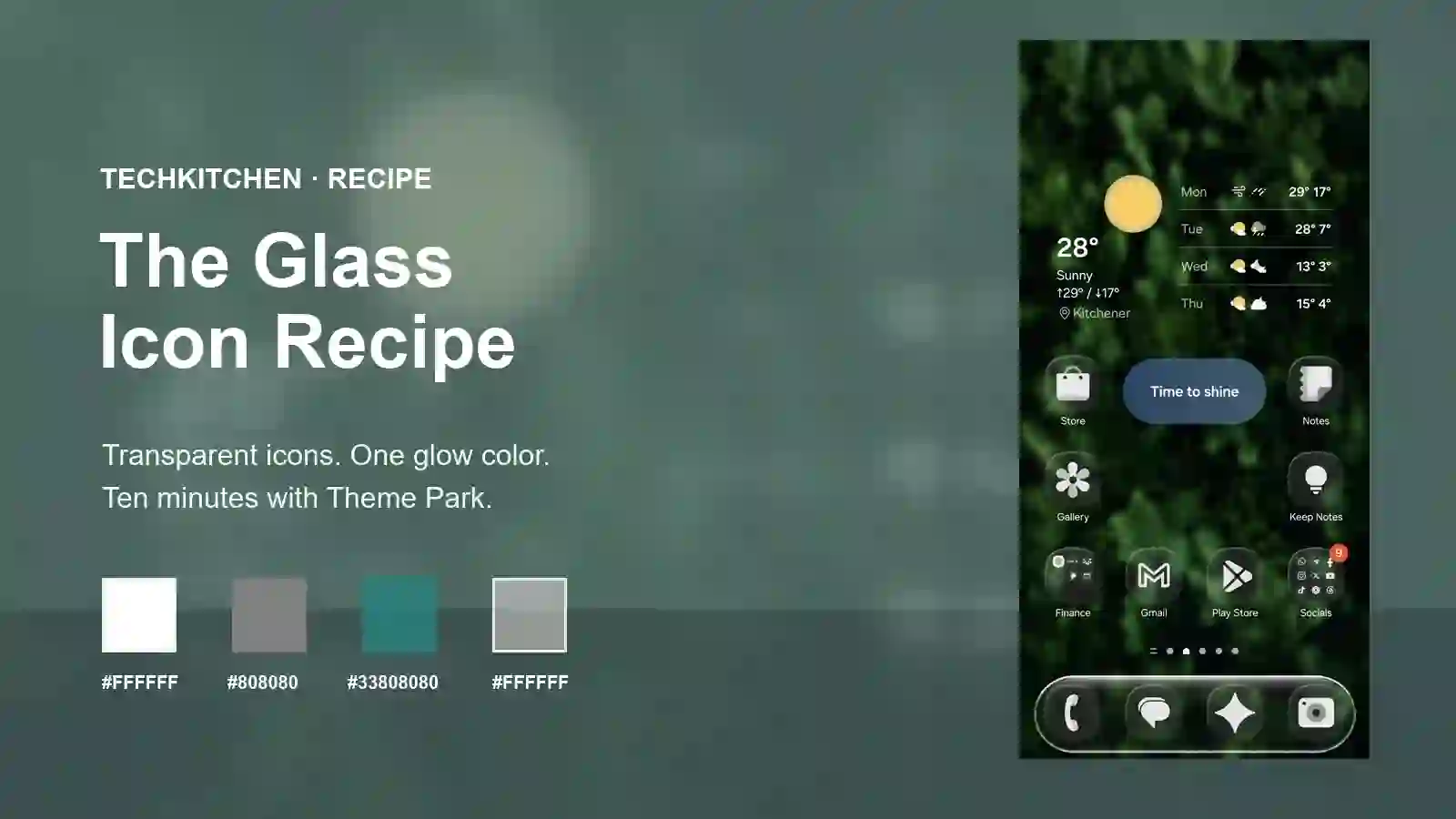
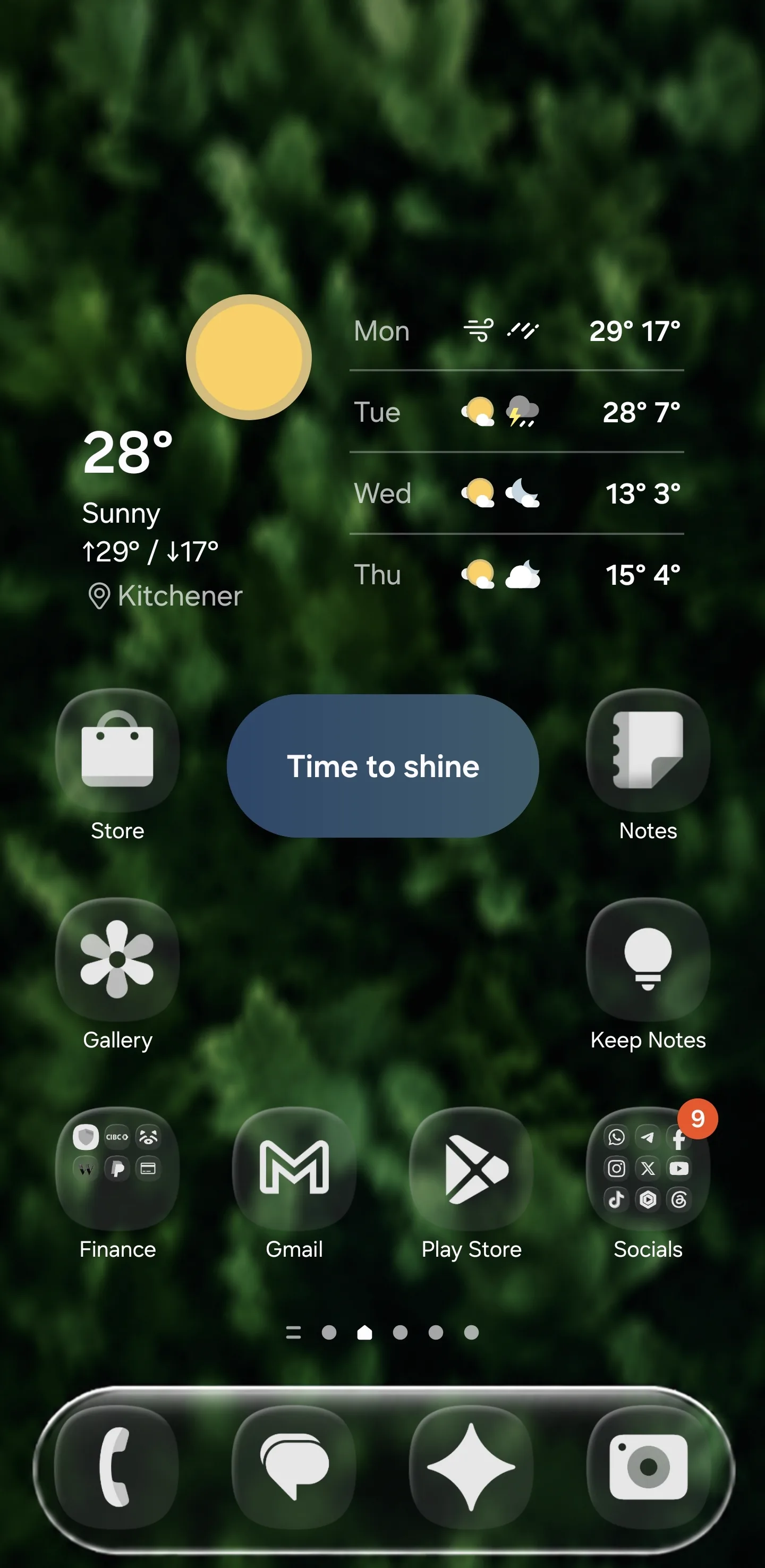
Glass icons are the easiest way to get a home screen that feels designed without doing much design. The icons turn transparent, your wallpaper does the heavy lifting, and the whole setup looks intentional even if you spent ten minutes on it.
One thing up front. Glass icons live and die by the wallpaper underneath them. On a busy light background they disappear. On a dark, slightly textured wallpaper, they pop in this subtle frosted way that looks expensive. So if you are running a bright white wallpaper, swap it before you cook this one. Trust me.
Same tools as the Samsung Icon Recipe. Good Lock plus the Theme Park module. If you already have those installed from the last Recipe, you can skip Part 1 and jump straight to Theme Park. Otherwise we'll start from zero so anyone can follow along. Let's cook.
The Recipe: Four Colors, One Effect
Glass is one of the Effect options inside Theme Park, sitting right next to Emboss and Gradient. The difference is that Glass uses transparency. Instead of painting the icon a solid color, it makes the icon shape semi-see-through and adds a soft glow ring around the edge. That's the whole trick.
The Glass Recipe Colors
The 33 in front of the Glass hex is the transparency. That's the part that makes the icons see-through.
What You Need (The Ingredients List)
Ingredients
Good Lock plus Theme Park
Free Samsung customization app from the Galaxy Store. Outside North America or Europe, search NiceLock instead.
1. Good Lock and the Theme Park module installed.
2. A darker wallpaper. I made the Glass Forest dock wallpaper specifically for this Recipe. Free download. Or browse the wider collection and pick anything with depth. Forest, night sky, water at dusk.
3. The four hex codes above.
Part 1: Install Good Lock and Theme Park
If you already cooked the Samsung Icon Recipe, your Good Lock and Theme Park are already set up. Skip to Part 2. If you're new here, this is the install. It takes two minutes.
Get Good Lock from the Galaxy Store
Open the Galaxy Store on your Samsung phone (the Galaxy Store, not the Play Store). Search Good Lock and install. If you're outside North America or Europe and Good Lock isn't available, search for NiceLock instead. Same app, different name.
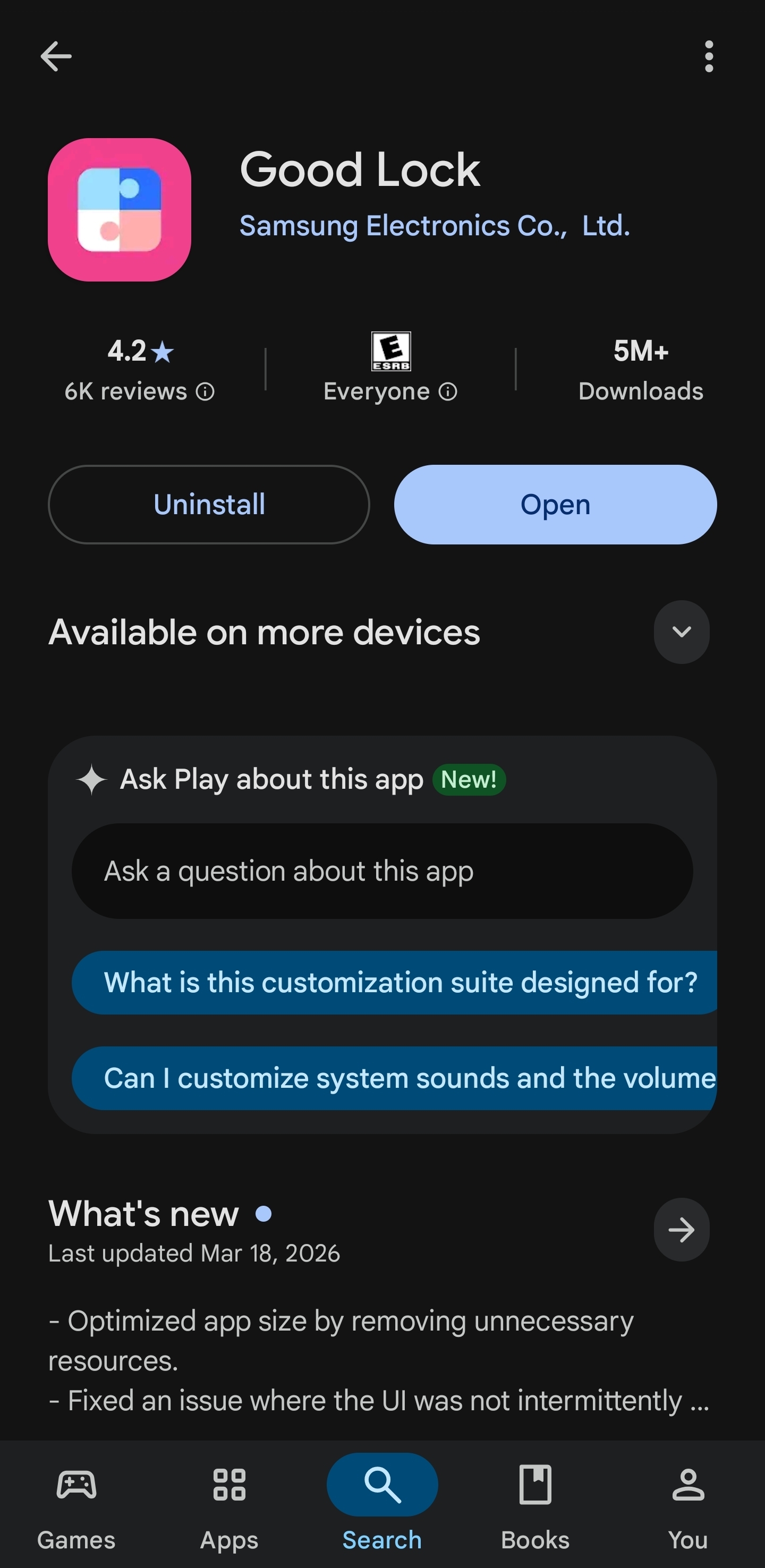
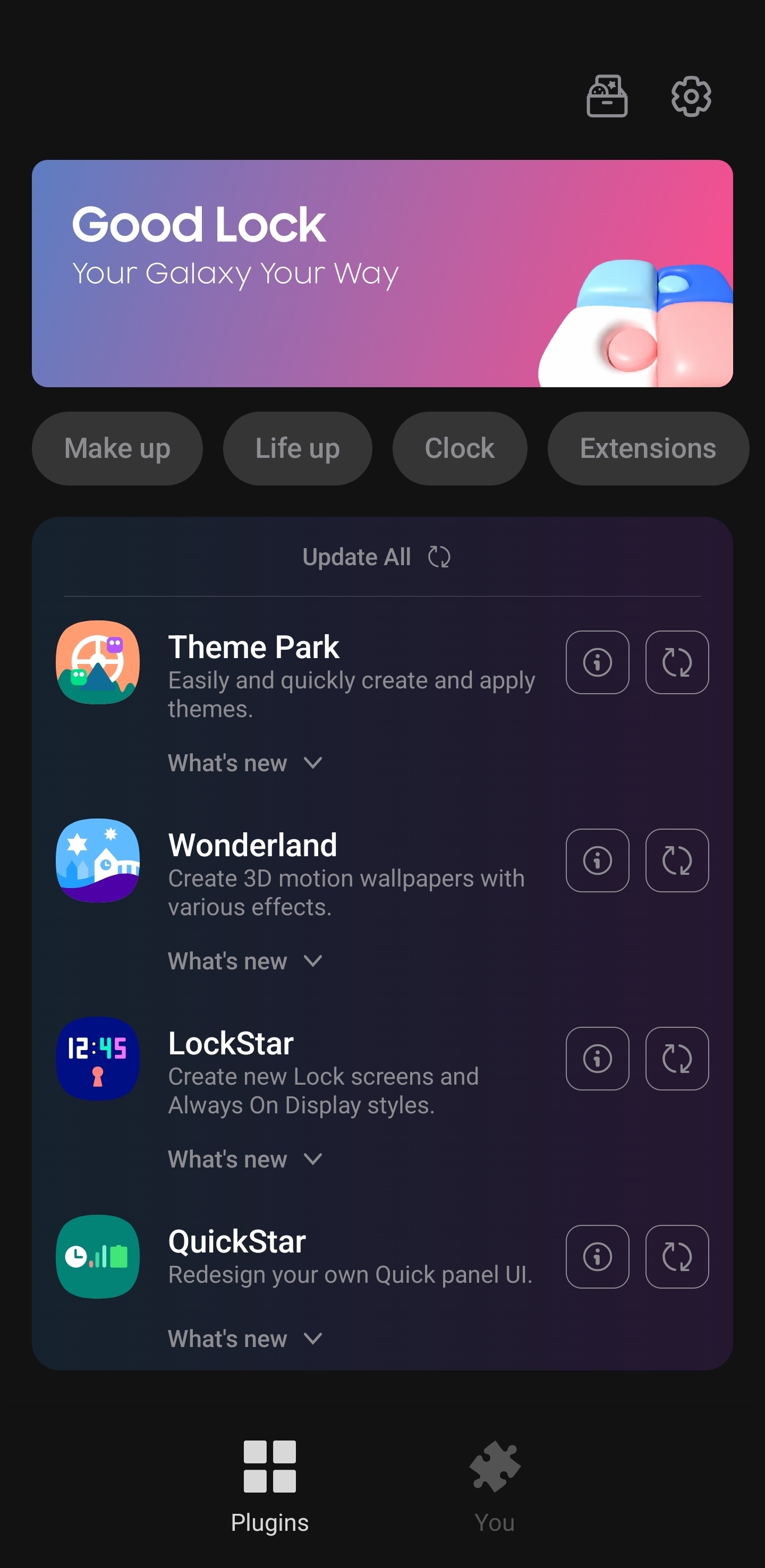
Open Good Lock and install Theme Park
Launch Good Lock. You'll see a list of plugins (Theme Park, Wonderland, LockStar, QuickStar, and more). Tap Theme Park and install it. That's the only plugin we need today.
Part 2: Open Theme Park and Start a New Recipe
Tap "Create new" inside Theme Park
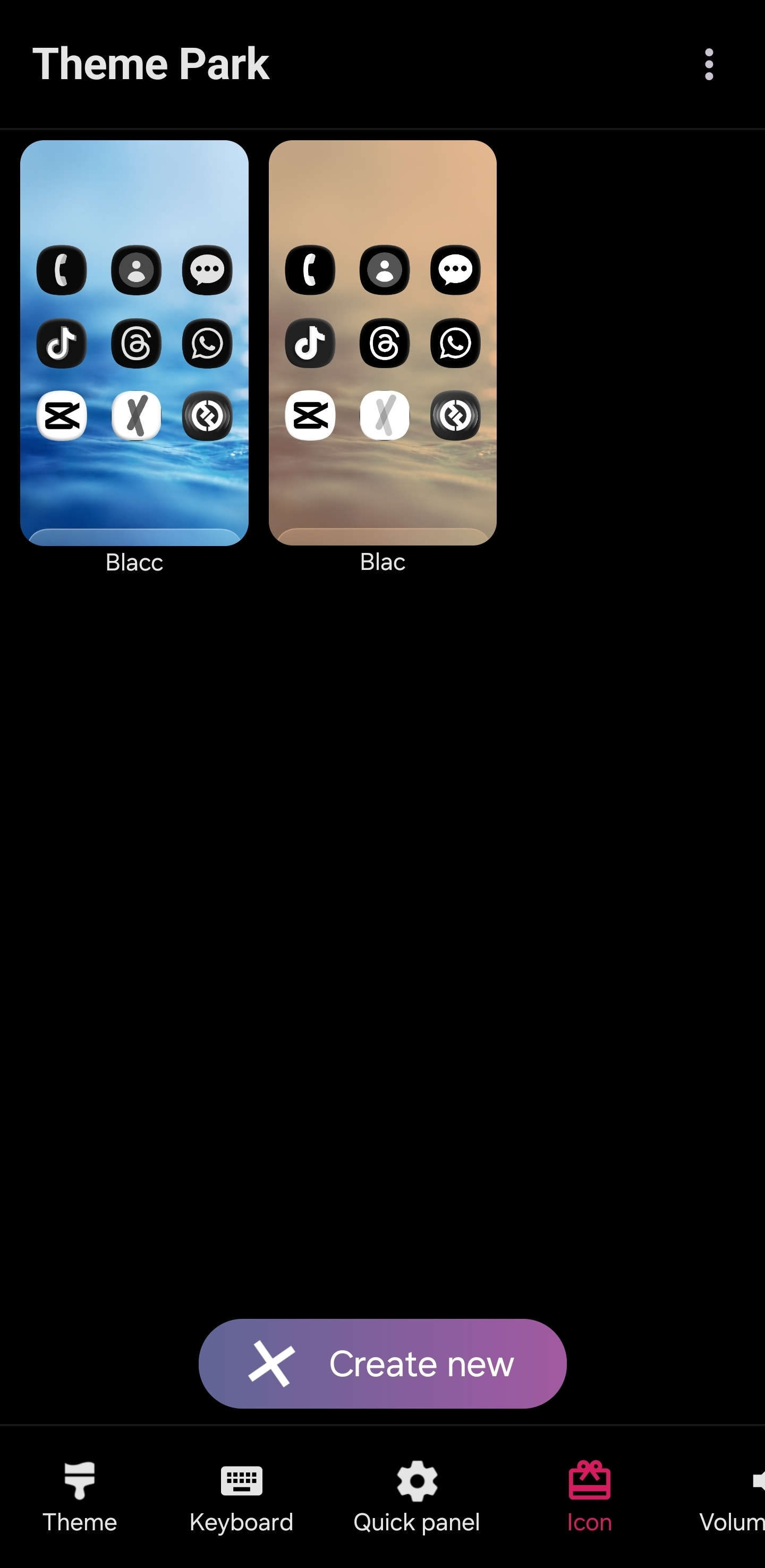
Open Theme Park from inside Good Lock or from your app drawer. Any saved Recipes show up at the top. The Create new button is at the bottom. Tap it. We're building this Recipe from scratch so the colors don't fight each other.
Part 3: Set the Icon Color
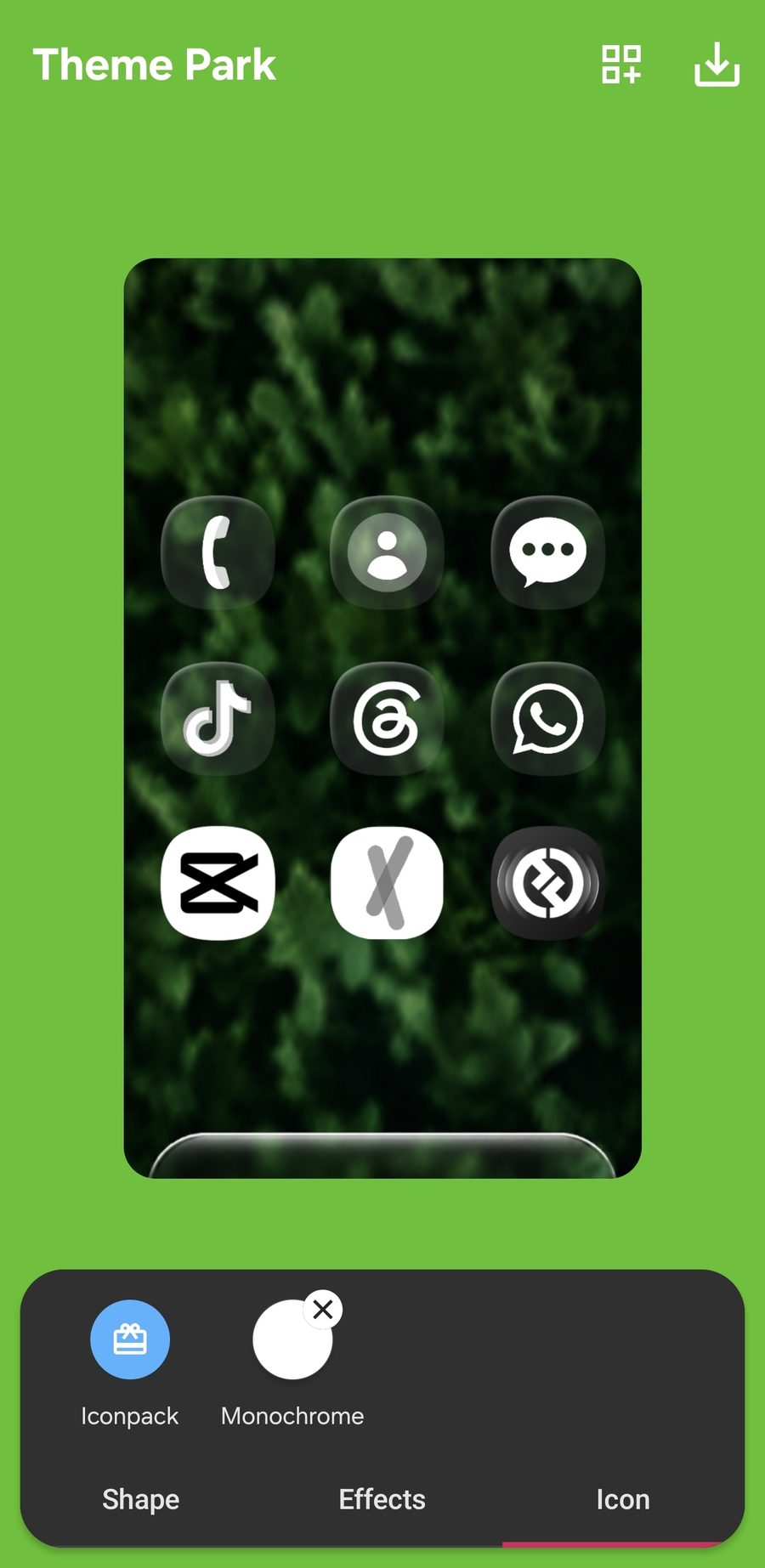
Open the Icon tab and pick Monochrome
The Icon tab is at the bottom right. Tap it, then tap Monochrome. This turns every app icon into a single-color silhouette, which is what we want before we apply the glass effect on top.
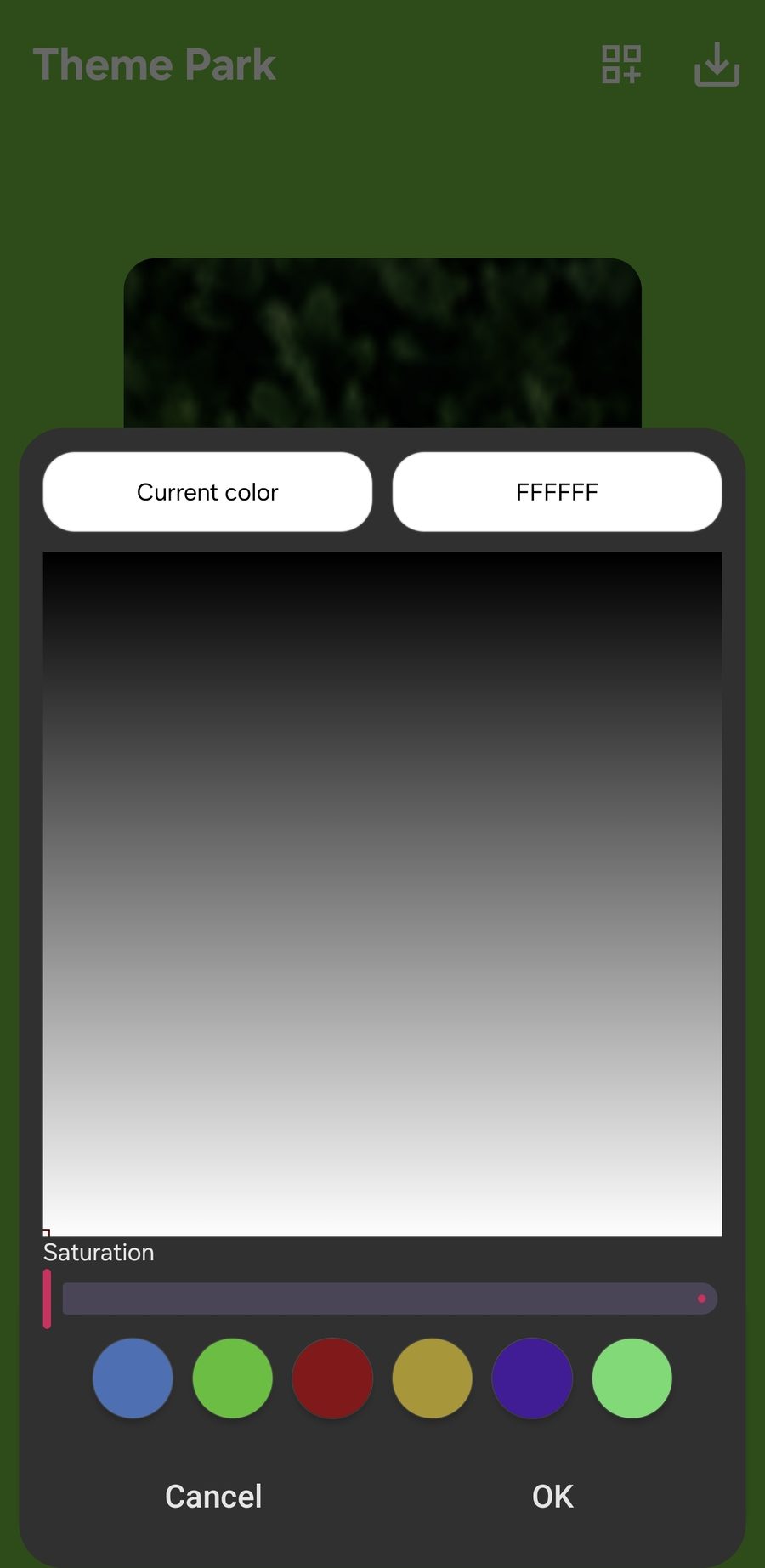
Type the icon hex code: FFFFFF
The color picker opens. At the top there is a hex field. Tap it, type FFFFFF, hit OK. White icons. Don't drag the saturation slider. The hex box is faster and exact.
Part 4: Set the Shape Color
Switch to the Shape tab and pick a shape
Bottom left. Tap Shape. You get eleven shape options plus the upload-your-own slot. For glass icons I lean toward a soft squircle (third or fourth shape in the row), but pick what matches your wallpaper vibe. Rounded shapes feel more frosted. Squared shapes feel more architectural.
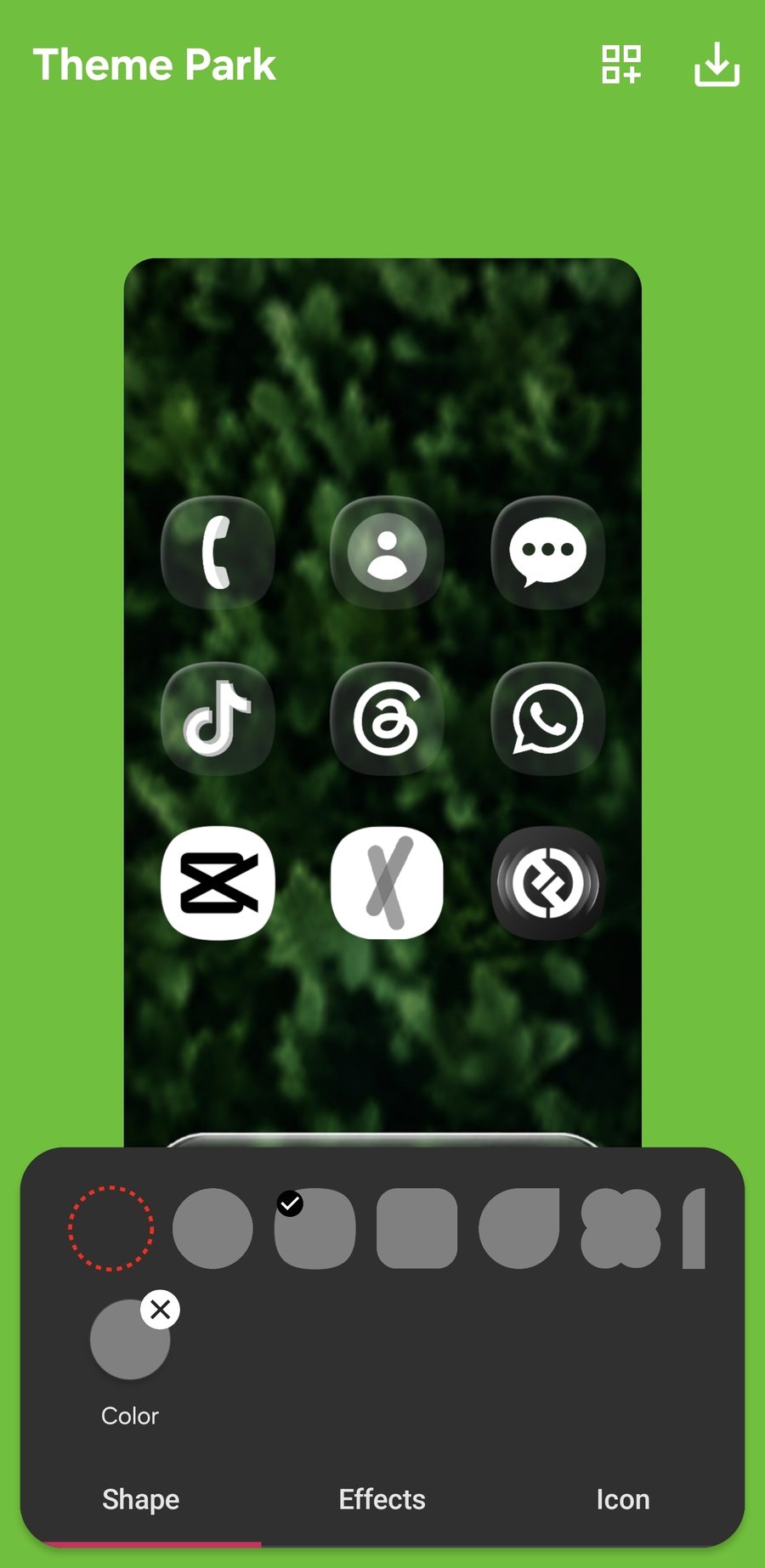
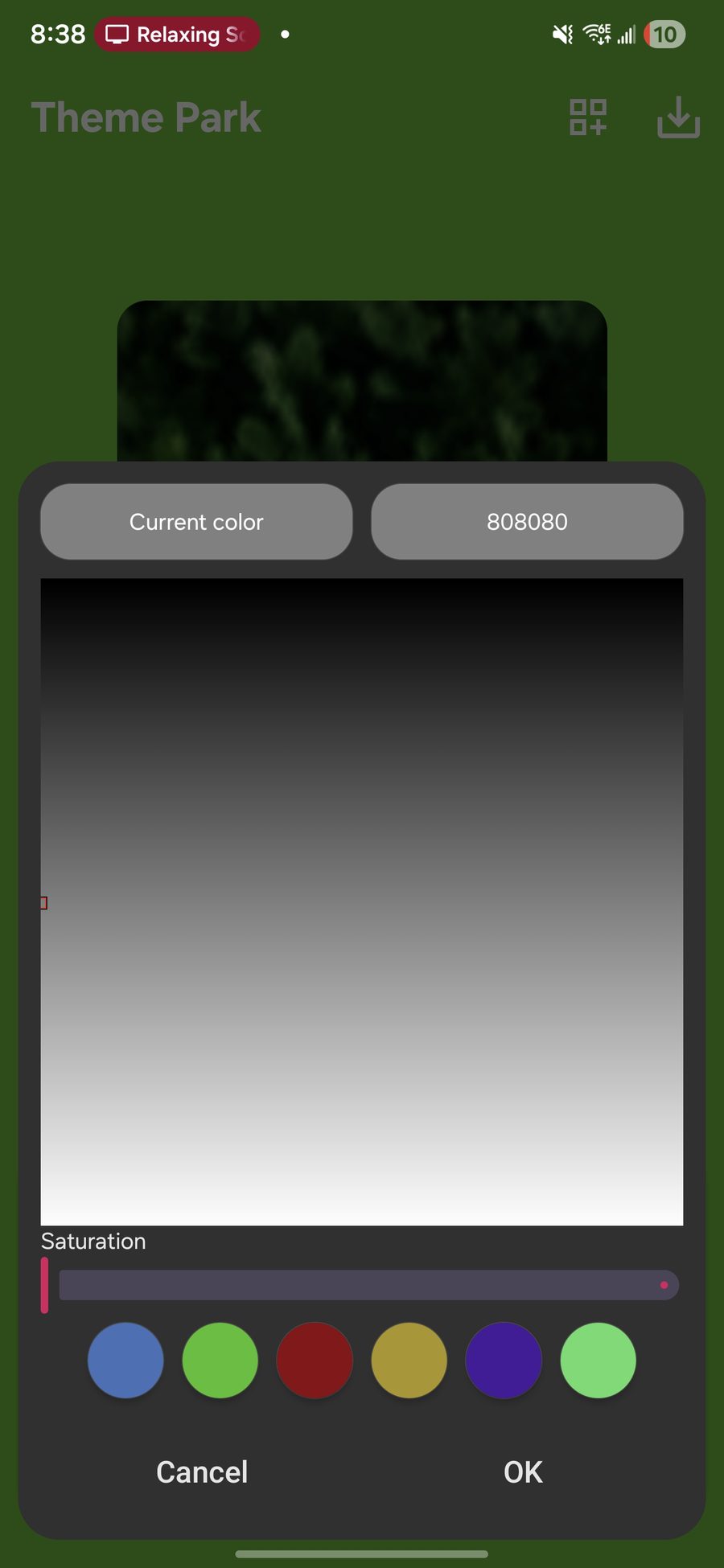
Tap Color inside the Shape tab and type: 808080
This is the color of the shape behind the icon. A medium gray (#808080) keeps things neutral so the glass effect can do its thing on top. The shape color matters less than you'd think once the Glass effect is on, but neutral gray is the safe choice.
Part 5: Apply the Glass Effect
This is where the magic happens. The Effects tab is in the middle of the bottom row.
Open Effects and tap Glass
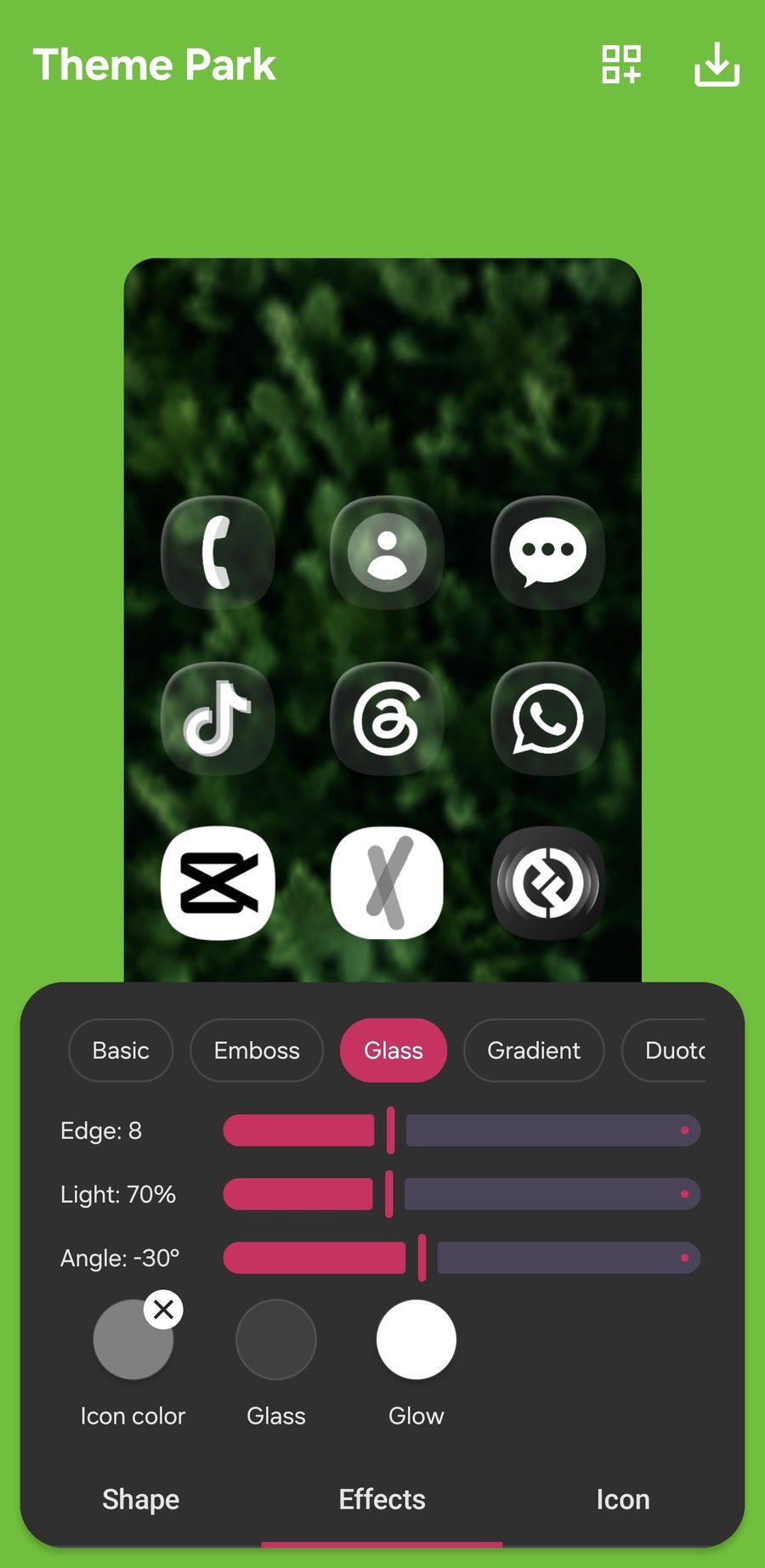
Inside the Effects tab you'll see five options. Basic, Emboss, Glass, Gradient, Duotone. Tap Glass. The preview at the top of the screen updates instantly so you can see the icons turn semi-transparent.
Glass Settings I Use
Edge: 8
Light: 70%
Angle: -30°
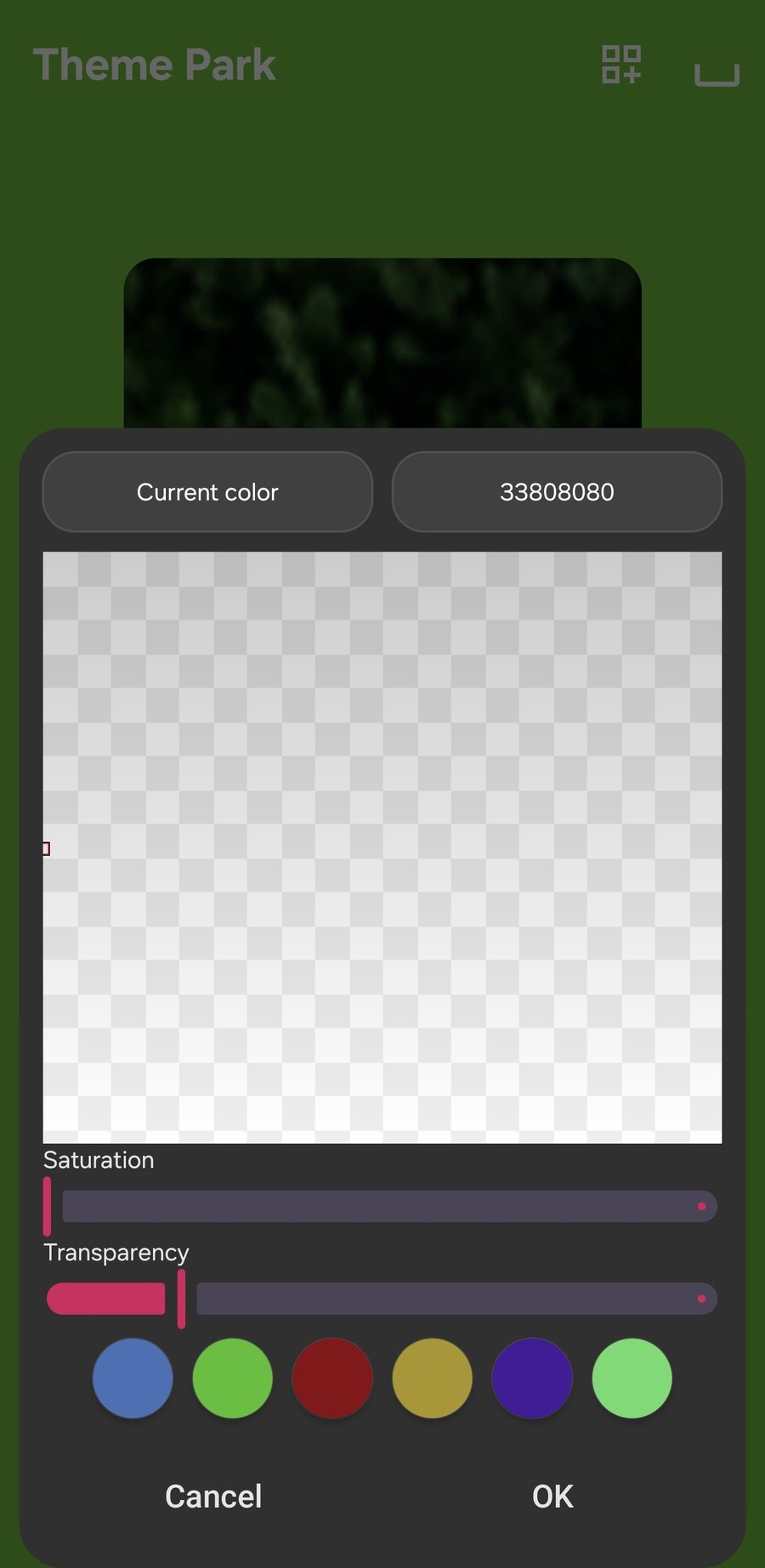
Set the Glass color: 33808080
Below the sliders there are three color circles. Icon color, Glass, Glow. Tap the Glass circle. The hex you want is 33808080. The 33 at the front is the transparency value. That's what makes the icons see-through. Without it, you'd just have a solid gray icon and the glass effect would be invisible.
Set the Glow color: FFFFFF
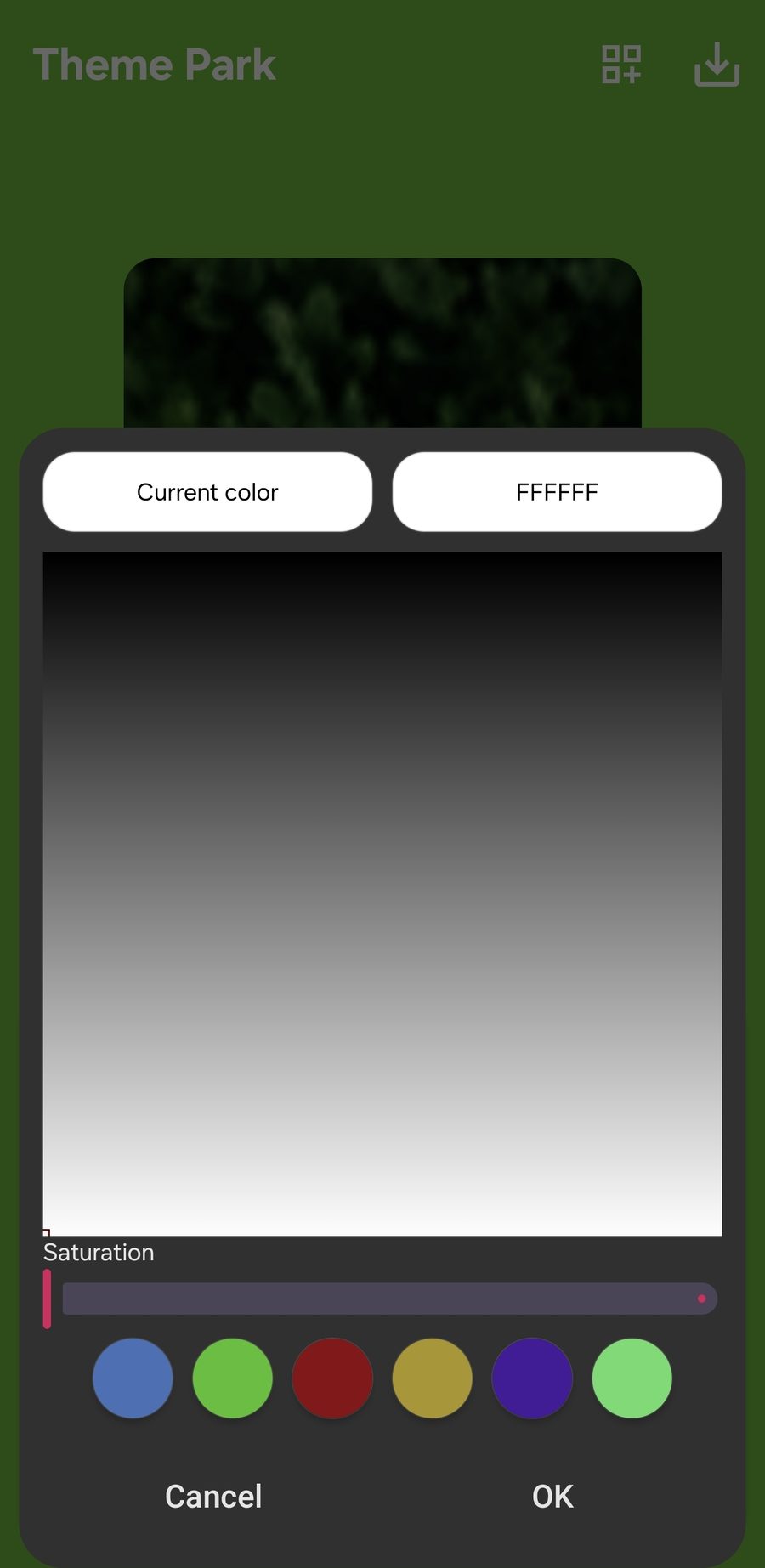
Tap the Glow circle next. Type FFFFFF. White glow is what gives glass icons that frosted ring effect around the edge. You can try other colors if you want a cooler look. Soft blue is nice for night wallpapers, warm orange works on sunset shots. But white is the safest universal pick.
Part 6: Save and Apply
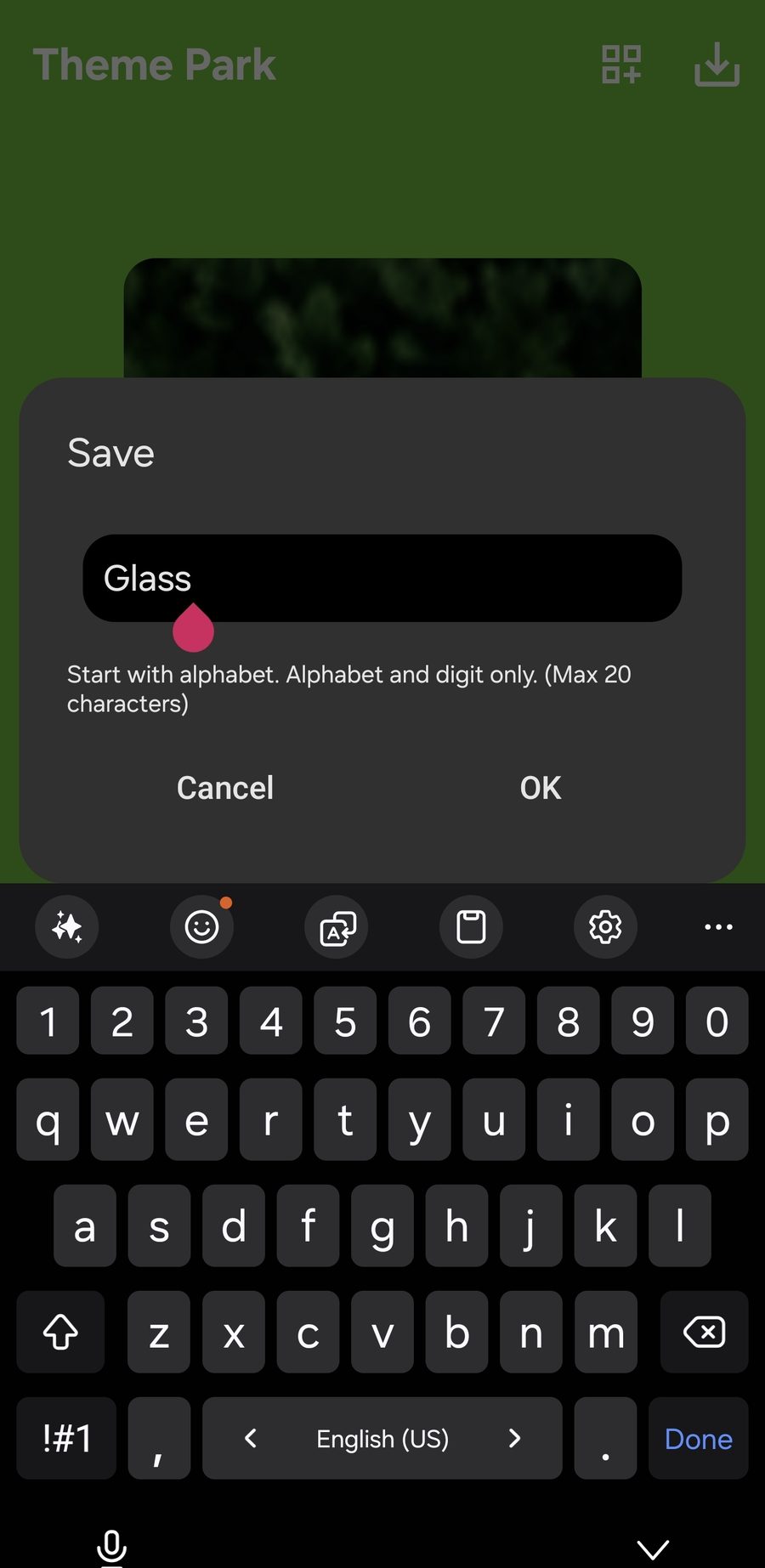
Hit the save icon, name your Recipe, tap OK
Top right of the screen, the little download-style icon. Tap it. A Save dialog pops up asking you to name the Recipe. Type something memorable. I called mine Glass. Then tap OK.
Tap Apply
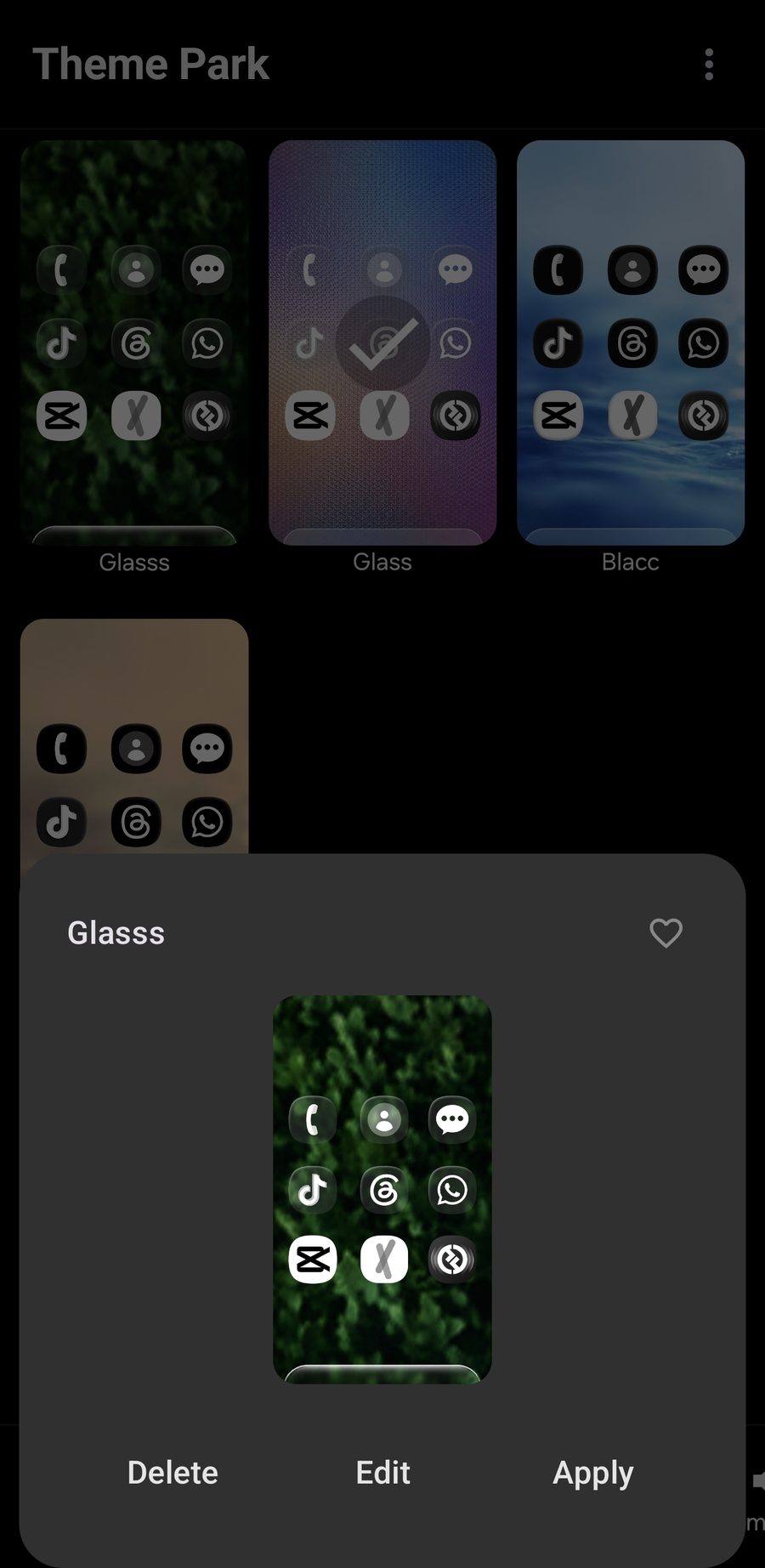
Once saved, the Recipe shows up in your Theme Park gallery. Tap it, then tap Apply at the bottom right. Your home screen and app drawer switch to the glass set instantly. No reboot. No launcher swap.
Part 7: The Finishing Touches
The Recipe is done. These last tweaks are what take it from "applied" to "actually looks designed."
Pick a darker wallpaper. I'll say it again. Glass icons need contrast under them. A forest shot, a night sky, water at dusk, dark abstract textures. Anything in that family. The Glass Forest dock wallpaper I built for this Recipe is a free download and slots right in.
Keep widgets minimal. One widget, max. Clock or weather. Glass icons already have a lot of visual texture going on. Stack too many widgets on top and the home screen starts to feel busy.
Hide the search bar. Long press the home screen, hit Settings, turn off the Google search bar. That bar fights every aesthetic setup ever made.
The Recipe in One Scroll
What You Need
Good Lock plus Theme Park (free, Galaxy Store)
A darker wallpaper. Try the Glass Forest dock wallpaper for the cleanest fit.
The Four Colors
#FFFFFF in the Icon tab (Monochrome)
#808080 in the Shape tab
#33808080 for the Glass color (Effects)
#FFFFFF for the Glow color (Effects)
The Steps
1. Install Good Lock and Theme Park.
2. Theme Park, Create new.
3. Icon tab, Monochrome, type #FFFFFF.
4. Shape tab, pick a shape, Color, type #808080.
5. Effects tab, Glass (Edge 8, Light 70%, Angle -30°).
6. Glass color, type #33808080. Glow color, type #FFFFFF.
7. Save, name it, Apply.
Glass is the easiest Recipe in the cookbook. Four hex codes, three sliders, ten minutes. The hard part isn't the setup. It's picking a wallpaper that lets the glass actually breathe. Give it the dark canvas it needs and the icons do the rest.
Want a wallpaper that fits?
I built the Glass Forest dock wallpaper specifically for this Recipe. Free. Blurred deep green forest with a clean glass dock baked into the bottom. Drop it on your home screen and the icons sit right where they should.
Want more options? Browse the full TechKitchen collection. The night, water, and forest sets pair best with the Glass Recipe.